You say “Hey Siri” and your HomePod just sits there. You say it again, louder this time, like the speaker is hard of hearing. Nothing. Or worse, it answers with “I’m having trouble connecting to the internet” while your Wi-Fi works perfectly on every other device in the house.
Real talk, a HomePod Siri not working problem is one of the most annoying smart speaker issues out there, because the whole point of the thing is that it listens. But the good news is that HomePod Siri not working is usually fixable in a few minutes, and you rarely need to send anything back to Apple.
Go through the fixes below in order. They run from the quick checks to the deeper resets, and plenty of people solve a HomePod Siri not working issue before they ever reach Fix 4. Grab your iPhone, stand near the speaker, and let’s get Siri talking again.
Why Your HomePod Siri Is Not Working (Quick Causes)
Before you start poking at settings, it helps to know what you’re dealing with. When you have a HomePod Siri not working situation, it almost always comes down to one of these:
- A weak or unstable Wi-Fi connection. Siri needs the internet for most requests, so a flaky signal makes it sound broken.
- Siri settings turned off. “Listen for Siri” or touch-and-hold can get switched off by accident.
- A language or accent mismatch. If Siri’s language doesn’t match how you speak, it mishears you constantly.
- A blocked or crowded microphone. Noise, walls and clutter around the speaker make it harder to hear you.
- Another device answering instead. Your iPhone or Apple Watch may be catching “Hey Siri” first.
- A software glitch or outdated software. HomePod runs software like any other device, and bugs happen.
- An Apple Account or Home app problem. If the speaker loses its connection to your account or home, features stop working.
- A hardware fault. This is rare, and I’ll cover it near the end.
The first six are easy to sort out at home, even when a HomePod Siri not working problem feels huge. Knowing the possible causes keeps you from resetting everything when you only needed to move the speaker three feet.
Fix 1 – Check Power, Wi-Fi and Alerts in the Home App
Start with the boring one, because it works more often than people admit. A HomePod Siri not working problem is often a connection problem wearing a disguise.
First, look at the top of the speaker, since a HomePod Siri not working complaint can start with a loose cable. If the light isn’t responding at all, make sure the power cable is plugged in firmly and the outlet works. Try a different outlet if you aren’t sure.
Next, open the Home app on your iPhone, iPad or Mac and look at your HomePod. If it says “No Response,” or if there’s an alert about Wi-Fi or your Apple Account, that’s your clue. Apple says that when HomePod can’t connect to your network or reach your account, the Home app shows an alert with details about the issue.
Now check the Wi-Fi signal:
- Open the Home app and tap your HomePod.
- Tap the Settings button.
- Scroll down to Wi-Fi Network. You’ll see a signal strength indicator.
- If the indicator shows two bars or fewer, the signal is weak.
If the signal is weak, move the HomePod closer to your router and away from things that cause interference, like microwaves or thick walls. Honestly, this one fix solves a surprising number of HomePod Siri not working cases, especially the “I can’t connect to the internet” error.
Also try restarting your router. Unplug it, wait about 30 seconds, plug it back in and give it a few minutes to come back. If other devices were struggling too, the router was the real culprit.
If everything looks fine here and the HomePod Siri not working problem continues, move on to Fix 2.
Fix 2 – Check Your Siri Settings
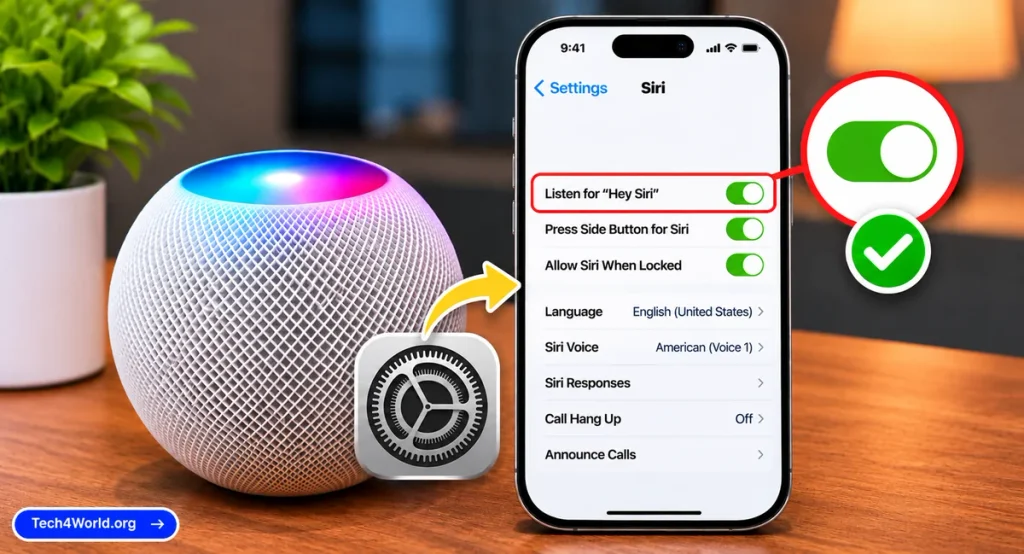
Sometimes a HomePod Siri not working issue isn’t a bug at all. A setting got switched off, and the speaker is just following instructions.
Here’s how to check:
- Open the Home app and tap your HomePod.
- Tap the Settings button.
- Look for the Siri options. Make sure Listen for “Siri” or “Hey Siri” is turned on.
- Make sure the touch-and-hold option is on too, so you can activate Siri by pressing the top of the speaker.
- Check the Siri Language setting and confirm it matches the language you’re actually speaking.
If “Listen for Siri” was off, congratulations, you just found your answer. Turn it on, then say “Hey Siri, what time is it?” from across the room.
While you’re in there, check whether you have restrictions set up for the speaker, such as limits on certain content or personal requests. If someone in your house changed these, Siri may refuse to do things it used to do.
It’s a simple check, but a HomePod Siri not working complaint often ends right here. If your HomePod Siri not working issue survives this check, keep going.
Fix 3 – Fix Mishearing, Microphone and Placement Problems
Maybe Siri responds, but it mishears you all the time. You ask for one song and it plays another, or it says “I didn’t catch that” over and over. That’s a different flavor of HomePod Siri not working, and it has its own fixes.
Check the language and accent. Siri’s language setting should match your voice. If you speak English with a certain regional accent, try the matching Siri language option in the Home app, if one is available. Switching the setting back and forth can also reset a stubborn language glitch.
Reduce background noise. A TV, a dishwasher or a fan nearby can drown out your voice. Try your command when the room is quieter to see if the speaker hears you better.
Check the placement. Put the HomePod on a solid, open surface. Keep it away from corners, thick curtains and crowded shelves, which muffle the microphones. Give it some breathing room from the wall.
Keep the top clear. The speaker listens through microphones on the top. Wipe away dust with a dry, soft cloth, and make sure nothing is sitting on or touching it.
Speak naturally. You don’t have to shout. Say “Hey Siri,” pause for a beat, then give a clear, complete command.
Check for competing devices. If your iPhone, iPad or Apple Watch is nearby, one of them might answer first. If Siri responds on your phone instead of your speaker, that’s why the HomePod seems silent. Move your phone to another room and try again. It’s a sneaky cause of HomePod Siri not working complaints.
If mishearing improves, you just solved a HomePod Siri not working problem without touching a single reset button.
Fix 4 – Restart Your HomePod
Software glitches are one of the most common reasons for a HomePod Siri not working complaint, and a restart is the fastest fix. It clears out temporary bugs without erasing anything.
Apple’s recommended way to restart a HomePod Siri not working speaker is through the Home app:
- Open the Home app on your iPhone, iPad or Mac.
- Tap or click your HomePod, then tap the Settings button.
- Scroll to the bottom and select Reset HomePod.
- Choose Restart HomePod. If you have two HomePod speakers set up as a stereo pair, select Restart HomePod too.
If you don’t see a restart option, or the speaker won’t respond to the Home app, unplug it from power, wait at least 10 seconds and plug it back in. Then wait a minute or two for it to start up fully.
Once it’s back, try a simple Siri command to see if the HomePod Siri not working problem is gone. A restart won’t delete your music, your settings or your home setup. It’s basically turning it off and on again.
Not gonna lie, this fixes more HomePod Siri not working problems than any fancy trick I know. If a HomePod Siri not working problem laughs at a restart, move on to Fix 5.
Fix 5 – Remove HomePod From Home and Add It Back
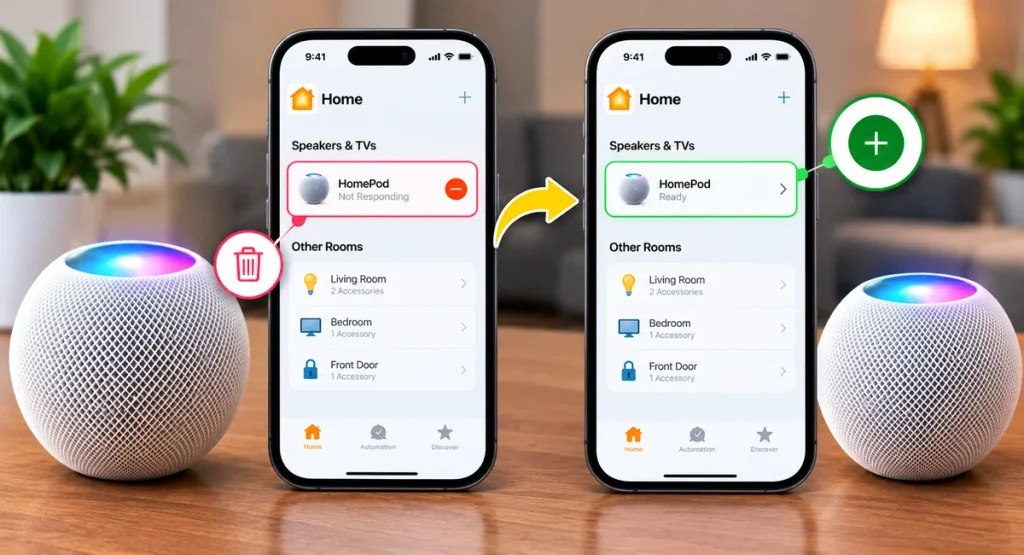
When a HomePod Siri not working problem keeps coming back, the link between the speaker, your Home and your Apple Account might be corrupted. Removing the speaker and setting it up again rebuilds that connection from scratch.
One important heads-up: in the Home app, the Reset HomePod option includes a Remove Accessory step, and that resets the speaker to its factory settings. So think of this fix as a clean reinstall. Your speaker will forget its settings and you’ll set it up again.
Here’s how:
- Open the Home app on the iPhone or iPad signed in with the Apple Account you used to set up HomePod.
- Tap your HomePod, then tap the Settings button.
- Scroll to the bottom, tap Reset HomePod, then tap Remove Accessory.
- Wait while the speaker resets. A white spinning light appears on top, and you should wait until it disappears.
- Unlock your iPhone and hold it near the HomePod to set it up again, following the prompts.
If you have two HomePod speakers set up as a stereo pair, you have to ungroup them first. In the Home app, select the paired speakers, open Settings and choose Ungroup Accessories.
During setup, make sure you’re signed in to the correct Apple Account, connected to the right Wi-Fi network, and that Siri is enabled. Choose the Siri language carefully, since a wrong language is a common reason for a HomePod Siri not working problem.
Fix 6 – Check Software Updates and Your Apple Account
If you’ve restarted and re-added the speaker and you still have a HomePod Siri not working issue, look at your software.
Update your devices. Your iPhone or iPad and your HomePod should be running current software. Open the Home app, go to Home Settings and look for software update options. A speaker running outdated software can have bugs that newer versions have already fixed. Also check for updates on the iPhone or iPad you use to manage it.
Check your Apple Account. HomePod relies on your Apple Account for things like personal requests, music and some Siri features. If you see an alert about your account in the Home app, sign out and back in, then make sure the account is working normally on your other devices.
Check your Home setup. Make sure the speaker is assigned to the right home and room in the Home app, and that your iPhone is signed in to the same Apple Account. A speaker that has lost its place in your Home can act strangely.
Check your music service. If Siri understands you but can’t play music, the music service may be the problem, not a true HomePod Siri not working issue. Sign out of the service and back in, then try again.
Updates and account fixes sound dull, but they clear up a lot of HomePod Siri not working cases that survive every other step. When everything above fails, it’s time for the heavy-duty option.
Fix 7 – Factory Reset or Restore Your HomePod
A factory reset is your last software option for a HomePod Siri not working problem. It wipes the speaker back to its out-of-the-box state, which can clear deep glitches that a normal restart can’t touch. Only use it after the earlier fixes.
You can reset in the Home app, which is the first thing to try. If that doesn’t work, reset manually. Apple’s manual steps are:
- Unplug the HomePod, or the power adapter for HomePod mini.
- Wait at least 10 seconds, then plug it back in.
- Wait about 10 seconds, then touch and hold your finger on the top of the speaker.
- Keep holding. A white spinning light will turn red, and Siri will say your HomePod is about to reset.
- After you hear three beeps, lift your finger. The speaker will reset.
When it’s finished, the speaker will chime and show a white pulsing light. Then you can hold your iPhone near it and set it up again.
HomePod mini only: if you can’t reset it, you can restore it with a computer. Plug the mini into your Mac or PC with its USB-C cable, open Finder on a Mac, or the Apple Devices app or iTunes on a PC, select the HomePod and click Restore HomePod. This resets it and updates it to the latest software.
Remember that a factory reset erases your speaker’s settings, so you’ll set up Siri, your language and your Wi-Fi from scratch. It’s a bit of a hassle, but it fixes plenty of stubborn HomePod Siri not working issues.
If you’ve done all of this and Siri still won’t behave, the problem is probably hardware. Let’s talk about that.
Quick Cheat Sheet – Match Your Symptom to the Fix
Short on time? Use this list to jump to the right step for your HomePod Siri not working problem:
- Siri doesn’t respond at all: start with Fix 1 and Fix 2, since power, Wi-Fi and settings cause most of these cases.
- “I can’t connect to the internet”: go straight to Fix 1 and check the Wi-Fi signal.
- Siri mishears you: try Fix 3 for language, placement and noise.
- Siri answers on your phone instead of the speaker: that’s a competing-device issue, covered in Fix 3.
- It worked yesterday and broke today: a restart in Fix 4 often does the trick.
- The problem keeps coming back: work through Fix 5, Fix 6 and Fix 7.
Matching the symptom first saves time, and it keeps a simple HomePod Siri not working problem from turning into a full reset you didn’t need.
When to Contact Apple or a Trusted Repair Shop
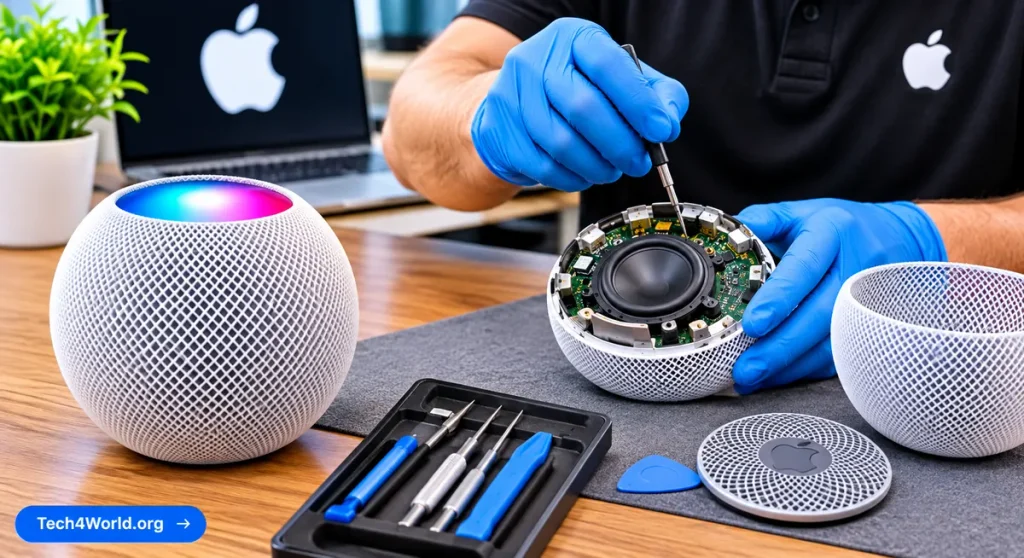
If a HomePod Siri not working problem survives a restart, a re-add and a factory reset, you’ve done everything you reasonably can at home. Now it’s time to get help.
Signs that a HomePod Siri not working problem is really hardware include:
- No lights or sounds at all, even after trying a different outlet and cable
- Siri’s microphones seem dead, with no response to any voice command, even after a full reset
- Strange noises, distorted audio or constant restarting
- The speaker keeps dropping offline even though your Wi-Fi is solid
You can contact Apple Support through the Support app or Apple’s website, or book a visit to an Apple Store or an Apple Authorized Service Provider. Before you go, write down what you tried so the technician can skip the basics.
Check your coverage too. You can enter the serial number on Apple’s website to see your warranty status. If you have AppleCare+, repairs may be covered or discounted depending on your plan.
Now for the honest part: repair or replace? If your HomePod is fairly new and covered, repair is usually the way to go. If it’s an older speaker and the repair quote is close to the price of a new one, replacing it can be the better deal. Ask for a quote first before you decide.
How to Stop HomePod Siri Problems From Coming Back
Once Siri is back to normal, a few habits help keep it that way. They’re also the best defense against another HomePod Siri not working headache.
- Keep Wi-Fi strong. Weak Wi-Fi is behind many a HomePod Siri not working complaint, so place your router centrally if you can, and avoid putting the speaker at the far edge of your coverage.
- Keep software updated. Updates for your HomePod, iPhone and iPad fix bugs that can cause a HomePod Siri not working problem.
- Give it good placement. Use a solid, open surface with some space around it, away from noisy appliances, so a HomePod Siri not working problem caused by muffled microphones never starts.
- Keep the top clean. Wipe the speaker with a dry, soft cloth now and then so the microphones stay clear.
- Review Siri settings after changes. If you change routers, Apple Accounts or languages, double-check the speaker’s settings.
- Restart occasionally. If Siri starts feeling sluggish, a quick restart often nips a problem in the bud.
None of this is complicated. Honestly, it mostly comes down to treating your speaker like any other connected device. Do that, and a HomePod Siri not working problem becomes a lot less likely.
FAQs About HomePod Siri Not Working
Question – Why is my HomePod Siri not working even though Wi-Fi is fine?
Answer – Siri settings, language mismatches or a software glitch can all cause it. Check that “Listen for Siri” is on, confirm the language, then restart the speaker. A HomePod Siri not working problem often hides behind a weak signal the speaker sees but your phone doesn’t.
Question – Why does my HomePod say it can’t connect to the internet?
Answer – This is a classic HomePod Siri not working message. The speaker may have a weak Wi-Fi signal or a temporary network problem. Check the signal strength in the Home app, move the speaker closer to the router, and restart both the router and the HomePod. If it continues, reset the speaker.
Question – Does restarting HomePod delete my settings?
Answer – No. Restarting is the safest step for a HomePod Siri not working problem. It just reboots the speaker, much like turning it off and on. Your settings, music and Home setup stay put. A factory reset is different, since it erases everything and you set up the speaker again.
Question – Why does Siri mishear me on my HomePod?
Answer – Background noise, poor placement and a wrong language setting are the usual causes. Check the Siri language in the Home app, move the speaker to an open surface and try speaking clearly. A mishearing HomePod Siri not working issue often improves after that.
Question – Can I fix HomePod Siri not working without a reset?
Answer – Often, yes. Checking Wi-Fi, Siri settings, placement and restarting the speaker solves most cases. A factory reset should be your last step, used only when the earlier fixes haven’t worked.
Final Thoughts
A HomePod Siri not working problem feels frustrating, but it’s usually something simple. Start with Fix 1, check your Wi-Fi and the Home app, and work your way down the list until Siri finally answers.
Most people with a HomePod Siri not working problem never need the harder stuff like a factory reset. And if you do end up contacting Apple, at least you’ll know you tried everything first, which makes the whole conversation easier.
Did one of these fixes solve your HomePod Siri not working problem? Drop a comment and tell us which one worked. It might save someone else a lot of stress.