
Picture this. You grab your iPad to watch a show, knock out some work, or just scroll for a few minutes, and instead of your Home Screen you get a white Apple logo staring back at you. You wait a minute. Then five. Then ten. Nothing changes. If that sounds familiar, you’re dealing with an iPad stuck on Apple logo, and honestly, it’s one of the most stressful little glitches an Apple device can throw at you.
Here’s the good news, though. An iPad stuck on Apple logo is way more common than you’d think, and in most cases it’s a software hiccup, not a dead tablet. Most of the time you can fix it at home in under an hour, and you often don’t have to lose a single photo or file.
In this guide, I’m going to walk you through every fix that actually works, in the order you should try them, from the easy stuff to the last-resort options. We’ll cover why an iPad stuck on Apple logo happens in the first place, how to force restart it, how to use recovery mode without wiping your data, and when it’s time to stop and call Apple. Grab your charger, take a breath, and let’s get your iPad back.

What Does an iPad Stuck on Apple Logo Actually Mean?
Let’s start with what’s really going on under the hood. When you press the power button, your iPad kicks off a startup sequence. It wakes up the hardware, loads the operating system, and then hands control over to iPadOS, which is the software that shows your apps and Home Screen. The Apple logo is basically the first thing you see while all of that is happening.
When you have an iPad stuck on Apple logo, that handoff fails somewhere along the way. The iPad starts up, shows the logo, and then can’t finish loading the system. Sometimes the screen just freezes on a plain logo. Other times you’ll see a thin progress bar under the logo that barely moves. And in some cases the iPad keeps restarting in a loop, showing the logo, going black, then showing the logo again. All three of those are versions of the same problem.
Why does it matter which version of an iPad stuck on Apple logo you’re seeing? Because a progress bar usually means the iPad is still working on something, like an update, so a little patience can actually help. A frozen logo with no bar, or a nonstop restart loop, usually means you need to step in. Keep that in mind as we go, because it changes which fix you should try first.
Why Your iPad Gets Stuck on the Apple Logo
Before we jump into the fixes, it helps to know what probably caused your iPad stuck on Apple logo problem. You don’t need to be a tech wizard here. Just knowing the usual suspects can help you avoid a repeat performance. Here are the most common reasons.
- An interrupted or failed update. This is the big one. If your iPad lost Wi-Fi, ran out of battery, or got shut off in the middle of an iPadOS update, the system files can end up half-installed. The iPad then can’t finish booting, and you land on the logo.
- Not enough storage. Updates need breathing room to download and unpack. If your iPad was packed to the gills, the install may have choked halfway through.
- A bad restore from backup. Restoring from a corrupted or incomplete backup can leave the system in a weird state and send you straight to a frozen logo.
- Jailbreaking or unofficial software. If you’ve ever modified your iPad with a jailbreak, those tweaks can break the startup process, especially right after an update.
- Beta software. Public and developer betas are fun until they aren’t. Betas are unfinished by nature, and a buggy build can absolutely leave you with an iPad stuck on Apple logo.
- A worn-out battery or charging trouble. If the battery is tired or the iPad isn’t getting enough power, it may not have enough juice to finish booting.
- Hardware damage. Drops, water exposure, or a failing storage chip can cause the same symptom. This is the least common cause, but it’s also the one you can’t fix with software.
Not gonna lie, you often won’t know for sure which one caused your iPad stuck on Apple logo mess, and that’s totally fine. The fixes below go from least invasive to most invasive, so you’ll cover most causes without needing a perfect diagnosis.
Quick Checks for an iPad Stuck on Apple Logo
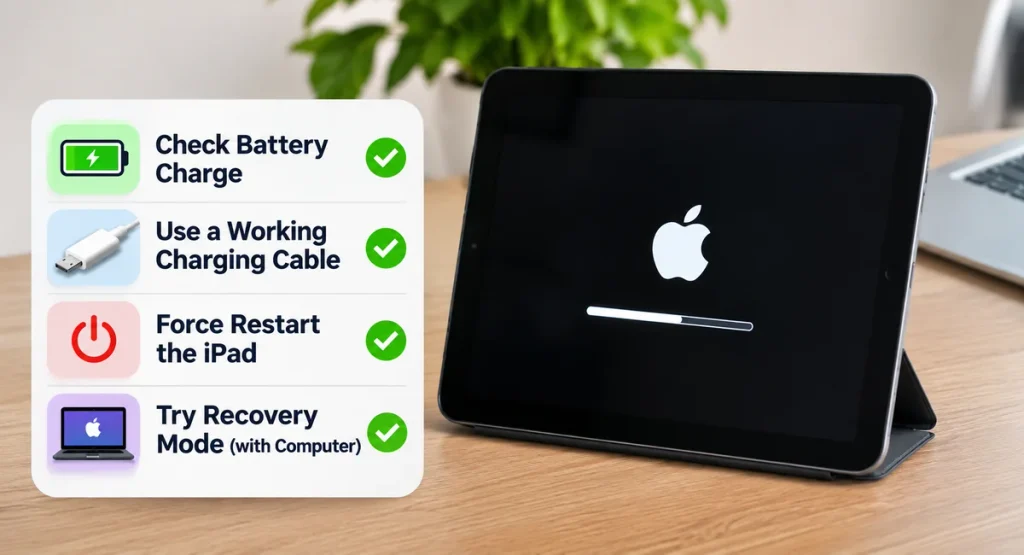
Before you start mashing buttons like you’re playing a fighting game, take two minutes to rule out the simple stuff. A surprising number of cases of an iPad stuck on Apple logo come down to something small.
- Plug it in. Connect the iPad to a wall outlet using the original cable and power adapter if you still have them. A low battery can look a lot like a software crash.
- Look closely at the screen. Is there a thin progress bar under the logo? If yes, the iPad might still be installing something, and you should treat it differently than a totally frozen screen.
If none of that changes anything after about an hour, it’s time to move on to the real fixes for your iPad stuck on Apple logo.
Fix 1 – Charge Your iPad and Be Patient
I know, I know. “Just wait” is the most annoying advice ever. But hear me out. If your iPad was updating when it got stuck, especially during a big update, the progress bar can crawl.
Here’s what I’d do with an iPad stuck on Apple logo. Plug it into power and leave it alone for at least an hour. Don’t press any buttons and don’t unplug it. If there’s a progress bar and it’s inching forward, even slowly, you’re fine. But if you’ve charged it for a solid hour and the screen hasn’t changed at all, or the iPad keeps restarting, then it’s time to step in. Waiting much longer than that rarely helps an iPad stuck on Apple logo.
Fix 2 – Force Restart an iPad Stuck on Apple Logo
A force restart is the first real fix for any iPad stuck on Apple logo problem, and it’s the one that works most often. The best part is that it doesn’t erase a thing, even on an iPad stuck on Apple logo. It just cuts power to the system and starts fresh, kind of like pulling the plug on a desktop computer. The button combo depends on which iPad you have, so pick the right one below.
iPad models with a Home button
- Press and hold the Home button and the top button at the same time.
- Keep holding both buttons, even when the Apple logo shows up. Don’t let go early.
- Release when the screen goes dark and the Apple logo comes back, which means the iPad is restarting. This can take 10 to 15 seconds, so be patient.
iPad models without a Home button
This covers iPad Pro, newer iPad Air, newer iPad mini, and the latest standard iPad models.
- Press and quickly release the volume button closest to the top button.
- Press and quickly release the volume button farthest from the top button.
- Press and hold the top button until the iPad restarts and the Apple logo appears again.
Timing matters here when you’re fixing an iPad stuck on Apple logo. The first two presses should be quick taps, and the last one is a long hold. If you hold a button too long early on, it won’t register the sequence properly.
If your iPad boots normally after this, awesome, you’re done. Head to Settings, check Software Update, and make a backup right away. But if it ends up as an iPad stuck on Apple logo again after a force restart, don’t sweat it. Recovery mode is next, and it’s a pretty powerful fix.
Fix 3 – Recovery Mode for an iPad Stuck on Apple Logo (Keeps Your Data)
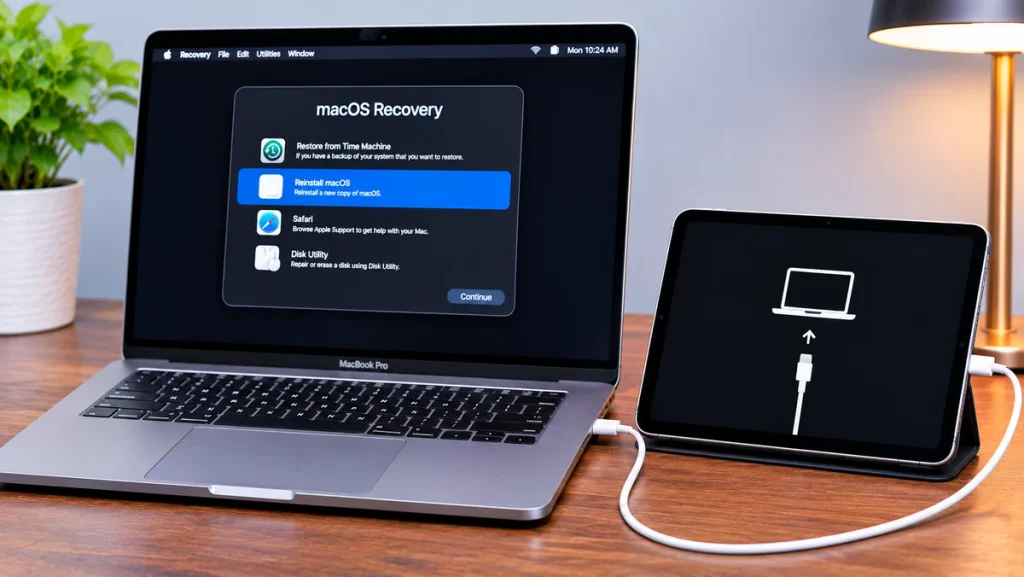
If force restart didn’t work, recovery mode is your best shot. And here’s the part most people miss: you don’t have to wipe your iPad. Recovery mode gives you two options, Update and Restore. Update reinstalls iPadOS while trying to keep your data in place. That’s the one you want first. Real talk, this single step fixes a huge number of iPad stuck on Apple logo cases without anyone losing a thing.
Here’s what you’ll need to fix your iPad stuck on Apple logo: a Mac or a Windows PC, a good USB cable, and your iPad. On a Mac running macOS Catalina or later, you’ll use Finder. On a Windows PC, you’ll use the Apple Devices app or iTunes. On an older Mac, you’ll use iTunes.
- Open Finder on your Mac, or open the Apple Devices app or iTunes on your Windows PC.
- Connect your iPad to the computer using a cable.
- Put your iPad in recovery mode. On models with a Home button, hold the Home button and the top button together. On models without a Home button, tap volume up, tap volume down, then hold the top button. Keep holding even after the Apple logo appears, until you see the recovery mode screen, which usually shows a cable or a computer icon.
- On your computer, find your iPad. A message should pop up saying there’s a problem and giving you the choice to Restore or Update.
- Click Update. Your computer will try to reinstall iPadOS without erasing your data.
- Wait for it to finish, and don’t unplug anything while it’s working.
Here’s something that trips people up with an iPad stuck on Apple logo. The software download can take a while, and if it takes more than about 15 minutes, your iPad will leave recovery mode on its own. If that happens, just let the download finish on your computer and repeat step three. It’s super common, so don’t assume the whole thing failed.
If the update works, that iPad stuck on Apple logo will restart and you’ll land on the setup screen or your Lock Screen, with your apps and data intact. Pretty sweet, right? If you get an error instead, or your computer says the update couldn’t be completed, you may need to restore, which is the next fix.
Fix 4 – Restore an iPad Stuck on Apple Logo When Update Fails
Okay, so the Update option failed. The next step is a full restore. Heads up before you click anything: restoring erases everything on your iPad and installs a fresh copy of iPadOS. But if your iPad stuck on Apple logo won’t budge any other way, a restore solves the majority of software-related cases.
Here’s how it goes for an iPad stuck on Apple logo. Put your iPad back in recovery mode using the same steps as before, connect it to your computer, and this time click Restore when the prompt appears. Your computer will download the latest iPadOS, wipe the iPad, and install it clean. When it’s finished, your iPad will start up like a brand new device.
After the restore finishes, here’s what to keep in mind:
- Restore from a backup if you have one. During setup, you can pull your data back from iCloud or from a backup saved on your computer.
- Keep your Apple Account password handy. If Find My iPad was turned on, Activation Lock will ask for your Apple Account info before the iPad lets you in. That’s a security feature, and it’s a good one, but it can catch you off guard.
- No backup means a clean slate. If you never backed up, your data is gone after a restore. That’s the painful part, and it’s why we’ll talk about prevention in a bit.
Fix 5 – DFU Mode for an iPad Stuck on Apple Logo (Last Resort)
DFU stands for Device Firmware Update, and it’s a deeper level of restore than recovery mode. In DFU mode, your iPad connects to your computer without loading the bootloader or the operating system first, which allows a more thorough reset. Think of it as the final software option when recovery mode can’t fix an iPad stuck on Apple logo.
The easiest way to tell the difference is the screen. In recovery mode, you see a cable or computer image. In DFU mode, the screen stays completely black, but your computer still detects the iPad and offers to restore it. Getting into DFU mode is all about button timing, and the exact sequence changes from model to model, so if you have an iPad stuck on Apple logo, I’d recommend following the steps for your specific iPad from Apple’s support site or a trusted guide. If the timing is off, just try again.
A quick heads up: a DFU restore erases your data, just like a regular restore. Only use it after Update and Restore in recovery mode have both failed.
Fix 6 – Rule Out Hardware Problems
If you’ve worked through every step and your iPad is still stuck on the Apple logo, the problem might not be software at all. Hardware issues can mimic software ones, and no amount of restoring will fix a physically damaged part. Here are some signs your iPad stuck on Apple logo problem is hardware related.
- The iPad was dropped, bent, or crushed before the problem started.
- It got wet or was exposed to a lot of moisture or humidity.
- The battery was already acting up, with sudden shutdowns at 30 or 40 percent, swelling, or unusual heat.
- Restores keep failing with the same numbered error, and errors like 4013 or 4014 often point to a hardware issue.
If any of that sounds like your situation, stop repeating the same fixes. Forcing restores on a failing device won’t help, so it’s time to talk to the pros.
How to Keep Your iPad From Getting Stuck on the Apple Logo Again
Once your iPad is working again, let’s make sure you don’t end up with an iPad stuck on Apple logo a second time. A few simple habits go a long way, and none of them take much effort.
- Keep your storage from filling up. Before any update, make sure you’ve got a healthy chunk of free space. Delete old videos, offload apps you don’t use, and clear out downloads. More free space means a smoother update.
- Charge before you update. Keep the iPad above 50 percent, or better yet, leave it plugged in during the whole update.
- Use stable Wi-Fi. A dropped connection mid-download is a classic way to corrupt an update. Stick to a strong, reliable network.
- Think twice about betas. If you love trying new features, do it on a spare device, not the iPad you rely on every day.
- Back up regularly. iCloud Backup runs automatically when your iPad is plugged in, locked, and on Wi-Fi. Every now and then, make a backup on your computer too. It’s a solid deal for about ten minutes of effort, and it takes the sting out of any future iPad stuck on Apple logo moment.
Do all of that and the chances of seeing an iPad stuck on Apple logo again drop a lot.
When an iPad Stuck on Apple Logo Needs Apple Support
There’s no shame in tapping out. If you’ve tried a force restart, recovery mode Update, and a full Restore, and you’re still staring at an iPad stuck on Apple logo, it’s time to call in backup. At that point you’re probably dealing with hardware, and no home fix will solve it.
- Apple Support. You can chat with them, call them, or book a Genius Bar appointment at an Apple Store. They have diagnostic tools that you simply can’t use at home.
- An Apple Authorized Service Provider. These are third-party shops that Apple certifies, and they can often handle repairs without the wait of an Apple Store.
- Check your warranty first. Look up your coverage on Apple’s Check Coverage page. If you’ve got AppleCare+ or you’re still within the warranty window, a repair could cost you a lot less than you’d expect.
Also, be real with yourself about the numbers. For an older iPad, a pricey repair, like a logic board replacement, might cost more than the tablet is worth. Sometimes the smarter move for an iPad stuck on Apple logo is to put that money toward a newer iPad and restore your backup onto it.
Frequently Asked Questions
Question – How long should I wait with an iPad stuck on Apple logo?
Answer – If you see a progress bar that’s moving, even slowly, give it up to an hour or so while it’s plugged in. If the logo is totally frozen, with no progress for an hour, move on to a force restart.
Question – Can I fix an iPad stuck on Apple logo without a computer?
Answer – Sometimes. Waiting while it charges and doing a force restart don’t need a computer at all. But recovery mode and DFU mode do need a Mac or a Windows PC. If you don’t own one, borrow a friend’s computer or visit an Apple Store, and they can help you out.
Question – Will I lose my data with an iPad stuck on Apple logo?
Answer – Not necessarily. A force restart doesn’t erase anything, and the Update option in recovery mode tries to keep your data. Only Restore wipes your iPad. This is exactly why having a recent backup matters so much.
Question – Why does my iPad stuck on Apple logo keep restarting?
Answer – That’s called a boot loop, and it usually means the system files are corrupted or an update didn’t finish properly. Try a force restart first, then recovery mode with Update, and then Restore if you have to.
Final Thoughts
Dealing with an iPad stuck on Apple logo feels awful in the moment, but most of the time it’s fixable. Start with the basics: charge it and give it a little time. Then try a force restart. If that doesn’t work, use recovery mode and pick Update to protect your data. Only restore if you have to, and save DFU mode for last. If nothing works, it’s probably hardware, and Apple or an authorized repair provider is your next stop.
Honestly, the best thing you can do right now is back up your iPad the moment it’s working again. Do that, and the next iPad stuck on Apple logo scare won’t feel nearly as scary. Got your iPad back? Nice, go enjoy it. And if it’s still being stubborn after all this, you now know exactly what to tell Apple Support.