If you’ve owned an iPhone for more than a few years, you probably have a complicated relationship with Siri. You ask it a simple question, it hears something totally different, and you end up typing the thing yourself like it’s 2012. Honestly, I stopped asking Siri for anything beyond timers a long time ago.
That’s why Siri AI is such a big deal. Apple rebuilt the assistant from the ground up, and Siri AI is now the headline feature of iOS 27, which landed on September 14, 2026. It can hold a real back-and-forth conversation, pull answers from your own messages and photos, and actually do things inside your apps.
Not gonna lie, I went in skeptical. But after living with Siri AI for a while, I get why people are talking about it. It’s not perfect, and Apple still labels it as a beta, but it’s miles ahead of the old version.
In this guide, I’ll break down what Siri AI is, what it can do, which devices get it, and how to turn it on. Then we’ll get into tips, common problems, and how it stacks up against the competition. Grab your iPhone and let’s get into it.
What Is Siri AI
Siri AI is an entirely new version of Siri, powered by the next generation of Apple Intelligence. Apple describes it as more intelligent, knowledgeable, and capable than the Siri you grew up with. Instead of matching your words to a short list of canned commands, Siri actually understands what you’re asking and figures out how to help.
Think of the old Siri as a vending machine. You pressed the exact right button, and out came a snack. If you pressed the wrong one, you got nothing. Siri AI is more like a helpful friend who knows your schedule, your photos, and what’s on your screen.
Here’s what sets the new Siri apart from classic Siri in plain terms:
- It holds a real conversation. You can ask follow-up questions without repeating yourself.
- It knows your stuff. It can search your emails, texts, photos, notes, and files to find what you mean.
- It knows the world. It can look up current information from the web, like other chatbots do.
- It can act inside apps. It can do things like add a calendar event or send photos for you.
Apple says the AI runs partly on your device and partly on its Private Cloud Compute servers, which are designed to keep your data private. MacRumors also reports that Apple built the models behind Siri in collaboration with Google, using technology behind the Gemini models. So Siri AI is a team effort under the hood, even if the Apple name is on the front.
One more thing to keep in mind: Siri still carries a “Beta” label in Settings. It’s out in the world and plenty of people are using it, but Apple is still adding features and languages as it goes.
Siri AI Key Features
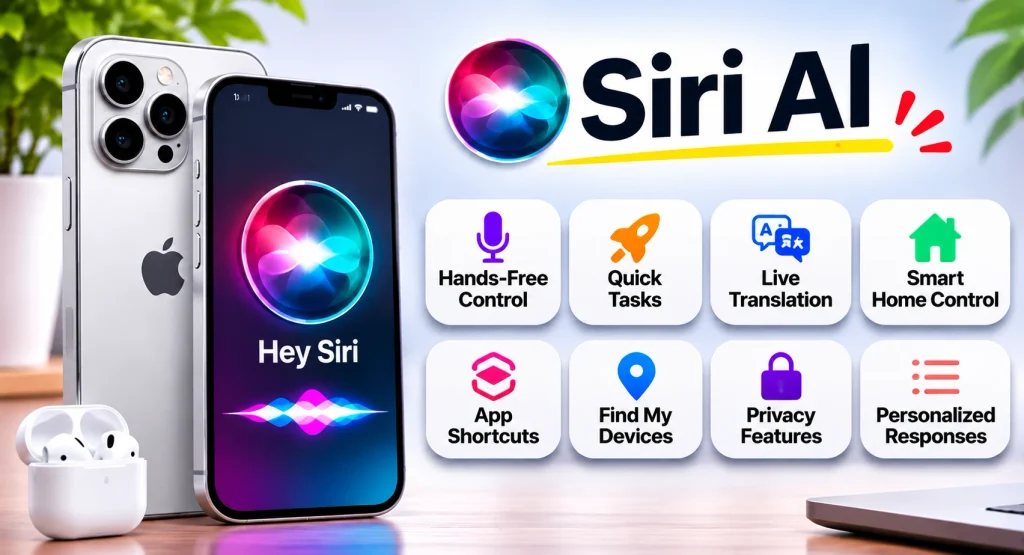
This is where Siri AI gets fun. Apple built it around a handful of big ideas, and each one fixes something that annoyed us about the old Siri.
Personal context. Siri can look across your emails, messages, photos, notes, and files, and it understands what’s in them. You can ask things like “What’s the door code Sarah texted me?” or “Find the lease my landlord emailed me last month.” That’s honestly the feature I use the most.
Broad world knowledge. Siri can search the web for up-to-date answers, so you can ask about sports scores, store hours, recipes, or a trip plan. It also reads documents you share with it.
Onscreen awareness. Siri AI knows what’s on your screen. You can say “Summarize this” while reading an article, or “Where was this photo taken?” while looking at a picture, and it knows what “this” means.
App actions. Siri can use tools inside apps to get things done, like moving a meeting, adding photos to an album, or drafting a reply to an email. Apps from Apple work now, and third-party apps can add support through App Actions.
Write with Siri. Anywhere you type, you can use Siri to draft, rewrite, shorten, or change the tone of your writing. It can also proofread as you go.
A dedicated Siri app. There’s now a Siri app where you can start a new chat or go back to an old one. Conversations sync across your Apple devices with iCloud, and you can pin the ones you use a lot.
A new look and feel. On iPhone, a new Search and Ask interface comes up from the Dynamic Island. The old Spotlight-style search is folded into it, so you can type or talk to the same place.
A more natural voice. Newer iPhones get a more expressive voice you can customize for pace and expressivity. That on-device voice needs an iPhone Air or an iPhone 17 Pro model and later.
And Apple isn’t done. iOS 27.2, released October 26, added memory, so Siri AI can recall things it told you before, like the restaurants it recommended last week. It can also draw from photos in Messages, calendar attendees, and voicemails. There’s even an Excluded Apps setting so you can decide which apps Siri can look at.
Siri AI Supported Devices
Here’s the part that bums some people out. Having iOS 27 doesn’t mean you get Siri AI. iOS 27 itself runs on iPhones going back to the iPhone 11, but Siri needs hardware that supports Apple Intelligence. Older phones stay on classic Siri.
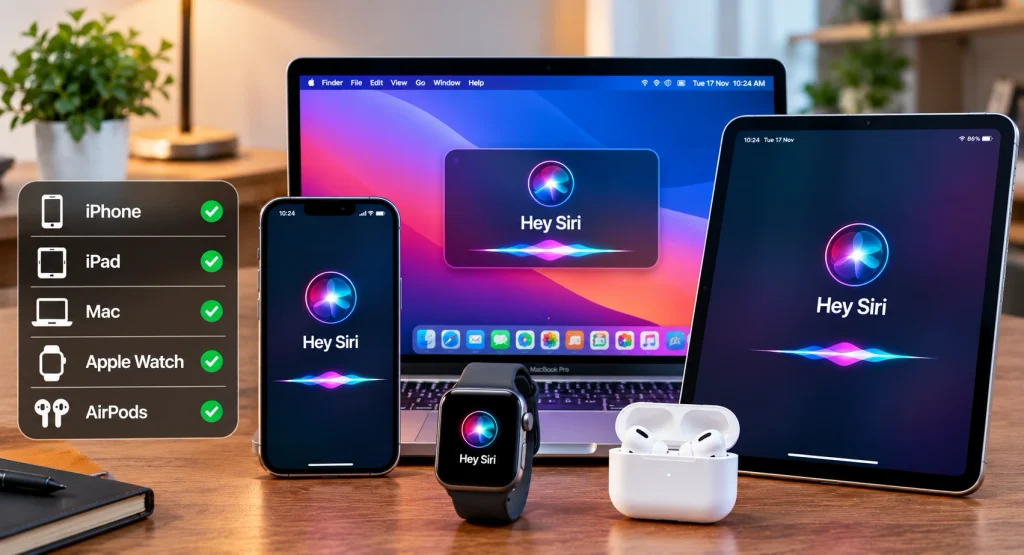
According to Apple’s support page, Siri works on these devices:
- iPhone: iPhone 15 Pro, iPhone 15 Pro Max, all iPhone 16 models and later, and iPhone Air.
- iPad: iPad mini with the A17 Pro chip, and iPad models with an M1 chip or later.
- Mac: Macs with an M1 chip or later, plus the MacBook Neo.
- Apple Watch: Series 9 or later, Ultra 2 or later, and Apple Watch SE 3, when paired with an Apple Intelligence-enabled iPhone nearby.
- Apple Vision Pro: Any model.
So the base iPhone 15, iPhone 14, and anything older won’t get Siri AI, even if you update to iOS 27. Unfortunately, no setting changes that.
There are also region and language limits. Siri works in English, and since iOS 27.2 it’s also available in French, Japanese, Korean, Portuguese, and Spanish in beta. Your device language and Siri language have to be set to the same supported language, and your Apple Account needs to be in an eligible region.
Siri is not available in the European Union on iPhone, iPad, or Apple Watch. On Mac and Vision Pro, it’s available in the EU if your device language and Siri language are both English. It’s also not available in mainland China. Availability can change, so check Apple’s Siri AI requirements page before you assume anything.
How to Use Siri AI
Once Siri is on, using it is simple. There are a few different ways to get it going, and you can pick whichever fits the moment.
Talk to it. Say “Siri” or “Hey Siri,” or press and hold the side button. Siri AI will start listening, and you can talk like you would to a person. You don’t have to use special phrases.
Type to it. On iPhone, swipe down from the middle of the screen to open Search or Ask. You can type your question or tap the mic to talk. It’s a great option in a quiet place.
Follow up. After Siri answers, swipe down on the response to bring up a text bar. You can ask a follow-up, clarify what you meant, or change the request. Tap the plus button to add photos or documents to the conversation.
Use the Siri app. If you want to go back to a past chat, open the Siri app. Your conversations are saved and sync across your Apple devices.
Use it from anywhere. Siri works across apps. Select some text or press and hold an image, then ask Siri AI about it. It also works with CarPlay and AirPods.
Here are a few starter prompts to try:
- “What do I need to do tomorrow?”
- “Show me my photos from last weekend.”
- “Move my 2 p.m. meeting to Thursday.”
- “Summarize this article.”
- “Help me plan a five-day trip to Lisbon.”
- “Make this email sound more professional.”
The big shift is that you can talk normally. You can even stack two or three tasks into one request, and Siri will try to handle them in order.
How to Turn On Siri AI
Siri isn’t switched on by default, even after you update. You’ve got to opt in, and it only takes a minute. Here’s how:
- Update your device. Install iOS 27 or the matching OS 27 version on your iPad, Mac, or Apple Watch. Make sure you’re on the latest version available.
- Check your language. Go to Settings, then General, then Language and Region, and make sure your device language is a supported one. Your Siri language needs to match.
- Open Siri settings. Go to Settings and tap Siri.
- Turn on Siri if needed. If Siri is off, tap Turn On Siri first.
- Tap Try Siri AI (Beta). Follow the prompts on screen. When it’s done, the Siri screen will show that it’s powered by Apple Intelligence.
If you’d rather keep the old assistant, you can tap Use Siri Classic when it’s offered. And if you change your mind later, you can turn Siri AI on from Settings anytime.
A quick heads-up: at launch, some people landed on a waitlist before Siri turned on. If that happens to you, the download should start on its own once your wait is over. If you don’t see the Try Siri AI row at all, your device, region, or language probably isn’t eligible yet. Apple’s official guide to getting Siri AI lists the current requirements.
To turn Siri off, go to Settings, tap Siri, scroll to the bottom, and tap Turn Off Siri. You can turn it back on whenever you want.
Siri AI Tips and Hidden Features
Okay, now for the good stuff. Once you’ve got Siri running, a few small tricks make it way more useful.
Talk like a person. Skip the robot voice. Siri AI does better when you explain what you want in plain English, like “What was the name of that restaurant I ate at in February?”
Chain your requests. You can ask for more than one thing at once. Try “Get me directions to the post office, but stop at the coffee shop first.” It’s pretty sweet when it works.
Use onscreen awareness. Open a menu photo in another language and say “Translate this menu.” Or look at a chart and ask “Explain what this is showing.”
Ask about past chats. Since iOS 27.2, you can ask Siri about something it told you before. If it recommended a restaurant last week and you forgot the name, just ask.
Pin your favorite conversations. In the Siri app, you can pin chats you come back to often, like a trip plan or a recipe project.
Customize the voice. If you have a supported iPhone, go to Siri settings, then Voice, to adjust how expressive Siri sounds and how fast it talks.
Control what it can see. Open Siri settings and look for the App Access or Excluded Apps option. You can choose which apps Siri, Search, and suggestions can use. This is a solid move if you’d rather keep certain apps, like banking or health, off the table.
Copy only part of an answer. iOS 27.2 added granular text selection, so you can select just the piece of a Siri AI response you need, instead of copying the whole thing.
Use Write with Siri on the go. In Mail or Messages, ask Siri to rewrite your draft so it sounds friendlier or shorter. It can also match your usual writing style.
Try Visual Intelligence. Siri AI works with Visual Intelligence, so you can point the camera at something and ask questions about it. There’s a Siri mode in the Camera app on iPhone.
Common Siri AI Problems and Fixes
Let’s be real: Siri is still in beta, so things will go wrong sometimes. Here are the most common problems and how I’d fix them.
I don’t see the Try Siri AI option. This usually means your device, region, or language isn’t eligible. Check that you have a supported device, that you’re on the latest OS 27 update, and that your device language and Siri language match. Remember, Siri isn’t available on iPhone or iPad in the EU.
I’m stuck on a waitlist. Some people got put in a queue after turning Siri AI on. Keep your device updated and connected to Wi-Fi, and give it time. The download should kick in automatically when you’re through.
Siri isn’t answering questions about my stuff. After you turn it on, your device may need time to index your messages, photos, and files. Leave your phone plugged in on Wi-Fi for a while. Also check Siri settings to make sure the app you’re asking about isn’t excluded.
Hey Siri doesn’t respond. Go to Settings, then Siri, and make sure the wake phrase is turned on. Then try saying it again. If it still fails, toggle Siri off and back on, or restart your iPhone.
Siri gives weird or wrong answers. It’s a beta, and no AI is perfect. Rephrase your question, add more detail, or ask it to try again. For anything important, like a flight time or a medical question, double-check the answer yourself.
It says I’ve hit a usage limit. Apple notes that usage limits may apply to Siri AI and related Apple Intelligence features. If you hit one, wait a bit and try again.
The answers don’t come through at all. Siri relies on an internet connection for many requests, since it uses Private Cloud Compute. Check your Wi-Fi or cellular connection, then try again.
My voice options are missing. The customizable on-device voice only works on newer iPhones, like the iPhone Air and iPhone 17 Pro models and later. Other devices use the standard Siri voice.
If none of that works, update to the newest iOS version, restart your device, and if the problem sticks around, contact Apple Support.
Siri AI vs Alternatives
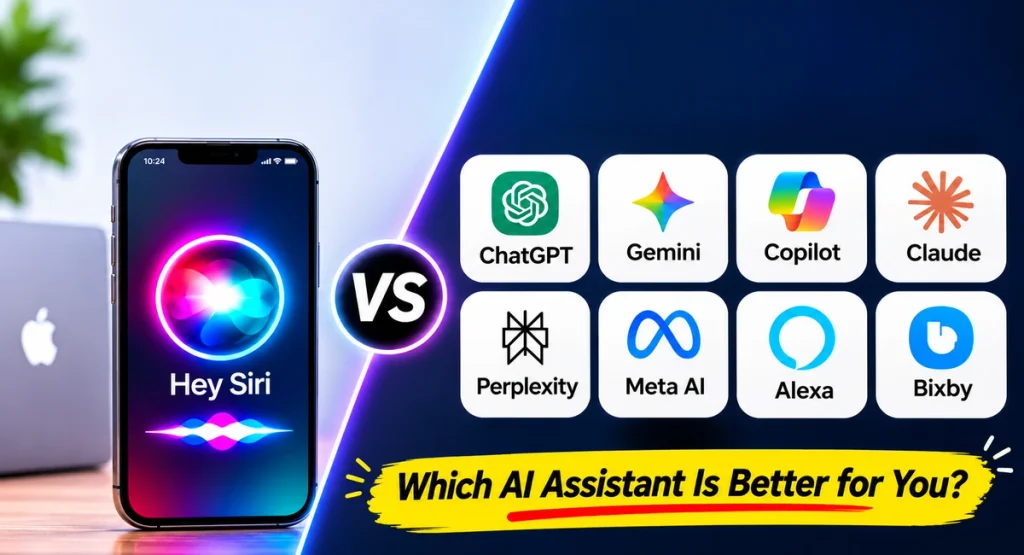
So how does Siri AI stack up against ChatGPT, Google Gemini, and the other assistants? Honestly, it depends on what you want.
Siri’s biggest advantage is that it lives inside your Apple devices. It can reach your messages, mail, photos, and calendar in a way that a separate app can’t. Ask it “What’s the door code Sarah texted me?” and it just knows. Other chatbots would need you to copy and paste the text first.
Siri is also built into the system, so you don’t have to open a separate app. You can call it up from the side button, the Dynamic Island, your AirPods, or your car with CarPlay. And since Apple runs a lot of the work on your device or in Private Cloud Compute, privacy is a big part of the pitch.
But Siri AI isn’t a clean win. Other assistants like ChatGPT, Gemini, and Claude have been around longer, work on almost any device, and are available in more places and languages. They can also be stronger at long writing, deep research, and creative work, and some do image generation that Siri doesn’t match. Siri is limited to newer Apple hardware, it’s still in beta, and it isn’t available in the EU on iPhone or iPad.
Here’s how I’d think about it:
- Pick Siri AI if you want an assistant that knows your personal stuff and works hands-free across your Apple devices.
- Pick a standalone chatbot if you want the most flexible tool for long projects, coding, or research, or you use non-Apple devices too.
- Use both. Plenty of people do. Siri handles the quick, personal stuff, and a chatbot handles the deep work.
Real talk, you don’t have to pick just one. The best setup is whatever saves you the most time.
Siri AI FAQs
Question – Is Siri AI free?
Answer – Yes, Siri AI is included with iOS 27 and the matching OS 27 updates at no extra charge. Apple does say usage limits may apply, though.
Question – Which iPhones support Siri AI?
Answer – Siri works on the iPhone 15 Pro, iPhone 15 Pro Max, all iPhone 16 models and later, and the iPhone Air. The standard iPhone 15 and older models don’t support it.
Question – Why can’t I find the Try Siri AI option?
Answer – Usually it’s a device, region, or language issue. Make sure you have a supported device, you’re on iOS 27 or later, and your device language and Siri language match.
Question – Is Siri AI available in the EU?
Answer – Not on iPhone, iPad, or Apple Watch at the moment. It’s available on Mac and Vision Pro in the EU if your device language and Siri language are both set to English. This could change, so check Apple’s support page.
Question – Does Siri AI keep my data private?
Answer – Apple says Siri runs on your device and on Private Cloud Compute servers, and that your data isn’t accessible to Apple or third parties. You can also choose which apps Siri AI can use through the Excluded Apps setting.
Question – Can I go back to the old Siri?
Answer – Yes. When you set it up, you can choose Use Siri Classic, and you can turn Siri off in Siri settings anytime.
Question – What languages does Siri AI support?
Answer – English, plus French, Japanese, Korean, Portuguese, and Spanish since iOS 27.2, which are in beta. More languages are expected, so keep an eye on Apple’s iOS 27 updates page.
Siri AI is still growing up, but it’s the first time in years that Siri feels like something worth using. If you have a supported device, give it a try. Start with a few simple questions, see what it can do with your own stuff, and tweak the settings until it fits how you work.