You’ve probably typed “FaceTime price” into Google at some point, or at least wondered what it costs to video call someone overseas. Maybe a friend told you there’s a monthly plan. Maybe a random website said there’s a free trial. Maybe you saw a charge on your card with the word FaceTime next to it and your stomach dropped.
Real talk, there’s a lot of confusing info floating around about FaceTime, and some of it is flat-out wrong. So let’s clear it up right now. FaceTime is free. There’s no subscription, no monthly plan, no free trial that ends, and nothing to cancel on Apple’s side. If you have an Apple device, it is already on it and it costs $0.
That doesn’t mean there’s nothing else to know, though. There are a few real costs that can sneak in, a handful of ways to share a call with family, and some scams that use the FaceTime name to get your money. In this guide, I’ll walk you through the actual FaceTime price, what “plans” really means, how to use the app step by step, and how to get the most out of it in 2026. Let’s get into it.
Is FaceTime Free? The Real FaceTime Price
Short answer: yes. It is a free app made by Apple, and it comes built into iPhone, iPad, Mac, and Apple Vision Pro. You don’t pay Apple per minute, per call, or per month to use it. The app also has no ads and no in-app purchases listed in the App Store, so there’s nothing to upgrade.
That’s true whether you’re calling someone in the next room or someone on the other side of the planet. It runs over the internet, not over your phone’s voice minutes, so there’s no long-distance fee from Apple.
So where does the confusion come from? A few places:
- Your internet connection isn’t always free. It uses data, and data can cost money depending on your plan.
- Roaming can hit hard. If you’re abroad and use your phone’s cellular data, your carrier might charge a daily fee.
- Other apps use similar names. Some unrelated apps and websites borrow the name and sell subscriptions. They have nothing to do with Apple.
- Some SharePlay content costs money. The call is free, but the movie you watch during it might not be.
Honestly, if somebody is asking you to pay Apple for the app itself, that’s a red flag.
Does FaceTime Have Plans or a Free Trial?
Nope. It has one version, and it’s free. There are no tiers like Basic, Plus, or Pro. There’s no premium level that unlocks longer calls or more people. And since there’s no paid plan, there’s no free trial either.
You’ll sometimes see listicles and review sites that make it sound like there are pricing plans, a “contact for pricing” button, or a 14-day money-back guarantee. Those pages are usually about a different product that happens to share the name, or they’re just low-effort content pumped out for search traffic. Apple’s own app has none of that.
Here’s a quick way to remember it:
- Price: $0
- Plans: One, and it’s free
- Free trial: Not needed
- Subscription to cancel: None
- Per-minute fees: None from Apple
If you ever see a charge labeled FaceTime on your bank statement or in your Apple subscriptions, we’ll cover how to check that in a minute.
What You Actually Pay For When You Use FaceTime
Okay, so FaceTime itself is free. But “free” has a few asterisks, and it’s worth knowing them so you don’t get surprised.
The device. You need an Apple device to start a call. An iPhone, iPad, or Mac is the usual route, and those obviously aren’t free. If you already own one, you’re set.
Internet or data. It needs a connection. On Wi-Fi, calls don’t touch your data plan. On cellular, video calls can burn through your data allowance fast, especially in group calls. An audio-only call uses far less data than video.
Roaming charges. This is the big one for travelers. Apple doesn’t charge you while you’re abroad, but your carrier might if you use cellular data overseas. Stick to hotel or cafe Wi-Fi, or grab a travel data plan or eSIM, and you’ll usually be fine.
Streaming and apps during SharePlay. SharePlay lets you watch shows or listen to music together on a call. The call is free, but many streaming apps require each person to have their own subscription to the service. So you might need access to Apple TV or another service to watch along.
Think of it like this: the app is the road, and it’s free to drive on. But your car, your gas, and any toll booths along the way are on you.
Which Devices Support FaceTime?
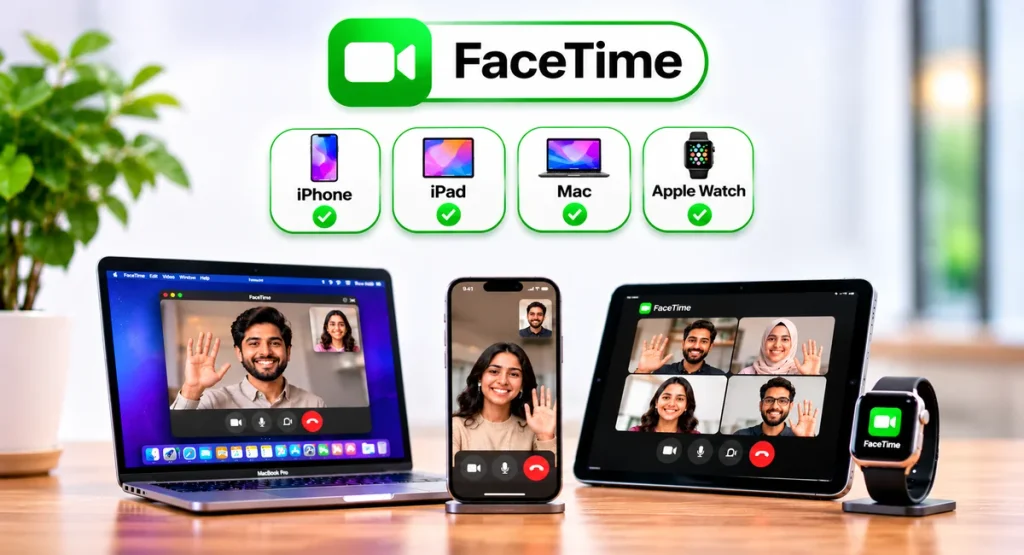
It works on most modern Apple gear:
- iPhone and iPad. It is built in, with video and audio calls.
- Mac. It comes with macOS, so you can call from your laptop or desktop.
- Apple Watch. You can take audio calls from your wrist.
- Apple Vision Pro. It works here too.
- Apple TV. With recent software, you can join a call from your Apple TV, and your iPhone acts as the camera through Continuity Camera.
You’ll need to be signed in with an Apple Account, and it has to be turned on in Settings. On an iPhone, go to Settings, then Apps, and tap FaceTime to check.
Availability can vary by country, so if you’re traveling or living somewhere with restrictions, double-check Apple’s support page for your region. For example, Apple notes that creating links isn’t supported in mainland China.
How to Use FaceTime on iPhone and Mac
Using the app is super simple. Here’s the quick version for each device.
On iPhone or iPad:
- Open the app.
- Tap New FaceTime.
- Type a name, phone number, or email address, or pick someone from your contacts.
- Tap Video to start a video call, or Audio for a voice-only call.
You can also start a call from the Phone app, the Messages app, or a contact card. Just look for the video camera icon.
On Mac:
- Open the app.
- Click New FaceTime.
- Enter the person’s name, number, or email.
- Click Video or Audio.
During a call, you can switch cameras, mute yourself, turn off your video, and use effects like Portrait mode to blur your background. If you start a call on your Mac and want to move to your phone, Handoff lets you swap devices without hanging up.
Not gonna lie, the first time you use it, it feels almost too easy. That’s kind of the point.
How to Share FaceTime With Family
People search for “share FaceTime with family” and mean a few different things. Let’s cover them all.
Group calls. It supports group calls with up to 32 people, which is plenty for a family catch-up. Start a new FaceTime, add everyone’s names or numbers, and tap Video.
Links. Want to invite someone without them being on your contact list? Open the app and tap Create Link. You can send that link through Messages, email, WhatsApp, or any other app. Anyone who has the link can ask to join.
Calling a family member’s device. If your mom has an iPad and an iPhone, you can call her Apple Account email or number and either device can answer.
Sharing subscriptions with Family Sharing. If you’re thinking about a subscription like Apple TV or Apple Music for SharePlay, Family Sharing lets you share eligible subscriptions with your family members without paying for each person. The app itself doesn’t need Family Sharing, since it’s free for everyone.
For big family gatherings, a link is usually the easiest way. It takes ten seconds, and nobody has to hunt for a phone number.
How to FaceTime Android and Windows Users

This is the part a lot of people don’t realize: you can FaceTime someone who doesn’t have an Apple device. It’s a pretty sweet trick.
Here’s how it works. You can’t start a call from an Android phone or a Windows PC, but you can invite them to one. An iPhone, iPad, or Mac user creates a link and sends it to the person. The Android or Windows user opens the link in a browser, types their name, and taps Join. They don’t need an Apple Account.
A few things to know, based on Apple’s guide to joining a call from Android or Windows:
- They need a recent version of Google Chrome or Microsoft Edge.
- They need a solid Wi-Fi or cellular connection.
- They need to let their browser use the camera and microphone.
- You’ll need to approve them to let them in, unless they’ve been waiting a bit and another Apple user approves.
So if your best friend is stuck on Android, you’re not out of luck. Send a link, and you’re on a call in a minute.
The Best FaceTime Features in 2026
It has quietly gotten a lot better over the last couple of years. Here are some features worth knowing about.
Dual Capture. Added in iOS 27, this lets you show your face and the rear camera at the same time, so people can see you and what you’re looking at. With iOS 27.2, it works on all video calls, including group calls. The catch is that everyone on the call needs to be on iOS 27, iPadOS 27, or macOS 27.
Sign language interpreter support. iOS 27.2 added the ability to bring a third-party sign language interpreter or live captioner into a call. It’s a big deal for accessibility, and it works with supported VRS apps.
Live Captions. It can show captions of what people are saying, which helps in noisy spots or for people who are deaf or hard of hearing.
SharePlay. Watch a show, listen to music, or play a game together while you’re on a call. It’s great for long-distance movie nights.
Screen sharing. Show someone your screen to help them with a problem, which is a lifesaver when tech-supporting your parents.
Portrait mode and effects. Blur your messy background, or use reactions to add a little fun to your calls.
Apple TV calls. With the latest tvOS update, joining a call from your Apple TV is easier. Your iPhone works as the camera, so the whole family can gather around the big screen.
How to Cancel a FaceTime-Related Subscription
Let’s get to the cancel question. Since FaceTime itself has no subscription, there’s nothing to cancel directly. But if you see a charge and you’re not sure what it is, here’s how to check.
On iPhone or iPad:
- Open Settings.
- Tap your name at the top.
- Tap Subscriptions.
- Look through the list for anything you don’t recognize.
- Tap it and choose Cancel Subscription.
On Mac: Open the App Store, click your name in the bottom left, choose Account Settings, and look for Subscriptions.
If a subscription says FaceTime, it’s almost certainly not Apple’s app. It could be a lookalike app, or a service you signed up for through SharePlay, like a streaming service. If you don’t recognize the charge, check the name of the app, cancel it, and consider contacting Apple Support if you think you were charged by mistake.
FaceTime Scams and Fake Apps to Avoid

Because it is so popular, scammers love to use its name. Here are some red flags:
- Someone asks you to pay for FaceTime. Apple never charges for it. Anyone saying otherwise is either confused or trying to scam you.
- Websites that promise “FaceTime Premium” or a free trial. There’s no such thing from Apple.
- Lookalike apps in the App Store. Some apps use similar names or icons and have subscriptions. The real app is made by Apple and is free.
- Calls asking for gift cards or payment. Scammers sometimes use video calls to pressure people. If someone asks for money, hang up.
- Links from strangers. Don’t tap links from people you don’t know.
Real talk, if something feels off, trust that feeling. When in doubt, close the app and check Apple’s official support site.
Common FaceTime Problems and Fixes
Even a free app has hiccups. If the app isn’t working, here’s what to try:
FaceTime won’t connect. Check your Wi-Fi or cellular connection, and try switching between them. Make sure it is turned on in Settings, then Apps, then FaceTime.
Calls keep dropping. A weak connection is the usual cause. Move closer to your router, or turn off video to save bandwidth.
The other person can’t hear you. Check that your microphone isn’t muted and that the app has permission to use it. Also make sure no Bluetooth headphones are grabbing the audio.
You can’t sign in. Make sure you’re signed in with the right Apple Account, and check that the date and time on your device are set automatically.
FaceTime keeps crashing. Update your device to the latest software, restart it, and try again.
Group calls are glitchy. More people means more data. Ask everyone to join on Wi-Fi, and make sure everyone is up to date.
If none of that works, sign out of the app and back in, or visit Apple’s support hub or contact Apple Support.
Tips to Save Data on Video Calls
If you’re on a limited plan, a few small habits make a big difference. Here’s what I’d do:
- Use Wi-Fi whenever you can. It’s the simplest way to keep calls from eating your data allowance.
- Switch to audio. A voice-only call uses far less data than video, and sometimes you don’t need to see each other anyway.
- Turn off video for big groups. The more people on a call, the more data it takes.
- Check your cellular settings. In Settings, you can see which apps are using the most data and limit them if you need to.
- Plan travel ahead. Before an international trip, ask your carrier about a travel pass, or look into an eSIM so you’re not stuck with surprise bills.
None of this costs a thing, and it keeps your monthly bill from creeping up.
Privacy and Safety Tips for Video Calls
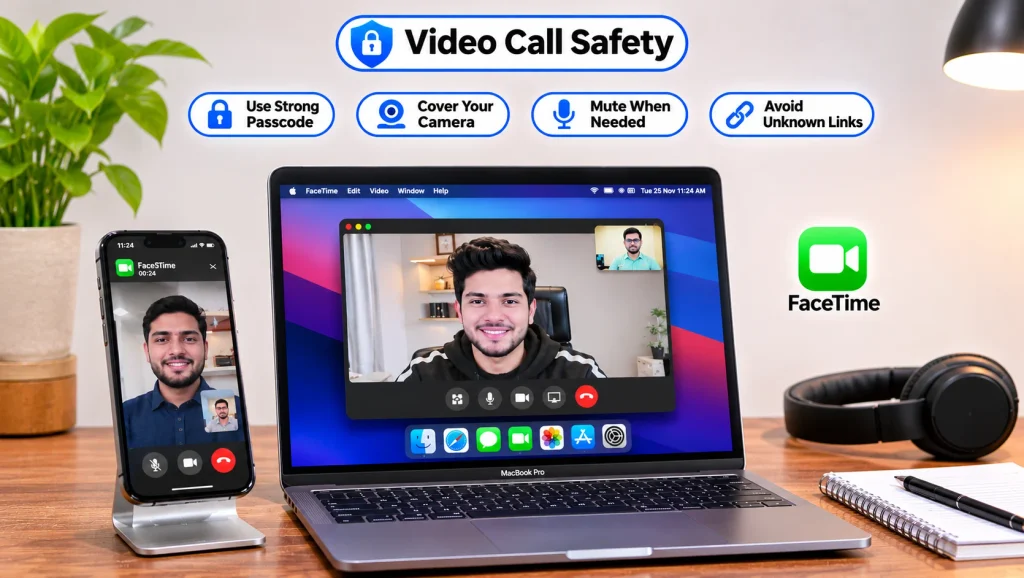
Video calls are personal, so it’s worth locking things down a bit. Apple builds in a lot of protection, but a few habits help too.
First, only join calls from people you know. If a stranger sends you a link, skip it. Second, check your camera and microphone permissions in Settings so you know which apps can use them. Third, when you share a link, you can approve each person who asks to join, so nobody sneaks in. Finally, keep your Apple Account secure with two-factor authentication, because a hijacked account can be used to scam your contacts.
If you get a spam call, you can block the number and report it from the call screen. It only takes a few seconds, and it helps keep your inbox and call history clean.
Making Calls Better – Lighting, Sound and Setup
Last thing, and it’s one most people skip. A great video call isn’t about the app, it’s about your setup. Face a window or a lamp so your face is lit from the front, not behind. Prop your phone on something steady, like a stack of books, so the picture doesn’t shake. Use earbuds if you’re in a noisy room, and try Voice Isolation to cut out background noise. Little tweaks like these make your calls look and sound far more polished, and they cost nothing.
FaceTime vs Alternatives
It isn’t the only option, so how does it compare?
WhatsApp. Works on both iPhone and Android, and it’s free over Wi-Fi or data. It’s a good pick if your family uses mixed devices.
Zoom. Great for meetings and webinars, but free plans have time limits on group calls. FaceTime has no such limit.
Google Meet. Works in a browser on any device and plays well with Google accounts. It’s a good fit for work.
Messenger and others. Convenient if you already use the app, but they come with ads and data tracking.
The big advantage here is simplicity and quality. If everyone has an Apple device, it’s the easiest option. If you have a mixed group, a link works, but it’s not as smooth as having everyone on the same app.
FaceTime FAQs
Question – Is FaceTime free?
Answer – Yes. It is free on Apple devices, with no monthly fee, no plans, and no per-minute charge from Apple.
Question – Does FaceTime have a free trial?
Answer – No, because it doesn’t have a paid version. There’s nothing to try before you buy.
Question – How much does a FaceTime call cost?
Answer – Apple charges nothing. You only pay for your internet connection, so Wi-Fi calls are effectively free, and cellular calls use your data allowance.
Question – Is FaceTime free internationally?
Answer – Apple doesn’t charge for it abroad. But using your cellular data overseas can trigger roaming fees, so use Wi-Fi when you can.
Question – Can I FaceTime someone on Android?
Answer – Yes, but you have to start the call and send them a link. They can join from a browser like Chrome or Edge.
Question – How do I cancel FaceTime?
Answer – There’s nothing to cancel. If you see a charge, check your subscriptions in Settings, then your name, then Subscriptions.
Question – How many people can be on a FaceTime call?
Answer – Up to 32 people can join a group call.
Final Thoughts
Here’s the bottom line on the FaceTime price: it’s free. No plans, no trial, no subscription. Anyone telling you otherwise is either mixing it up with another product or trying to get your money.
What you do pay for is the stuff around it, like your device, your internet, and sometimes the content you watch together. Keep an eye on roaming when you travel, and watch out for scammers and lookalike apps.
If you’ve got an Apple device, open FaceTime and call someone you haven’t talked to in a while. It costs nothing, and it’ll probably make their day.