Real talk: if you’ve ever picked up an iPhone, opened a Mac, or downloaded even one app from the App Store, you already have an Apple ID. Most people don’t think about it until something goes wrong, like getting locked out at midnight or spotting a charge on a credit card statement that makes no sense. Honestly, that’s usually when the questions start. How much does an Apple ID cost? Is there a free trial? Why am I paying for storage when I never signed up for anything?
Here’s the deal. The Apple ID itself is free and always has been. What costs money are the services you connect to it, things like iCloud+, Apple Music, and the Apple One bundles. That’s where the whole “price and plans” confusion comes from, and it’s exactly what we’re untangling in this guide.
One quick heads-up before we dive in. Apple renamed the Apple ID to “Apple Account” back when iOS 18 launched, but it’s the same thing under a new label, and most people still search for the old name. So I’m sticking with Apple ID here. Prices are US prices as of late 2026, and Apple changes them every so often, so give the checkout screen a quick look before you pay for anything.
What Is Apple ID
An Apple ID is basically your personal passport to the Apple world. It’s one account, built around an email address or phone number plus a password, that unlocks pretty much everything Apple makes. That includes the App Store, iCloud, iMessage, FaceTime, Apple Music, Apple Pay, Find My, and the online Apple Store.
Think of it like a master key. Without it, your iPhone is a nice-looking brick that can’t download apps or back itself up. With it, everything just syncs. Your photos show up on your Mac, your texts follow you to your iPad, and your purchases stay with you even when you upgrade to a brand-new device.
Here’s what your Apple ID keeps track of behind the scenes:
- Your sign-in info and two-factor authentication details
- Your contact, payment, and shipping information
- Your iCloud data, like photos, device backups, and notes
- Your purchase history and active subscriptions
Quick history note. When iOS 18 rolled out, Apple swapped the “Apple ID” label for “Apple Account” across its devices and website. The change was mostly cosmetic. Same email, same password, same data. So if a support page asks for your Apple Account, it means the exact same thing as your Apple ID. Not gonna lie, I still say Apple ID out of habit, and so does most of the internet.
Apple ID Price and Plans
Let’s clear this up fast. Creating an Apple ID costs $0. No monthly fee, no yearly fee, no sneaky catch. You even get 5GB of free iCloud storage with it, and you can grab free apps without ever entering a payment method.
The money part comes in with the paid services you attach to it. Here’s what the main ones cost in the US right now.
iCloud+ storage (billed monthly):
- 5GB: free
- 50GB: $0.99
- 200GB: $2.99
- 2TB: $9.99
Bigger 6TB and 12TB tiers exist too, but those are really for people with serious photo and video libraries. Every paid iCloud+ plan also unlocks extras like iCloud Private Relay, Hide My Email, and a custom email domain.
Apple Music (billed monthly):
- Student: $6.99
- Individual: $11.99
- Family: $19.99
Apple One bundles (billed monthly):
- Individual: $19.95
- Family: $27.95
- Premier: $39.95
Apple One Individual rolls Apple Music, Apple TV, Apple Arcade, and 50GB of iCloud+ into a single bill. Family bumps storage to 200GB and lets up to six people share. Premier jumps to 2TB and adds Apple News+ and Apple Fitness+. Apple raised the Family and Premier prices by $2 each earlier this year, so if you’ve been reading older articles and the numbers look different, that’s why.
So which one makes sense? If you’d pay for three or more of those services anyway, a bundle is a solid deal because Apple prices it below the cost of buying everything separately. If you only use one service, stick with that one and skip the bundle. There’s no prize for paying for stuff you never open.
Apple ID Free Trial and Student Discount
Good news: you can try most of the paid stuff before spending a dime. Your account doesn’t need a trial because it’s already free, but the services connected to it often come with one.
Apple Music has historically offered new subscribers a one-month free trial, and Apple One has had a similar trial for people who qualify. Each trial is limited to one per person, and you generally have to be a brand-new subscriber to get it. Apple also sometimes tosses in longer trials when you buy a new device, so it’s worth checking the offer screen when you set up a new iPhone or pair some AirPods.
Here’s the catch people forget: a free trial still asks for a payment method. When the trial ends, it rolls into a paid plan automatically. Set a reminder on your phone for a couple days before it ends. Future you will be grateful.
Now for the student discount, which is honestly the best deal in the whole lineup. The Apple Music Student plan runs $6.99 per month, which is five bucks less than the Individual plan. It also currently includes access to Apple TV at no extra charge. To qualify, you verify your student status through a service like UNiDAYS or SheerID, and you can stay on the plan for up to 48 months while you’re eligible. One limitation: that Apple TV access can’t be shared through Family Sharing. Once you graduate or hit the limit, the plan flips over to the regular Individual rate, so keep an eye on your renewal date.
How to Subscribe to Apple ID
Small clarification that’ll save you some confusion. You don’t actually subscribe to an Apple ID. You create one, and it’s free. What you subscribe to are the services that run on top of it. Here’s how both parts work.
Creating a new Apple ID on an iPhone or iPad:
- Open Settings and tap Sign in to your iPhone.
- Choose the option to create a new Apple Account.
- Enter your name, birthday, and the email address you want to use.
- Pick a strong password and verify your phone number for two-factor authentication.
- Agree to the terms, and you’re done.
You can also set one up on a Mac through System Settings, or on the web at account.apple.com, which is handy if you don’t own any Apple hardware yet.
Subscribing to a paid service:
- iCloud+: Open Settings, tap your name, tap iCloud, then choose the option to upgrade storage and pick a plan.
- Apple Music: Open the Music app, head to Listen Now, and pick a plan or trial.
- Apple One: Go to Settings, tap your name, tap Subscriptions, and look for Apple One. You can also sign up on Apple’s website.
Before you buy anything, make sure a payment method is on your account. You can add a card or use an Apple Account balance from a gift card. Then check the total on the confirmation screen, because sales tax can add a little depending on your state.
How to Cancel Apple ID
This one means two different things depending on who you ask, so let’s split it up.
Option one: cancel a subscription but keep your Apple ID. This is what most people actually want. Open Settings, tap your name, tap Subscriptions, pick the service, and tap Cancel Subscription. You’ll usually keep access until the end of the billing period, so there’s no reason to rush on the last day. If you ever lose track of what you’re paying for, this Subscriptions screen is the single best place to look.
Option two: delete your Apple ID entirely. This is the nuclear option. Head to Apple’s Data and Privacy page at privacy.apple.com, sign in, and request to delete your account. Apple verifies the request first, and that can take around a week. Once it’s gone, it’s gone. You lose iCloud data, purchases, iCloud email, and access to anything that relied on that sign-in.
Before you pull the trigger, download a copy of your data, cancel active subscriptions, and double-check that no devices still depend on the account. If you just want a break, you can sign out on your devices and stop using it, which costs nothing. Honestly, for most people, canceling the subscription is the right move and deleting the whole account is overkill.
How to Use Apple ID
Once you’re set up, using it is mostly automatic. You sign in once on a device and it handles the rest. Still, a few spots are worth knowing about.
- App Store and media: This is what you use to download apps, music, movies, and books. Re-downloading something you already bought is free.
- iCloud: Photos, files, contacts, and device backups sync across everything you’re signed into. Turn features on or off under Settings, then your name, then iCloud.
- Find My: If your phone goes missing, you can locate it, lock it, or erase it from another device or at icloud.com.
- Apple Pay and Wallet: Your cards and passes are tied to your account and your device.
- Messages and FaceTime: Your account decides which phone number and email addresses people can reach you at.
The habit worth building is using two-factor authentication, which is on by default for most new accounts. It sends a code to your trusted devices whenever someone tries to sign in from somewhere new. Pair it with a strong, unique password and you’ve covered the basics.
And here’s a tip that sounds boring but saves headaches: keep your trusted phone number up to date. If you change numbers and forget to update it, account recovery turns into a real pain. Take two minutes right now to check it under Settings, your name, then Sign-In and Security.
Apple ID Supported Devices
The obvious answer is Apple hardware, and the list is long. Your Apple ID works on:
- iPhone, iPad, and iPod touch
- Mac laptops and desktops
- Apple Watch
- Apple TV and HomePod
- Apple Vision Pro
But you don’t need to be all-in on Apple. It also plays nicely with a lot of non-Apple stuff, which surprises people. On a Windows PC, you can use iCloud for Windows to sync photos and files, and you can sign in to Apple Music and Apple TV in the apps available for Windows. Android phones can run the Apple Music app and the Apple TV app, so your Apple ID gets you into those services there too. Apple Music also shows up on smart TVs, game consoles like PlayStation and Xbox, Roku streamers, Sonos speakers, and Alexa devices.
And if all else fails, there’s the web. Sign in at icloud.com from any browser to reach your photos, mail, notes, and more. That’s handy if you’re borrowing a computer or your own device is out of commission.
Apple ID Family Sharing
Family Sharing is one of the most underrated perks tied to your Apple ID. It lets up to six people, you plus five others, share a bunch of stuff while keeping their own separate accounts. Nobody has to hand over a password, and everybody keeps their own photos and messages private.
Here’s what you can share:
- Apple One Family and Premier plans
- iCloud+ storage on plans of 200GB and up
- Apple Music Family subscriptions
- App Store purchases, so one person buys an app and everyone can download it (for apps that support sharing)
- Location sharing, so you can see where family members are in Find My
To set it up, go to Settings, tap your name, tap Family, and follow the prompts to invite people. The person who sets it up is the organizer, and their payment method covers shared purchases. One thing to remember: the Apple Music student plan’s Apple TV access doesn’t carry over to the family group. And if you’re comparing plans, running the math on a Family plan versus separate subscriptions often makes the Family option look like a pretty sweet deal, especially with three or more people in the house.
Apple ID Tips and Hidden Features
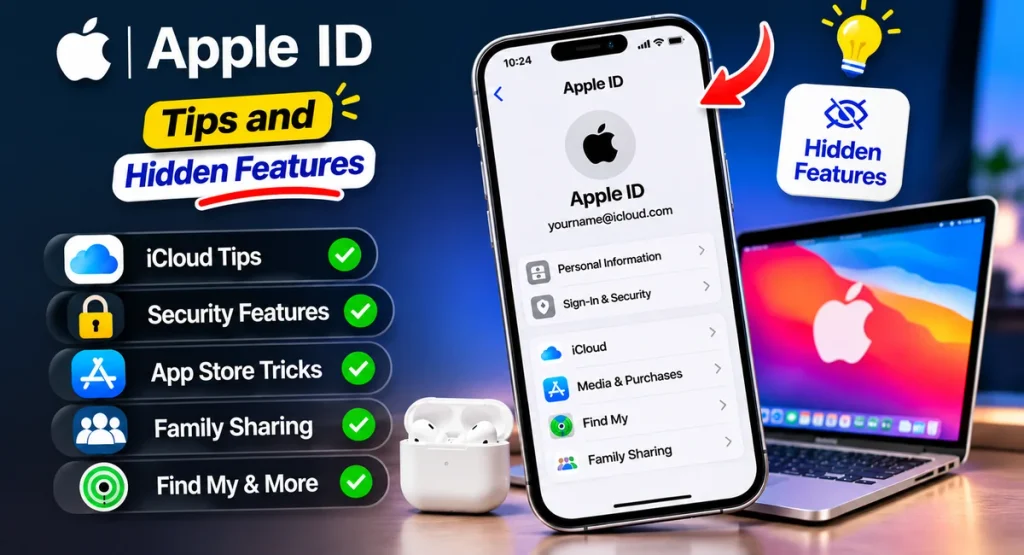
Okay, this is the fun part. Here are some things most people never touch that make an Apple ID way more useful and a lot safer.
- Sign in with Apple and Hide My Email: When an app asks you to sign up, you can use Sign in with Apple and choose to hide your real email address. Apple generates a random forwarding address, which keeps spam out of your actual inbox.
- Recovery Contact: Pick a trusted friend or family member who can help you regain access if you get locked out. It takes about a minute to set up.
- Legacy Contact: You can choose someone who can access your data after you pass away. Not a fun thing to think about, but it spares your family a lot of stress.
- Advanced Data Protection: This adds end-to-end encryption to more of your iCloud data. It’s optional, and you should set up recovery methods before turning it on.
- Subscription audit: Every few months, open your Subscriptions page and cut anything you forgot about. Real talk, most of us have at least one zombie subscription.
Also worth doing: check the Sign-In and Security section now and then to review which devices are signed in. If you spot one you don’t recognize, remove it and change your password right away.
Common Apple ID Problems and Fixes
Even a solid account runs into trouble sometimes. Here are the issues I see the most and what usually fixes them.
Forgot your password. Go to iforgot.apple.com or the account page at account.apple.com and follow the recovery steps. You’ll need a trusted device or phone number to verify it’s really you. If you can’t access either, Apple’s account recovery process kicks in, and it can take a few days. Annoying, but it’s there to protect you.
Account locked or disabled. Apple locks accounts when it sees too many wrong password attempts or suspicious activity. Unlock it by following the on-screen prompts or the recovery page. Don’t keep guessing passwords, because that usually makes things worse.
Unexpected charges. Open Settings, tap your name, tap Subscriptions, and see what’s active. Then head to reportaproblem.apple.com to dispute purchases you don’t recognize. Also check whether a family member bought something using your shared payment method.
iCloud storage full. Delete old device backups, clear large videos, or just upgrade. Honestly, $0.99 for 50GB is cheap enough that I’d rather pay it than spend an hour deleting vacation photos.
Phishing scams. Apple won’t text or call asking for your password or verification codes. If a message says your account is locked and includes a weird link, don’t tap it. Open Settings directly instead and check for yourself.
Apple ID vs Alternatives
Let’s be fair. Apple isn’t the only company with an account system that ties everything together. The main rivals are the Google Account and the Microsoft Account, and each has its own sweet spot.
- Google Account: Best for Android users and anyone living in Gmail, Google Drive, and Google Photos. It comes with 15GB of free storage, which beats the 5GB you get with an Apple ID.
- Microsoft Account: Best for Windows and Office users, with OneDrive storage and Microsoft 365 integration built in.
- Apple ID: Best for iPhone, iPad, and Mac users who want everything to just work together with minimal setup.
Where the Apple ID wins is the seamless feel. Handoff, AirDrop, iMessage, and iCloud sync all work together with almost no configuration. It also leans hard on privacy, with features like Hide My Email and Private Relay in iCloud+.
Where it falls short is flexibility. The free storage is tiny, and a lot of the best features only work if everyone around you uses Apple gear. If you’re on Android or Windows, it’s more of a side account than a home base. For storage alone, services like Google One, OneDrive, and Dropbox are worth comparing. They often come close on pricing, and some work better across platforms.
Apple ID FAQs
Question – Is an Apple ID really free?
Answer – Yes. Creating and keeping one costs nothing. You only pay for optional services like extra iCloud+ storage, Apple Music, or Apple One.
Question – Do I need a credit card to make an Apple ID?
Answer – No. You can create an Apple ID and download free apps without adding any payment method. You’ll only need one when you want to buy something or start a trial of a paid service.
Question – Can I have more than one Apple ID?
Answer – You can, but it usually makes life harder. Purchases, subscriptions, and iCloud data don’t merge between accounts. Most people are better off using a single Apple ID for everything, and a separate one only for specific needs like a work device.
Question – Is my Apple ID the same as my iCloud account?
Answer – Pretty much. Your iCloud sign-in is your Apple ID. iCloud is the cloud service, while the account is what unlocks it.
Question – Can I change the email address on my Apple ID?
Answer – In most cases, yes. Go to the account page, open Sign-In and Security, and update your email or phone number. If your Apple ID ends in an Apple-provided address like icloud.com, though, you usually can’t swap it for a non-Apple address.
Question – Can I use my Apple ID on Android?
Answer – Partly. You can sign in to the Apple Music and Apple TV apps on Android, but the full ecosystem, including iMessage, doesn’t work there.
So that’s the whole picture. The Apple ID is free, the extras are optional, and the real savings come from choosing only the plans you’ll actually use. Start with the free 5GB, upgrade storage only when you need it, and take a long look at Apple One or the student plan if you’re paying for multiple services. Lock down your security settings, set up a recovery contact, and check your subscriptions every few months. Do that, and your Apple ID will quietly do its job in the background without surprising you at the checkout screen.