You open your MacBook, click into a document, and start typing. Nothing shows up. Or maybe half your letters are missing, or one key keeps repeating itself like a broken record. Either way, your laptop just turned into a very pricey slab of metal.
Real talk, a MacBook keyboard not working is one of those problems that can wreck your whole day. You can’t send emails, you can’t type your password, and you can’t even search for a fix without a working keyboard. It’s a special kind of annoying.
Here’s the good news. In most cases, a MacBook keyboard not working is a software glitch, a settings issue, a bit of dust, or a stuck key, not a dead laptop. Plenty of these fixes take under five minutes and cost nothing.
In this guide, I’ll walk you through every fix I’d try, in an order that actually makes sense, from a simple restart to cleaning the keys and running Apple’s own diagnostics. If a MacBook keyboard not working is driving you nuts right now, grab an external keyboard if you have one and follow along. We’ll also cover when it’s time to call Apple.
Why Is Your MacBook Keyboard Not Working?
Before we start poking around settings, it helps to know what’s going on. When a MacBook keyboard not working shows up, it usually comes from one of these:
- A software glitch. macOS can hiccup after running for days without a restart.
- A setting that changes how keys behave. Sticky Keys, Slow Keys, and Mouse Keys can all make your keyboard act strange.
- The wrong input source. If your keyboard layout is set to another language, the letters on screen won’t match the keys you press.
- Dust, crumbs, and debris. Gunk under the keys can make them stick or stop responding.
- A liquid spill. Even a small splash can short out the keyboard.
- A bad update or app conflict. A recent macOS update or a third-party app can interfere.
- Hardware failure. A damaged keyboard, a loose cable inside, or a logic board problem.
The cool part is that the first six are all things you can fix at home. So if your MacBook keyboard not working matches one of those, don’t panic yet.
First, Figure Out What “Not Working” Really Means
A MacBook keyboard not working can look different for different people, and each version points to a different fix. Take a quick second to figure out which one you’ve got:
- Nothing types at all. That usually points to a software glitch, a setting, or a bigger hardware issue.
- Only a few keys fail. That usually points to dirt, a stuck key, or damage to those keys.
- Keys type the wrong characters. That’s almost always an input source or layout problem.
- A key repeats or sticks. That points to debris or a key that’s wearing out.
Not gonna lie, most people skip this step and start resetting random stuff. A quick diagnosis saves a ton of time. And if you can’t type at all, plug in or pair an external keyboard so you can keep going through the steps below. It’s also what Apple’s own service guides suggest when the built-in keyboard isn’t responding.
Fix 1 – Restart Your Mac
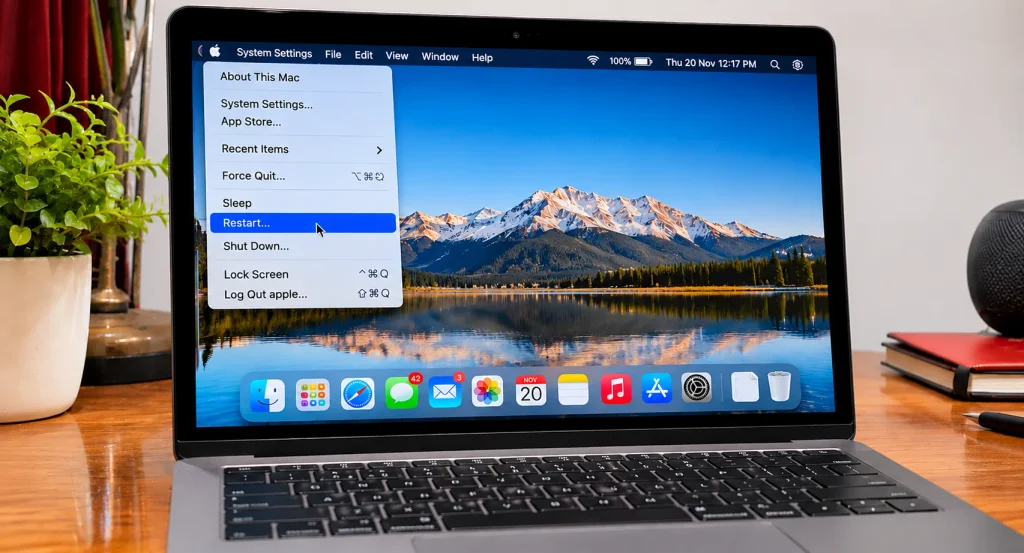
Let’s start with the easiest fix. A restart clears out temporary glitches that build up over days of uptime, and it fixes a surprising number of MacBook keyboard not working problems.
Click the Apple menu in the top left, then choose Restart. If you can’t click anything, hold the power button until the Mac shuts down, wait about 10 seconds, and press it again to turn it back on. After it boots, test every key in a text document.
Honestly, you’d be shocked how many cases of a MacBook keyboard not working end right here. If your MacBook keyboard not working fixes itself, keep an eye on it for a day or two. If the trouble returns, there’s something deeper going on, and the next fixes will help.
Fix 2 – Check Accessibility Settings That Block Typing
This one’s sneaky, and it catches a lot of people. Some accessibility features change how your keyboard behaves, and when they’re turned on by accident, they look exactly like a MacBook keyboard not working.
Here are the three to check:
- Mouse Keys. When it’s on, your keyboard controls the pointer instead of typing certain characters. Apple’s own troubleshooting steps call this out, because when Mouse Keys is on, the keyboard can’t enter text normally.
- Sticky Keys. This makes modifier keys like Shift and Command stay pressed, which can feel like random behavior.
- Slow Keys. This adds a delay before a key press registers, so quick typing drops letters.
To check them, open System Settings and go to Accessibility. Look under Keyboard for Sticky Keys and Slow Keys, and make sure both are off. Then go to Pointer Control, open Alternate Control Methods, and turn Mouse Keys off. If any of these were behind your MacBook keyboard not working, test your keyboard again.
Fix 3 – Test Your Keyboard With the On-Screen Keyboard
Here’s a handy trick for figuring out whether your MacBook keyboard not working is a software issue or a hardware one. The on-screen keyboard lights up keys as your Mac registers them.
Open System Settings, go to Accessibility, then Keyboard, and turn on the Accessibility Keyboard. A keyboard will appear on your screen. Now press keys on your real keyboard and watch the screen. If a key lights up, your Mac is receiving the key press, so the problem is probably in software or in an app. If nothing lights up, your Mac isn’t getting the signal, which points to dirt or hardware.
The on-screen keyboard is also a lifesaver if you need to type a password. You can click the keys with your trackpad, which means a MacBook keyboard not working won’t lock you out of your own Mac.
Fix 4 – Fix Wrong Characters and Layout Problems
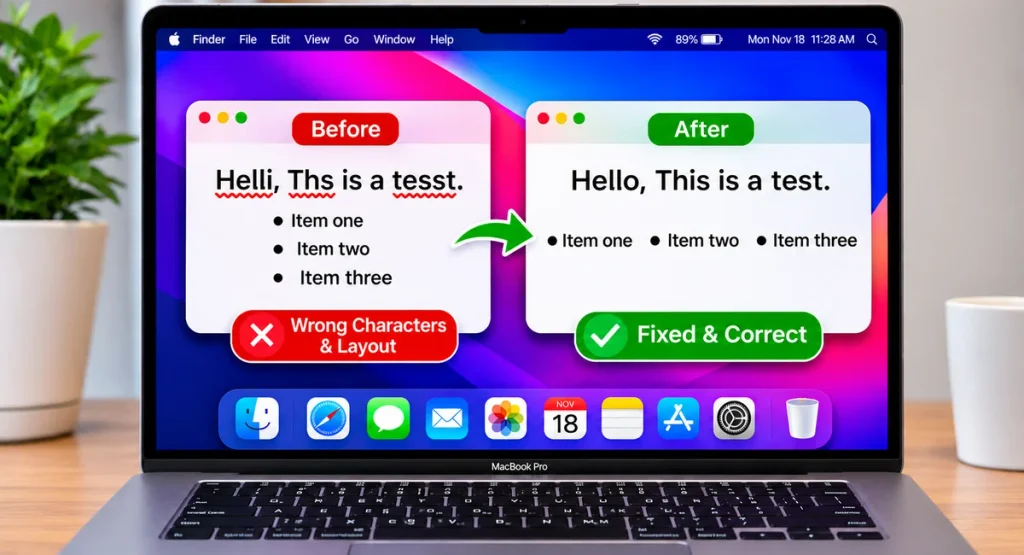
If you press one key and a different character appears, you probably have an input source issue. This is one of the most common forms of a MacBook keyboard not working, and it’s one of the easiest to fix.
Go to System Settings, then Keyboard, and look at Text Input. Open Input Sources and check which layouts are listed. If you see a language or layout you don’t use, remove it and keep the one that matches your keyboard. Then check the menu bar. If there’s a flag or an icon showing a different layout, click it and switch back to your normal one.
Sometimes a small language change can swap symbols, like the @ and “ keys, and make a healthy keyboard seem broken.
Fix 5 – Update macOS
Software bugs are real, and Apple fixes keyboard and input bugs in small updates all the time, so staying current is a solid deal for a MacBook keyboard not working.
Go to System Settings, then General, then Software Update, and install anything that’s waiting. Plug your Mac into power and use a steady Wi-Fi connection while it updates. If your MacBook keyboard not working started right after a recent update, a follow-up patch from Apple may be the fix. If there’s no update, restart once more and test again.
Fix 6 – Clean Your MacBook Keyboard
Dust and crumbs are a classic reason for a MacBook keyboard not working. Lint, hair, crumbs, and general gunk can get under the keys, and then a key sticks, repeats, or just stops responding.
Here’s a safe way to clean it, based on Apple’s own advice:
- Shut down your Mac and unplug the charger.
- Hold your MacBook at about a 75-degree angle.
- Use a can of compressed air with the straw attachment, and spray in a left-to-right motion across the keyboard.
- Turn the Mac onto its side, and repeat the left-to-right spray.
- Turn it to the other side, and spray again.
- Wipe the keycaps gently with a soft, dry, lint-free cloth.
Don’t pop the keycaps off, and don’t use liquids. On many MacBooks, the key mechanism is delicate, and a broken one can turn a small problem into an expensive repair. After cleaning, turn the Mac back on and test every key. A lot of people are shocked how well this fixes a MacBook keyboard not working.
Fix 7 – Test in Safe Mode and a New User Account
If the keyboard works fine in some situations but not others, a third-party app could be behind your MacBook keyboard not working. Two quick tests will tell you.
Safe Mode. Safe Mode loads only the basics and blocks most third-party extensions. On a Mac with Apple silicon, shut down, then press and hold the power button until you see the startup options. Select your disk, hold Shift, and click Continue in Safe Mode. On an Intel Mac, restart and hold Shift right away. If your MacBook keyboard not working goes away in Safe Mode, an app or extension is probably the cause.
A new user account. Go to System Settings, then Users & Groups, and add a test account. Log in and try typing. If the keyboard works there, something in your main account’s settings or login items is the problem, not the hardware.
Fix 8 – Reset NVRAM and the SMC on Intel Macs
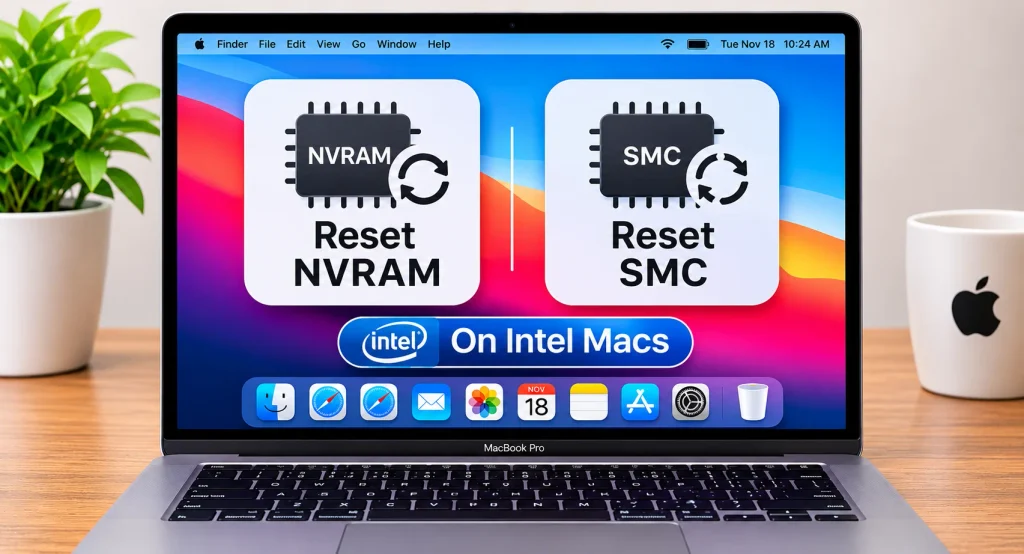
This fix only applies to older Intel MacBooks. Newer Macs with Apple silicon handle these resets on their own when you restart, so you can skip this one.
If you have an Intel MacBook, resetting NVRAM can clear settings that sometimes interfere with the keyboard. Shut down your Mac, turn it on, and immediately hold Option, Command, P, and R for about 20 seconds. Then release and let it boot. The SMC reset steps depend on your exact model, so check Apple’s instructions first. If your MacBook keyboard not working has stuck around this long, these resets are worth a shot on an Intel machine.
Fix 9 – Run Apple Diagnostics
If nothing has helped so far, Apple Diagnostics can check your Mac for hardware problems behind a MacBook keyboard not working. It’s free, it’s built in, and it tells you whether the keyboard problem is likely a hardware fault.
On a Mac with Apple silicon, shut down, then press and hold the power button until you see the startup options, and press Command and D. On an Intel Mac, shut down, turn it on, and hold D right away. Disconnect any extra accessories first, then let the test run. When it finishes, you’ll see a result and a reference code. Write the code down for Apple Support.
Keep in mind that diagnostics check the electrical side of things, not how the keys feel. So a MacBook keyboard not working because of a sticky key might still show no errors. If you get a code that points to hardware, you can skip ahead to getting it serviced.
When Nothing Works – Reinstall macOS
If your MacBook keyboard not working is still there and diagnostics say the hardware looks fine, reinstalling macOS can clear out deep software corruption. Reinstalling from Recovery usually keeps your files, but back up first to be safe. On Apple silicon, hold the power button until you see startup options, then choose Options. On Intel, hold Command and R at startup. Pick the option to reinstall macOS and follow the prompts.
MacBook Keyboard Not Working After a Liquid Spill
This one deserves its own section, because liquid is a different story. Coffee, water, soda, even a splash from a glass can get into the keyboard and cause a MacBook keyboard not working in a hurry.
If you spill something, act fast. Shut the Mac down right away, unplug the charger and everything else, and don’t turn it back on. Don’t use a hair dryer, don’t stick it in rice, and don’t try to turn it on to “check if it works.” Power plus liquid is what causes the real damage. Get it to Apple or an Authorized Service Provider as soon as you can.
Liquid can corrode parts inside over time, so getting it checked early can save your logic board.
Use an External Keyboard in the Meantime
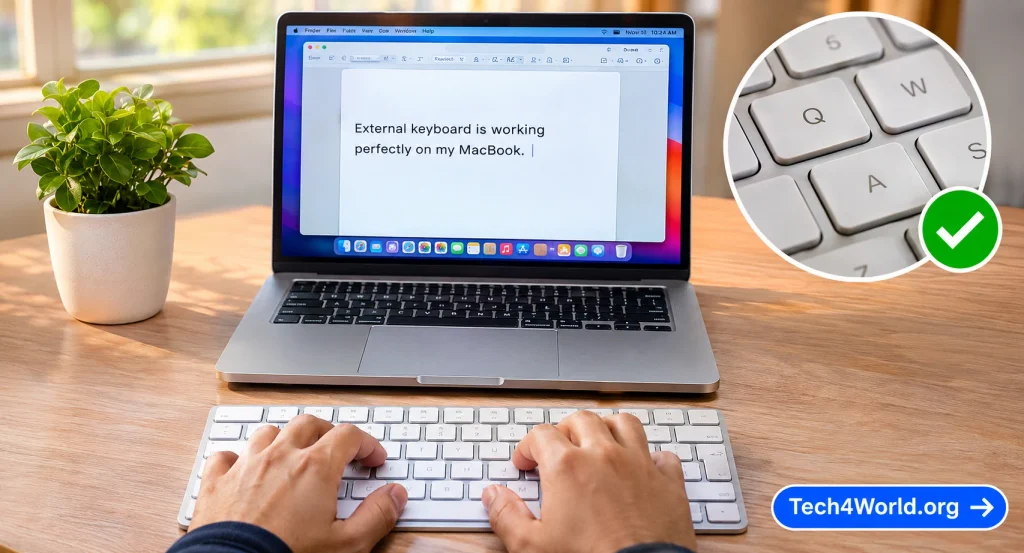
If you need to get work done while you sort things out, an external keyboard is a lifesaver. A basic USB keyboard works instantly, and a Bluetooth one is easy to pair through System Settings.
This is also a great diagnostic tool. If an external keyboard works perfectly, your Mac itself is fine, and the problem is with the built-in keyboard. That tells you a MacBook keyboard not working is probably a hardware issue with the keyboard itself, and not a macOS problem.
The Butterfly Keyboard Problem
If you own a MacBook from roughly 2015 to 2019, you may have the older butterfly-style keyboard, which was known for sticky and failing keys. A MacBook keyboard not working on these models became so common that Apple created a Keyboard Service Program for them.
The program covered certain models for four years after the first retail sale, so most eligible laptops are likely out of that window by now. Still, it’s worth checking Apple’s Keyboard Service Program page to see whether your model was covered and whether you have any options. If you paid for a covered repair in the past, Apple’s page also says you can contact them about a refund.
Is It a Hardware Problem?
If you’ve gone through every fix and you still have a MacBook keyboard not working, hardware may be the issue. Here are the signs:
- Multiple keys are dead or acting up, even after cleaning.
- The keyboard doesn’t respond at all, even on the login screen.
- Apple Diagnostics gives you a hardware error code.
- There’s visible damage, or the Mac took a fall or a spill.
A failing keyboard or a loose connection inside can cause these, and unfortunately that’s not something you can fix with a software tweak.
When to Contact Apple Support
You’ve restarted, checked your settings, cleaned the keys, tested in Safe Mode, and maybe run diagnostics. If a MacBook keyboard not working is still happening, it’s time to call in the experts.
You can reach Apple through Apple Support, where you can chat, call, or book a Genius Bar appointment. Before you go, check your warranty or AppleCare+ status with Apple’s coverage checker, because coverage could make the repair cheap or free. If you’re out of warranty, ask for a quote first. Keyboard repairs on many MacBooks involve replacing the whole top case, so the price can add up. For an older MacBook, compare that cost to a replacement.
Back up your Mac before you go in, and bring a short list of what you’ve already tried, plus the diagnostics code if you have one.
Common Mistakes People Make
I’ve watched people turn a small problem into a big one just by rushing. Here are the mistakes worth avoiding:
Popping off keycaps. Pulling keys off can break the delicate mechanism, and a simple MacBook keyboard not working becomes a costly repair.
Using liquids to clean. Wipes and sprays can leak under the keys and make things worse.
Skipping the simple checks. Sticky Keys, Mouse Keys, and the input source cause a lot of MacBook keyboard not working complaints, and they take seconds to check.
Turning on a wet Mac. If you’ve had a spill, power it off and leave it off.
Resetting everything at once. Change one thing at a time, or you’ll never know what fixed your MacBook keyboard not working.
How to Keep It From Happening Again
A few small habits go a long way. Keep drinks away from your laptop, wipe the keyboard every couple of weeks, and use compressed air now and then to clear dust. Install macOS updates, and restart your Mac once in a while so a MacBook keyboard not working doesn’t sneak up on you.
Quick Troubleshooting Checklist
Want a fast recap? Here’s the order I’d follow for a MacBook keyboard not working
- Restart your Mac.
- Check Sticky Keys, Slow Keys, and Mouse Keys.
- Test with the on-screen keyboard.
- Check your input source and layout.
- Update macOS.
- Clean the keyboard with compressed air.
- Test in Safe Mode and a new user account.
- Reset NVRAM and the SMC if you have an Intel Mac.
- Run Apple Diagnostics.
- Reinstall macOS if the problem seems software-related.
- Contact Apple Support if nothing works.
Save this list somewhere handy. If a MacBook keyboard not working ever happens again, you’ll know exactly where to start.
Frequently Asked Questions About MacBook Keyboard Not Working
Question – Why is my MacBook keyboard not working but the trackpad is?
Answer – When a MacBook keyboard not working comes with a working trackpad, the Mac itself is usually fine, and the issue is the keyboard or a keyboard setting. Check Mouse Keys and Sticky Keys first, then try cleaning the keys and running Apple Diagnostics.
Question – Can I fix a MacBook keyboard not working without an external keyboard?
Answer – Often, yes. With a MacBook keyboard not working, you can use the on-screen keyboard to type, restart your Mac, and change settings with the trackpad. An external keyboard just makes the process easier.
Question – Why are some keys not working on my MacBook?
Answer – A MacBook keyboard not working on only a few keys usually comes from dust or a worn-out key. A careful cleaning with compressed air fixes many cases. If it doesn’t, a hardware repair may be needed.
Question – Is a MacBook keyboard not working covered by warranty?
Answer – If the keyboard has a defect, your standard warranty or AppleCare+ may cover it. Liquid damage usually isn’t covered. Check your coverage on Apple’s website and ask Apple Support.
Final Thoughts
Dealing with a MacBook keyboard not working is frustrating, no doubt about it. But in most cases, the fix is simpler than you’d expect. Start with the basics: restart your Mac, check your accessibility settings, and clean the keys. If that doesn’t work, move on to Safe Mode, diagnostics, and a macOS reinstall.
And if nothing helps, don’t beat yourself up. Some problems really are hardware, and that’s where Apple Support earns its keep. If a MacBook keyboard not working sticks around after every step in this guide, a technician can usually figure it out fast.
The big takeaway is to stay calm and work through the steps in order. Don’t rush, don’t pry off keycaps, and don’t forget to back up your Mac. Follow this guide, and there’s a very good chance you’ll be typing again in no time.