You press the side button, the screen lights up, and there it is: the Apple logo. You wait for your lock screen. And you wait. Five minutes later, the logo is still sitting there like it’s mocking you. Maybe the screen flashes off and on, maybe it just freezes, but either way your phone is basically a very expensive paperweight right now.
Real talk, an iPhone stuck on Apple logo is one of the most stressful tech problems you can have. Your photos, your messages, your banking apps, your whole life lives on that thing. I get the panic. I’ve been there too, and the first thought is always “did I just lose everything?”
Here’s the good news. In most cases, an iPhone stuck on Apple logo is a software hiccup, not a dead phone, and you can fix it at home. Plenty of the fixes don’t touch your data at all. A failed update, a low battery, a bad restore, or a glitchy startup can all cause it, and every one of those has a clear way out.
In this guide, I’ll walk you through every fix in the order I’d actually try them. We start with the easy stuff, move on to force restart and recovery mode, and talk about DFU mode as the last resort. If you’re dealing with an iPhone stuck on Apple logo right now, take a breath, grab a charger, and follow along. Apple has its own guide for an iPhone that’s stuck on the Apple logo, and everything here lines up with it.
Why Is Your iPhone Stuck on Apple Logo?
Before we start pressing buttons, it helps to know what’s going on. When you see an iPhone stuck on Apple logo, your phone is trying to boot, but something blocks it before iOS finishes loading. Think of a car that turns over but never quite starts.
Here are the most common causes:
- An iOS update that didn’t finish. This is the big one. Interrupted or glitchy updates often leave the phone hanging on the logo.
- A very low or dead battery. The phone can show the logo but not have enough power to boot.
- A failed restore or backup transfer. Errors during a restore can freeze the phone.
- Not enough storage. A completely full phone can struggle to start up or update.
- Corrupted software or a buggy app. Something got damaged, and startup can’t continue.
- Water or physical damage. Less common, but a drop or a soaking can do it.
- A hardware fault. Rare, but a failing battery or logic board can cause a boot loop.
The cool part is that the first five are all fixable at home. So if your iPhone stuck on Apple logo matches one of those, don’t panic yet.
First, Make Sure Your iPhone Is Really Stuck
Not gonna lie, this is the step most people skip, and it can save you a ton of trouble. Sometimes your iPhone isn’t stuck at all. It’s just updating or restoring, and that can take a while.
If you see the Apple logo with a thin progress bar underneath, your iPhone is working. Apple says to wait until the bar hasn’t moved for at least an hour before you assume something’s wrong. Big updates can sit on the logo for a long time, and your phone may restart a few times along the way. That’s normal.
So here’s the rule I follow. If there’s a progress bar, plug your iPhone in and leave it alone. If there’s no progress bar and the logo has been frozen for more than 15 or 20 minutes, then you’ve got a real iPhone stuck on Apple logo situation, and it’s time to act. Interrupting a normal update is the fastest way to turn a small delay into a big headache.
Fix 1 – Charge Your iPhone
Let’s start with the simplest fix for an iPhone stuck on Apple logo. A weak battery is a classic cause, because the phone doesn’t have enough juice to finish booting.
Plug your iPhone into a wall adapter with an Apple cable or a certified one. Cheap cables can deliver weak power. Leave it for at least 30 to 60 minutes, even if the screen looks dead or frozen. If it’s been drained for a long time, it may need extra time before it responds.
Honestly, a surprising number of cases of iPhone stuck on Apple logo get solved here. If your phone shows the charging screen or starts to boot after a while, you’re in good shape.
Fix 2 – Force Restart Your iPhone
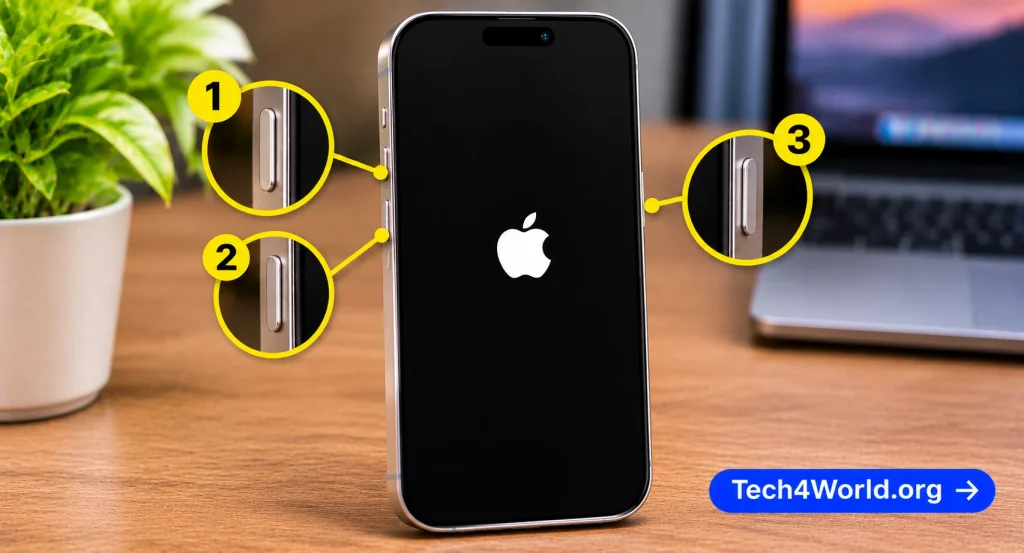
If charging didn’t help, a force restart is your next move. It’s the single most effective fix for an iPhone stuck on Apple logo, and it doesn’t erase your data. The steps depend on your model.
iPhone 8 or later (including iPhone SE 2nd and 3rd generation, iPhone X, and all newer models):
- Quickly press and release the volume up button.
- Quickly press and release the volume down button.
- Press and hold the side button until you see the Apple logo appear again.
iPhone 7 or iPhone 7 Plus:
- Press and hold the volume down button and the side button together.
- Keep holding until the Apple logo appears.
iPhone 6s, iPhone SE (1st generation), and earlier:
- Press and hold the Home button and the side (or top) button together.
- Keep holding until the Apple logo appears.
Be patient with this one, because an iPhone stuck on Apple logo can take a moment to react. The screen may go black first, and you need to keep holding until the logo shows up again. Then let go. After that, give your phone a couple of minutes. For many people with an iPhone stuck on Apple logo, the restart clears whatever was jamming the boot process, and your lock screen pops up like nothing ever happened.
Fix 3 – Disconnect Accessories and Try a Different Cable
Here’s a sneaky one. Sometimes an iPhone stuck on Apple logo is made worse by a flaky cable, charger, or accessory plugged into the phone.
Unplug everything: car adapters, headphones, dongles, docks, all of it. Then charge with a different cable and a different wall adapter, if you have them. Don’t use a USB port on an old computer or a loose power strip, since those can give weak or unstable power.
After that, try the force restart again from Fix 2. It’s a small change, but a clean, steady power supply helps your iPhone stuck on Apple logo finish booting, and I’ve seen it work when nothing else would.
Fix 4 – Give the Update Time to Finish
If you were installing an iOS update when the trouble started, patience is your best friend. A stuck-looking update is often just a slow one, especially on older phones or after a huge iOS release.
Keep your iPhone plugged in, keep it on Wi-Fi if it’s connected, and leave it alone for up to an hour. If the progress bar is moving, even slowly, don’t touch anything. A phone showing an iPhone stuck on Apple logo screen with a moving bar is usually just busy.
If an hour passes and the bar hasn’t moved, your iPhone stuck on Apple logo isn’t just updating anymore, so it’s time to stop waiting and move on to recovery mode. That’s the same one-hour rule Apple uses.
Fix 5 – Use Recovery Mode and Choose Update
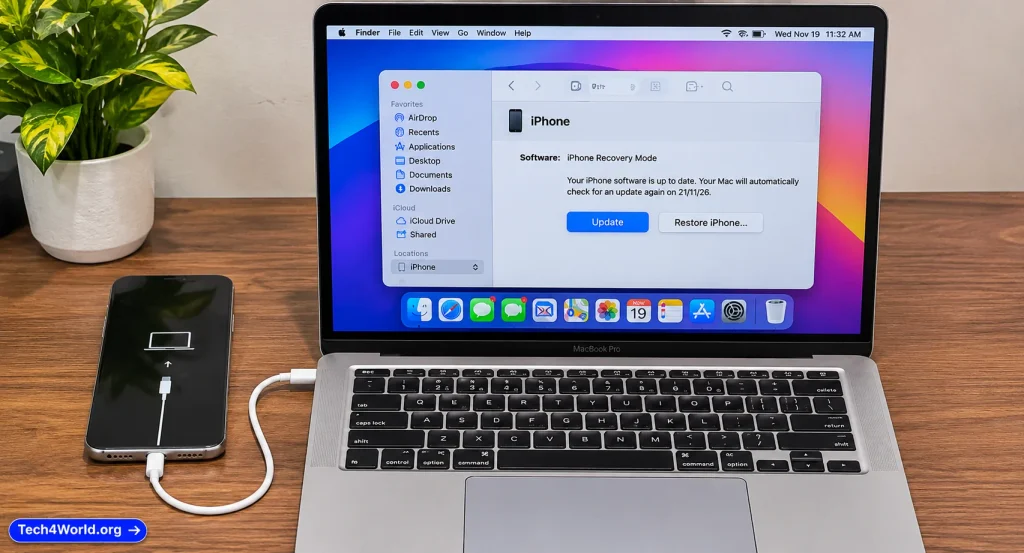
Okay, if a force restart didn’t work, it’s time for the bigger tool. Recovery mode lets a computer repair or reinstall iOS on your iPhone, and the best part is that you can pick the Update option, which tries to fix the software without erasing your data. That’s why recovery mode is such a solid deal for an iPhone stuck on Apple logo.
You’ll need a Mac or a Windows PC and a good cable. Apple’s official page on what to do if you can’t update or restore your iPhone covers the same process, so it’s worth keeping open in another tab.
Here’s how to do it:
- On a Mac with macOS Catalina or later, open Finder. On a Windows PC, open the Apple Devices app (or iTunes if you’re on an older setup).
- Connect your iPhone to the computer with a cable.
- While it’s connected, force restart your iPhone using the steps from Fix 2. Don’t let go when the Apple logo appears. Keep holding the button until you see the recovery mode screen, which shows a cable pointing to a computer.
- On your computer, you’ll see a message that there’s a problem with your iPhone and an option to Update or Restore. Choose Update.
- Your computer will download the software for your iPhone. If this takes more than 15 minutes, your iPhone will exit recovery mode. Just repeat the steps.
Once the update finishes, your iPhone should restart normally, with your data still there. For a lot of people dealing with an iPhone stuck on Apple logo, this is the finish line.
Fix 6 – Use Recovery Mode and Choose Restore
If Update didn’t fix your iPhone stuck on Apple logo, you can do the same recovery mode steps and pick Restore instead. Heads-up before you do this: Restore erases everything on your iPhone and installs a fresh copy of iOS. It’s a bit of a pain, but it’s a very strong fix for a stubborn iPhone stuck on Apple logo.
Here’s what to do:
- Put your iPhone in recovery mode again, using the same steps as in Fix 5.
- This time, choose Restore when your computer gives you the option.
- Wait while the software downloads and installs. Keep the cable connected the whole time.
- When your iPhone restarts, follow the setup steps.
- When you reach the apps and data screen, restore from your most recent iCloud or computer backup.
If you’ve got a recent backup, you’ll get most of your stuff back.
Fix 7 – Try DFU Mode as a Last Resort
DFU mode, short for Device Firmware Update, is the deepest restore your iPhone can do. It’s a last resort for an iPhone stuck on Apple logo, and you should only try it when recovery mode fails. It erases everything, so use it carefully.
For iPhone 8 and later, the process goes like this:
- Connect your iPhone to your computer and open Finder or the Apple Devices app.
- Quickly press and release the volume up button, then the volume down button.
- Press and hold the side button until the screen goes black.
- As soon as the screen goes black, keep holding the side button and also press and hold the volume down button for 5 seconds.
- Release the side button but keep holding the volume down button for about 10 more seconds.
- If the screen stays black, but your computer says it detected an iPhone in recovery mode, you did it right. Then restore from the computer.
If you see the Apple logo at any point, you went too far, so try again. The timing is fussy, and it’s normal to miss it the first time.
Does an iPhone Stuck on Apple Logo Mean You Lost Your Data?
With an iPhone stuck on Apple logo, this is the biggest fear, so let’s clear it up. Most of the time, no. A force restart doesn’t erase anything. Recovery mode with the Update option tries to repair iOS without touching your data. Only Restore and DFU wipe the phone.
That’s why the order matters. Always try force restart first, then Update in recovery mode, and only go to Restore or DFU if you have to. If you do have to erase the phone, and you have a recent backup, you’ll get most of your data back. If you don’t, some things may be gone for good, and that’s a tough one to swallow.
iPhone Stuck on Apple Logo After an iOS Update
This deserves its own section, because it’s super common. You update, walk away, and come back to an iPhone stuck on Apple logo. It’s frustrating, but it’s rarely permanent.
Big updates need lots of free storage and a decent battery. If your phone was almost full, the update may have choked. If the battery was low, it may have shut off halfway through. Either way, the fixes for an iPhone stuck on Apple logo are the same: charge the phone, wait the full hour, force restart, and use recovery mode with Update if needed.
To avoid this next time, free up some storage before you update, plug the phone in, and use a solid Wi-Fi connection. A little prep goes a long way.
When Hardware Is the Problem
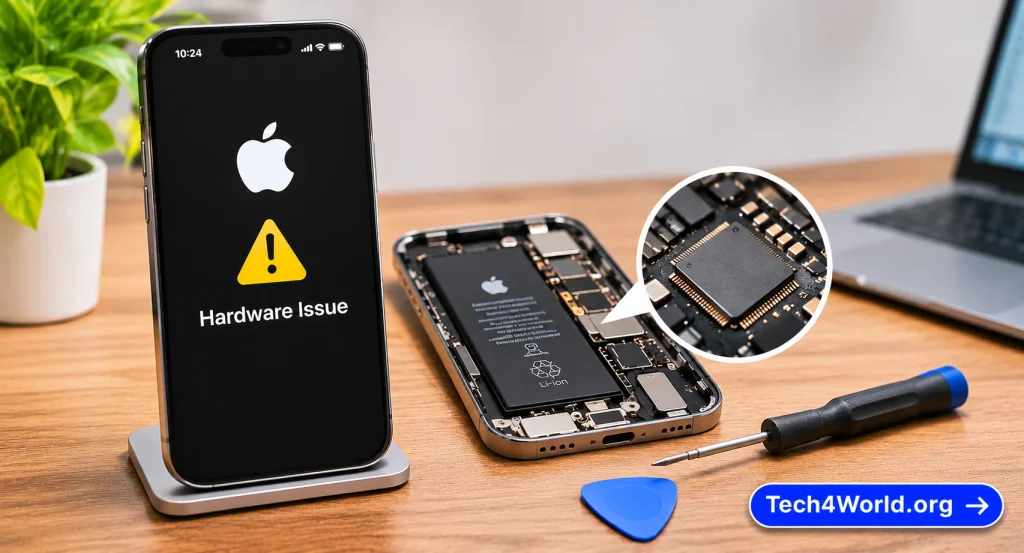
Let’s be honest. Sometimes no amount of button pressing fixes it, because the problem isn’t software. A few hardware issues can cause an iPhone stuck on Apple logo:
- A worn-out battery. After a couple of years, batteries lose capacity and can’t power the startup.
- Water damage. Even water-resistant phones can have seals wear down.
- A failed logic board. A hard drop or heavy impact can do it.
- A broken button. If you can’t force restart or enter recovery mode, a stuck button may be the reason.
Signs that point to hardware trouble include the phone getting hot, not charging at all, never getting past the logo after a full restore, or showing physical damage. If your iPhone stuck on Apple logo comes with any of that, don’t keep repeating the same fixes. It’s time to bring in a pro.
Common Mistakes People Make
I’ve seen people turn a small problem into a big one just by rushing. Here are the mistakes worth avoiding:
Interrupting an update. If the progress bar is moving, even slowly, leave it alone.
Skipping the charge. A dead battery looks just like an iPhone stuck on Apple logo, so charge first.
Jumping straight to Restore. With an iPhone stuck on Apple logo, always try Update first, because it can save your data.
Trusting random repair software. Sketchy tools that promise to fix an iPhone stuck on Apple logo can make things worse or put your data at risk.
When to Contact Apple Support
You’ve charged, force restarted, tried recovery mode, and maybe even DFU. If your iPhone stuck on Apple logo is still there, it’s time to call in the experts.
You can reach Apple through Apple Support, where you can chat, call, or book a Genius Bar appointment. Before you go, check your warranty or AppleCare+ status with Apple’s coverage checker, because coverage might make a repair cheap or free. If you’re out of warranty, ask for a quote and compare it to the cost of a new phone. For an older iPhone, a replacement may be the smarter move.
For an iPhone stuck on Apple logo, bring your iPhone, your Apple Account details, and a short list of everything you’ve tried. Tell the technician exactly when the problem started, because that helps them diagnose faster.
How to Avoid an iPhone Stuck on Apple Logo Again
A few habits keep the problem from returning. Back up regularly with iCloud or your computer, leave a few gigabytes of storage free, install updates while plugged in on Wi-Fi, and don’t let the battery sit at zero. Restarting your phone now and then also clears small glitches before they turn into an iPhone stuck on Apple logo moment.
Quick Troubleshooting Checklist
Want a fast recap? Here’s the order I’d follow for an iPhone stuck on Apple logo:
- Check for a progress bar. If there is one, wait up to an hour.
- Charge your iPhone for at least 30 to 60 minutes.
- Force restart using the steps for your model.
- Unplug accessories and try a different cable and charger.
- Put your iPhone in recovery mode and choose Update.
- If that fails, use recovery mode and choose Restore.
- Try DFU mode only if recovery mode doesn’t work.
- Restore from your most recent backup.
- Contact Apple Support if nothing works.
Save this list somewhere handy. If an iPhone stuck on Apple logo ever happens again, you’ll know exactly where to start.
Frequently Asked Questions About iPhone Stuck on Apple Logo
How long should I wait if my iPhone is stuck on the Apple logo?
If there’s a progress bar, wait up to an hour with the phone plugged in. If there’s no progress bar and nothing changes after 15 to 20 minutes, try a force restart.
Will a force restart delete my data?
No. A force restart just reboots the phone and doesn’t erase your files or settings. Just avoid doing it in the middle of an update with a moving progress bar.
Can I fix an iPhone stuck on Apple logo without a computer?
Sometimes. For an iPhone stuck on Apple logo, charging and a force restart work without a computer and fix many cases. But recovery mode and DFU both need a Mac or a PC.
Will recovery mode erase my iPhone?
Not if you choose Update, even with an iPhone stuck on Apple logo. That option tries to reinstall iOS and keep your data. Choosing Restore erases the phone.
Why does my iPhone keep getting stuck on the Apple logo?
If an iPhone stuck on Apple logo keeps coming back, you might have a failing battery, a full storage drive, or a corrupted backup. Try setting the phone up as new, and if it still happens, have Apple look at it.
Final Thoughts
Dealing with an iPhone stuck on Apple logo is stressful, no doubt about it. But in most cases, the fix is simpler than you’d expect. Start with the basics: let it charge, give any update time to finish, and try a force restart. If that doesn’t work, move to recovery mode and choose Update before you ever think about erasing anything.
And if nothing helps, don’t beat yourself up. Some problems really are hardware, and that’s where Apple Support earns its keep. If your iPhone stuck on Apple logo refuses to budge after every step here, a technician can usually figure it out fast.
The big takeaway for an iPhone stuck on Apple logo is to stay calm and work through the steps in order. Don’t rush, don’t interrupt updates, and don’t skip your backups. Follow this guide, and there’s a very good chance your iPhone will be back on its lock screen in no time.