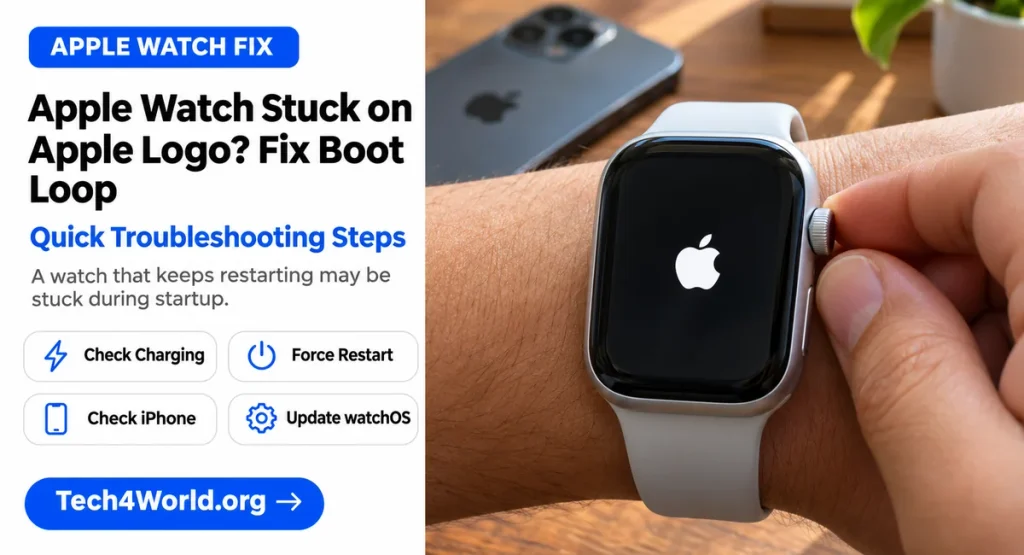
You glance down at your wrist, expecting your watch face and activity rings, and instead you get a white Apple logo staring back at you. You wait a minute. Nothing. You wait five. Still nothing. Real talk, that moment is stressful. Your watch is basically a tiny computer strapped to your arm, and when it freezes on a logo screen, it feels like the whole thing might be bricked.
Here’s the good news up front. An Apple Watch stuck on Apple logo is one of the most common watchOS problems out there, and most of the time you can fix it at home without spending a dime. I’ve seen it happen after software updates, after a fully drained battery, and sometimes for no obvious reason at all. Honestly, the watch usually just needs a little push to finish booting.
In this guide, we’ll walk through every fix in the order that actually makes sense. We start with the quick stuff, move to the heavier fixes, and talk about when it’s time to call Apple. If an Apple Watch stuck on Apple logo is happening to you right now, grab a coffee and follow along. By the end, you’ll know exactly what to try and what to skip.
Why Is My Apple Watch Stuck on Apple Logo?
Before we start mashing buttons, it helps to know what’s going on under the hood. When you see an Apple Watch stuck on Apple logo, the watch is trying to start up, but something blocks the process halfway through. Think of a car that cranks but won’t fire. The engine is trying, but one piece of the puzzle is missing.
Here are the most common reasons this happens:
- A watchOS update that didn’t finish. This is the number one cause. If the update gets interrupted, the watch can hang on the logo.
- A very low or dead battery. The watch can show the logo but doesn’t have enough juice to boot all the way.
- Corrupted software or data. A glitchy app or a bad file can get in the way during startup.
- A failed restore or reset. If you were erasing the watch and it got interrupted, it might freeze.
- Water or physical damage. Less common, but it happens, especially with older watches.
- A hardware fault. Rare, but the battery or the logic board can fail.
The cool part is that the first four causes are fixable at home. So if your Apple Watch stuck on Apple logo problem fits one of those, don’t panic yet.
First, Make Sure Your Watch Is Really Stuck
Not gonna lie, this is the step most people skip, and it can save you a ton of trouble. Sometimes your watch isn’t broken at all. It’s just updating.
When watchOS installs an update, you’ll often see the Apple logo with a thin progress bar underneath it. That bar can move really slowly, and big updates can take a long while. If you see that bar, even if it barely moves, the watch is working. Leave it alone.
So here’s the rule I follow. If there’s a progress bar, give it time. Put the watch on its charger, keep your iPhone nearby, and wait up to an hour. If there’s no progress bar and the logo has been frozen for more than 15 or 20 minutes, then you’ve got a real Apple Watch stuck on Apple logo situation, and it’s time to act.
Interrupting an update is the fastest way to turn a small hiccup into a full Apple Watch stuck on Apple logo headache. Patience here is honestly the cheapest fix you’ll ever try.
Software Problem or Hardware Problem?
It helps to figure out which side you’re dealing with, because it changes what you should do next. A software problem usually shows up right after an update, a reset, or an app install. The watch might flash the logo, go black, and then repeat. That pattern points to a boot loop, and it’s usually fixable.
A hardware problem looks different. The watch might get hot on the charger, refuse to show any charging sign, or have visible damage like cracks, swelling, or moisture under the screen. If your Apple Watch stuck on Apple logo issue came right after a drop, a swim, or a bad charging accident, hardware is more likely.
Don’t stress if you can’t tell. The fixes below start with the safe, simple ones, and they work for both situations until you reach the point where a pro needs to take over.
Charge Your Watch Properly First
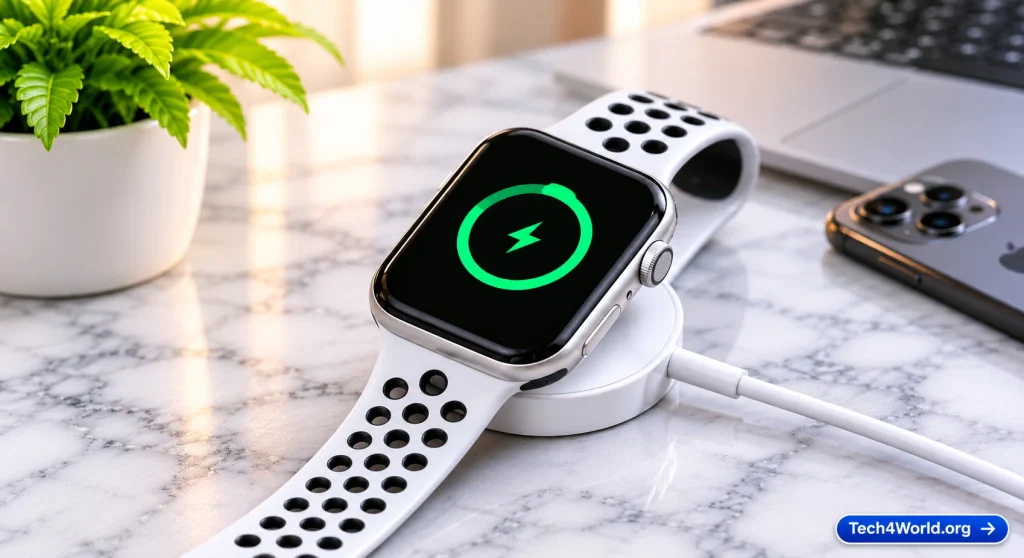
Let’s start with the easiest fix. A watch with a weak battery can’t finish booting, and the logo screen is a classic sign of that.
Place your watch on its charger and make sure it’s snapping on properly. Here’s what to check:
- Use the original Apple magnetic charger or a certified one. Cheap knockoffs can deliver weak or unstable power.
- Plug the cable into a solid wall adapter, not a flimsy USB port on a laptop or an old power strip.
- Make sure the back of the watch and the charger are clean. A little dust or sweat can block charging.
- Leave the watch on the charger for at least 30 to 60 minutes.
I know it sounds too simple, but a surprising number of people fix their Apple Watch stuck on Apple logo issue with nothing more than a proper charge. If the watch has been sitting around with a dead battery for weeks, it may need extra time to wake up, so be patient.
If you see the red lightning bolt, that’s actually a good sign. It means the watch is charging and just needs time. Once it has some power, it might boot all the way on its own. And if your Apple Watch stuck on Apple logo screen showed up right after pulling it off a long-dead battery, this step alone may be the whole solution.
Force Restart Your Apple Watch
If charging didn’t do the trick, a force restart is your next move. This is the single most effective fix for an Apple Watch stuck on Apple logo, and it takes about ten seconds.
Here’s how to do it:
- Press and hold the Digital Crown and the side button at the same time.
- Keep holding both buttons for at least 10 seconds, even if the screen goes dark.
- Release them when you see the Apple logo appear again.
That last part trips people up. The screen will flash the logo, go black, and then show the logo a second time. That’s normal. You just keep holding until the logo comes back, and then you let go.
After that, give the watch a couple of minutes. A lot of the time, the restart clears whatever was jamming the boot process, and your watch face pops up like nothing happened. Pretty sweet, right? When the force restart clears your Apple Watch stuck on Apple logo problem, open the Watch app on your iPhone afterward and make sure everything is syncing properly.
Try Charging and Force Restarting Together
Here’s a little trick that doesn’t get talked about enough. If a regular force restart doesn’t work, try doing it while the watch is on the charger.
Put the watch on the charger, wait a few minutes, and then do the force restart while it’s still charging. Some stuck watches respond better when they have a steady power supply during the restart. It’s a small change, but I’ve seen it work when nothing else would.
If your Apple Watch stuck on Apple logo problem is still there after this, don’t worry. We’ve got more options, and the next one involves your iPhone.
Keep Your iPhone Close and Check the Connection
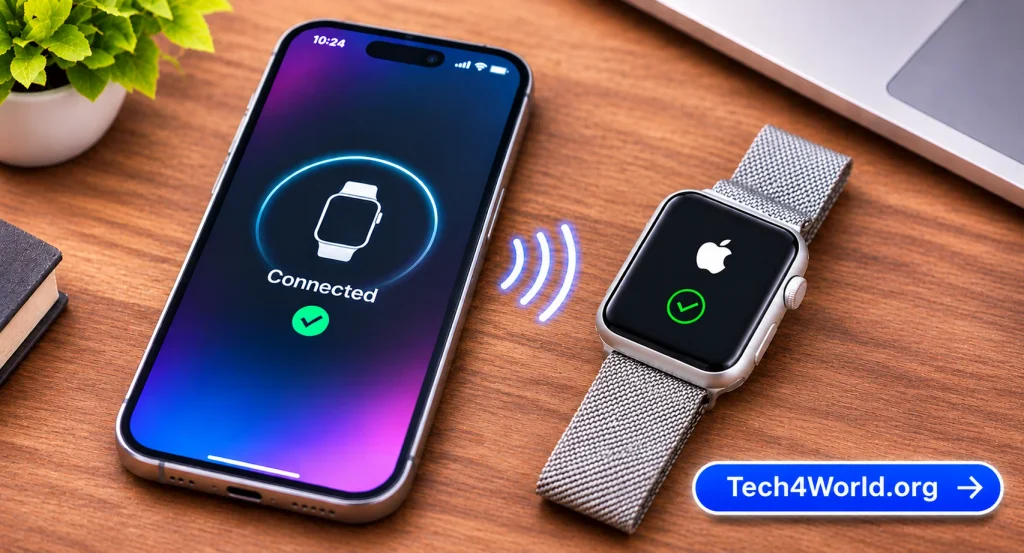
Your Apple Watch and iPhone work as a team. When a watch is struggling to boot after an update, having your iPhone close can help it finish the job.
Take a minute to check these things on your iPhone:
- Bluetooth is turned on.
- Wi-Fi is turned on and connected to a stable network.
- The iPhone is updated to the latest iOS version your model supports.
- The Watch app opens without any errors.
Why does this matter? Because the watch often needs to talk to your iPhone during setup and updates. If your phone is on old software or has a flaky connection, it can leave the watch hanging. Keep both devices on the charger, keep them within a few feet of each other, and give them time to sort it out.
Honestly, this step alone can resolve a stubborn Apple Watch stuck on Apple logo case, especially right after a big update. It’s boring advice, but it works more often than you’d think.
Check If Apple’s Servers Are the Problem
This one is sneaky. Sometimes an Apple Watch stuck on Apple logo has nothing to do with your watch at all. If Apple’s update servers are overloaded or down, your watch can hang while waiting for something it can’t reach.
You can check Apple’s System Status page from any browser. Look for anything related to software updates or iCloud services. If something’s down, the best fix is to wait a few hours and try again. Not everything has to be a big troubleshooting adventure. Sometimes the smartest move is to go make lunch and come back later.
Unpair and Restore to Fix an Apple Watch Stuck on Apple Logo
Okay, if the watch is still frozen after all that, it’s time for the bigger fix. Unpairing wipes the watch and breaks the connection with your iPhone, and then you set it up again. It sounds scary, but it’s pretty straightforward, and your data is safer than you think.
Here’s why it’s not a big deal. Your iPhone automatically creates a backup of your Apple Watch whenever you unpair it, as long as the two devices can communicate. So you can restore your settings and most of your data afterward.
Here’s how to do it:
- Keep your iPhone and your watch close together.
- Open the Watch app on your iPhone.
- Tap the My Watch tab.
- Tap All Watches at the top.
- Tap the info button next to the stuck watch.
- Tap Unpair Apple Watch and confirm.
If you’ve got a cellular model, you’ll be asked whether to keep or remove your cellular plan. If you plan to re-pair the same watch, keep the plan.
Once the unpair is done, pair the watch again like it’s brand new. When you get to the restore step, pick the most recent backup. Your watch will run through setup, and with any luck, the Apple Watch stuck on Apple logo issue will be completely gone.
One thing to know: you might be asked for your Apple ID password during this process. That’s Activation Lock doing its job. It’s a security feature, so just enter your password and move on.
What If You Can’t Unpair the Watch?
Sometimes the iPhone can’t see the watch at all because the watch is frozen so hard it isn’t responding. In that case, you may have trouble unpairing the normal way.
Here’s what I’d try. First, make sure both devices are charged and close together. Then try the force restart one more time. If the watch finally boots, even for a few seconds, jump into the Watch app and unpair right away.
If it never gets that far, you can still remove the watch from your account later through your Apple ID, but that’s mostly useful if you’re sending the watch in for repair. For a regular Apple Watch stuck on Apple logo case, the next step is usually a visit to Apple or an authorized service provider. We’ll cover that shortly.
Fixes for an Older Apple Watch Stuck on Apple Logo
Older watches, like the Series 3 and earlier models, tend to get stuck more often after updates. The reason is pretty simple. These watches have limited storage and slower processors, so big updates can be rough on them.
Here’s what I’d suggest if you’re on an older model:
- Free up space before updating. Remove apps and music you don’t use. Less clutter means a smoother update.
- Use the charger the whole time. Never start an update with a low battery.
- Don’t force restart too early. Older watches can take a really long time to finish updating, so patience matters.
- Think about whether the update is worth it. If your older watch works fine, you don’t always need the latest software.
If your older watch is an Apple Watch stuck on Apple logo right after an update, try the charger plus force restart combo first, then move on to unpairing. If those don’t work, it may be time to think about whether the repair is worth the cost compared with a newer model.
When Hardware Is the Problem
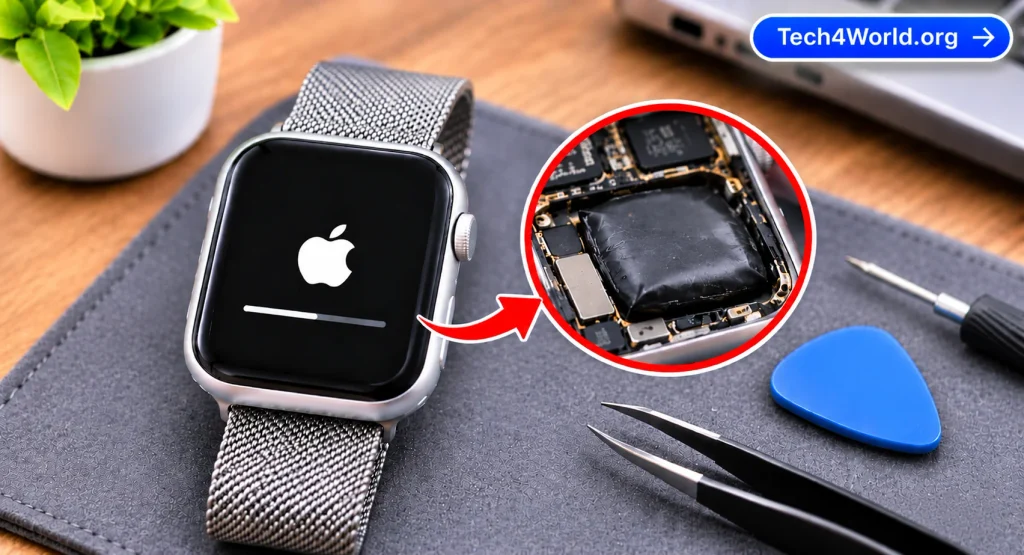
Let’s be honest. Sometimes no amount of button pressing will fix the issue, because the problem isn’t software. A few hardware issues can cause an Apple Watch stuck on Apple logo situation:
- A worn-out battery. After a few years, batteries lose capacity and can’t deliver enough power for startup.
- A swollen battery. If your watch screen is lifting or the case looks puffy, stop using it and get it checked right away.
- Water damage. Even water-resistant watches can have their seals wear down over time.
- A failed logic board. This is rare, but a hard drop or serious impact can do it.
Signs that point to hardware trouble include the watch getting hot while charging, not charging at all, never getting past the logo no matter what you try, or showing physical damage. If your Apple Watch stuck on Apple logo screen comes with any of those signs, don’t keep repeating the same fixes over and over. It’s time to get a professional involved.
When to Contact Apple Support
You’ve tried the charger, the force restart, the iPhone connection, and the unpair. If your Apple Watch stuck on Apple logo issue is still there, it’s time to call in the experts.
Apple has a few ways to get help:
- Apple Support online or by phone. You can chat or call and walk through diagnostics with a technician.
- An Apple Store Genius Bar appointment. They can run tests on the watch and often tell you quickly what’s wrong.
- An Apple Authorized Service Provider. These are great if there isn’t an Apple Store nearby.
Before you go, check your warranty or AppleCare+ status. If you’ve got coverage, the repair or replacement might cost very little. If you don’t, ask for a price quote first. For a newer watch, a battery or board repair may be worth it. For an older model, a replacement could make more sense.
Bring your iPhone, your Apple ID details, and your original charger. Also tell the technician exactly when your Apple Watch stuck on Apple logo problem started and what you already tried. That saves everyone time and keeps you from paying for tests you’ve already done yourself.
How to Avoid an Apple Watch Stuck on Apple Logo Next Time
Once your watch is back up, you’ll want to keep it from happening again. A few simple habits go a long way.
Install updates smartly
Install watchOS updates when you’ve got time, not when you’re rushing out the door. Put the watch on the charger, keep your iPhone nearby, and leave them alone until the update finishes. Never interrupt the process.
Don’t let the battery hit zero often
Running your watch down to nothing again and again isn’t good for the battery. Charge it regularly, ideally overnight or while you’re getting ready in the morning.
Restart your watch once in a while
A simple restart every now and then clears out temporary glitches. It’s like giving your watch a quick nap. This small habit keeps another Apple Watch stuck on Apple logo moment from sneaking up on you.
Back up your iPhone regularly
Your watch data syncs through your iPhone, so a good iPhone backup protects your watch too. If you ever need to wipe the watch, you’ll be glad you did this.
Watch for early warning signs
If your watch starts lagging, freezing, or restarting randomly, don’t ignore it. Those can be signs that a bigger issue is coming. Catching them early is the best way to dodge an Apple Watch stuck on Apple logo screen later.
Common Mistakes People Make
I’ve seen people turn a simple problem into a big one just by rushing. Here are the biggest mistakes to avoid.
Interrupting an update. If the progress bar is moving, even slowly, leave it alone.
Using the wrong charger. Third-party chargers that aren’t certified can cause charging problems and make an Apple Watch stuck on Apple logo issue worse.
Giving up on charging too soon. If the watch has been dead for a while, it may need an hour or more before it responds.
Skipping the backup. If you can, make sure your iPhone has a recent backup before you unpair.
Trying a million random things. Treating an Apple Watch stuck on Apple logo like a random glitch and jumping from fix to fix just wastes time. Stick to a clear order: charge, force restart, check the iPhone, unpair, then get help.
Quick Troubleshooting Checklist
If you want a fast recap, here’s the order I’d follow for an Apple Watch stuck on Apple logo:
- Check for a progress bar. If there is one, wait.
- Put the watch on a certified charger for at least 30 to 60 minutes.
- Force restart by holding the Digital Crown and side button for 10 seconds or more.
- Try the force restart again while the watch is charging.
- Make sure your iPhone has Bluetooth, Wi-Fi, and the latest iOS.
- Check Apple’s System Status page for outages.
- Unpair the watch from your iPhone and set it up again.
- Contact Apple Support or visit an authorized service provider if nothing works.
Save this list somewhere. If this ever happens again, you’ll know exactly what to do.
Does Unpairing Delete Your Data?
This is one of the biggest worries people have, so let’s clear it up. When you unpair, the watch is erased, but your iPhone makes a backup first if it can communicate with the watch. When you set up the watch again, you can restore from that backup and get most of your settings, watch faces, and app layouts back.
Some things may not carry over perfectly, like certain app data that lives only on the watch. Health and activity data are usually safe because they sync with your iPhone and iCloud. Still, it’s a good idea to double-check that your Health data is backing up before you start.
If your Apple Watch stuck on Apple logo problem was caused by corrupted data, you might even want to set the watch up as new instead of restoring. That gives you a clean slate. It takes a little more effort, but it can fix stubborn issues that keep coming back.
Should You Replace Your Apple Watch?
Sometimes the honest answer is yes. If your watch is several years old, the battery is weak, and repairs cost a big chunk of what a new one would, upgrading can be a solid deal. Newer models have better battery life, faster chips, and more health features.
But if your watch is newer, still under warranty, or covered by AppleCare+, repair is usually the smarter move. Ask for a quote and compare it with the price of a replacement. Don’t make a rushed decision just because the Apple Watch stuck on Apple logo issue is annoying right now.
Frequently Asked Questions About Apple Watch Stuck on Apple Logo
Question – How long should I wait if my watch is frozen on the logo?
Answer – If there’s a progress bar, wait up to an hour while the watch is on the charger. If there’s no progress bar and nothing changes after 15 to 20 minutes, try a force restart.
Question – Will force restarting damage my watch?
Answer – No. A force restart is a safe way to reboot a frozen watch, and it doesn’t erase your data. Just avoid doing it in the middle of a visible update with a moving progress bar.
Question – Why does my watch get stuck after a watchOS update?
Answer – Usually the update didn’t finish properly. That can happen from a low battery, a weak connection to the iPhone, limited storage, or a glitch during installation.
Question – Can I fix an Apple Watch stuck on Apple logo without my iPhone?
Answer – You can try charging and force restarting without your iPhone, and that fixes many cases. But if you need to unpair or restore, you’ll need your iPhone.
Question – Will AppleCare cover an Apple Watch stuck on Apple logo?
Answer – If the cause is a hardware defect or battery problem, AppleCare+ or your standard warranty may cover it. Software issues are usually fixed through restore steps, but Apple Support can tell you what applies to your watch.
Question – What if my watch keeps getting stuck again after I fix it?
Answer – If the problem keeps coming back, something deeper might be wrong, like a failing battery or corrupted software. Set the watch up as new instead of restoring from a backup, and if it still happens, take it to Apple.
Final Thoughts
Dealing with an Apple Watch stuck on Apple logo is frustrating, no doubt about it. But in most cases, the fix is simpler than you’d expect. Start with the basics: let it charge, give any update time to finish, and try a force restart. If that doesn’t work, check your iPhone connection and move on to unpairing and restoring.
And if nothing helps, don’t beat yourself up. Some problems really are hardware issues, and that’s where Apple Support or an authorized repair shop earns their keep. If your Apple Watch stuck on Apple logo refuses to budge after every step in this guide, a technician can usually diagnose it quickly.
The big takeaway is to stay calm and work through the steps in order. Don’t rush, don’t interrupt updates, and don’t skip your backups. Follow this guide, and there’s a very good chance your watch will be back to tracking your steps and buzzing with notifications in no time.