You plug in your MacBook, glance at the menu bar, and the battery icon just sits there. No lightning bolt. No progress. Maybe the dropdown even says “Not Charging,” which feels personal when you’re at 9 percent with a deadline coming.
Real talk: a MacBook not charging is way scarier than it usually is. Honestly, most of the time it’s something small, like a dusty port, a flaky cable, or a software hiccup. I’ve seen people book a repair, then fix the whole thing with a restart and a toothpick.
So let’s work through it together, starting with the easy stuff. By the end, you’ll know why your MacBook not charging problem is happening and what to do about it.
Why Is My MacBook Not Charging? (Quick Overview)
When a MacBook is not charging, the cause almost always lands in one of three buckets: the power source, the Mac itself, or the battery.
Power source problems are the most common. Think a dead outlet, a damaged cable, a loose adapter, or a third-party charger that doesn’t deliver enough wattage. They’re also the cheapest to fix.
Mac-side problems include a dirty or damaged port, a software glitch, or a power management issue. On older Intel Macs, that last one is the SMC, which we’ll cover soon.
Battery problems are the ones nobody wants to hear about. Lithium-ion batteries wear out, and an old one can charge slowly or stop charging properly.
The smart move for any MacBook not charging case is to test in order: outlet, cable, restart, then battery. That’s the roadmap for this whole guide, and it keeps you from replacing a good charger when the real issue is a clogged port.
One more thing. A MacBook plugged in but not charging doesn’t always mean something is broken. Sometimes macOS holds the charge back on purpose, or pauses it because the Mac is running hot.
Check the Basics First: Outlet, Cable, and Adapter
Not gonna lie, this step sounds almost insulting. But it fixes a surprising number of MacBook not charging cases, so do it anyway.
- Try a different wall outlet. Plug a lamp or phone charger into the same outlet to confirm it has power. Power strips fail more often than you’d think.
- Unplug everything and reconnect. Wait ten seconds, then plug it all back in firmly.
- Check the adapter. If you have a two-piece Apple charger, make sure the wall plug piece clicks in all the way.
- Look at the cable. Fraying near the connector, bent pins, or a kink means the cable is on its way out.
- Feel the brick. It should be slightly warm while charging. Stone cold, or too hot to hold, means something’s off.
If you have a MagSafe charger, check the LED on the connector. Amber means charging, green means full. No light at all points to the cable, adapter, or outlet, not the Mac.
Still stuck with a MacBook not charging? Moving on.
Fix 1 – Inspect the MagSafe or USB-C Port for Dirt and Damage
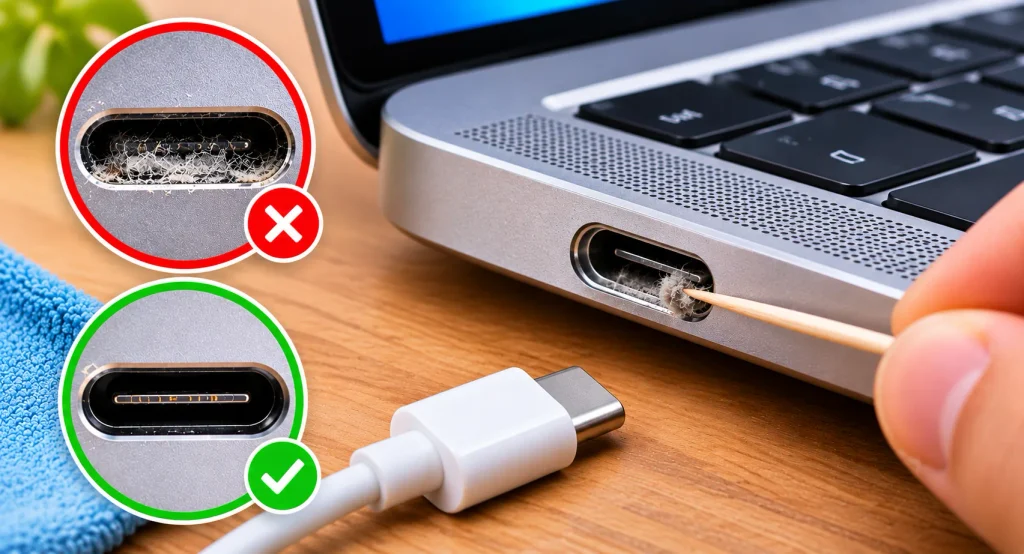
This is the fix most people skip, and honestly it’s the one I’d check first. Pocket lint, dust, and crumbs pack themselves into charging ports. Over time that gunk stops the connector from seating fully, and you get a MacBook not charging even though everything looks fine from the outside.
Grab a flashlight and look inside the port. If you see fuzz, here’s how to clean it safely:
- Power the Mac off first.
- Use a wooden or plastic toothpick, or a soft anti-static brush.
- Gently scrape along the edges and bottom of the port. In USB-C, don’t press on the center tongue.
- Never use metal tools, liquids, or compressed air held right at the port.
For MagSafe, check the magnetic connector too. Tiny metal bits stick to the magnet and block the pins, so wipe it with a dry, lint-free cloth.
Look for bent pins, burn marks, or a port that wiggles. Visible damage means cleaning won’t be enough. But if it was just lint, you might be done. Pretty sweet, right?
I once saw a USB-C port so packed with lint that the cable only went in halfway. Five minutes with a toothpick fixed that MacBook not charging problem for good.
Fix 2 – Try a Different Charger and Cable
If the port is clean, the charger is next. Plenty of “USB-C charger not working” complaints actually come from using the wrong power source.
Not all USB-C chargers are equal. A phone charger might fit, but if it only puts out 18W or 20W, your Mac may charge painfully slowly, or even drain under load. That looks exactly like a MacBook battery not charging, when the charger simply can’t keep up.
Here’s the rough wattage Apple generally recommends:
- MacBook Air: about 30W to 70W, depending on the model
- 14-inch MacBook Pro: about 70W to 96W
- 16-inch MacBook Pro: up to 140W
Use a cable rated for that power, too. Cheap USB-C cables sometimes only handle data or low power.
The best test is borrowing a friend’s genuine Apple charger and cable, or asking an Apple Store to test yours. If the Mac charges fine with theirs, you’ve found the culprit. Replace it with an Apple charger or a reputable certified brand.
Skip the sketchy ten-dollar chargers from random listings. Solid deal on the price, terrible deal for your battery, and a classic reason for a MacBook not charging later.
Fix 3 – Restart Your Mac
Yeah, I know, “turn it off and on again.” But a restart clears temporary glitches that confuse power management, and it’s a legit fix when your MacBook is not charging for no obvious reason.
Do a full shutdown, not just closing the lid:
- Click the Apple menu and choose Shut Down.
- Wait 30 seconds after the screen goes dark.
- Plug in the charger while the Mac is still off.
- Press the power button and check for the charging indicator.
Some people see a MacBook not charging only after macOS loads, while charging works with the Mac off. If that’s you, the issue is likely software, not hardware. That’s good news, because software problems are usually free to fix.
Fix 4 – Reset the SMC (Intel Macs)
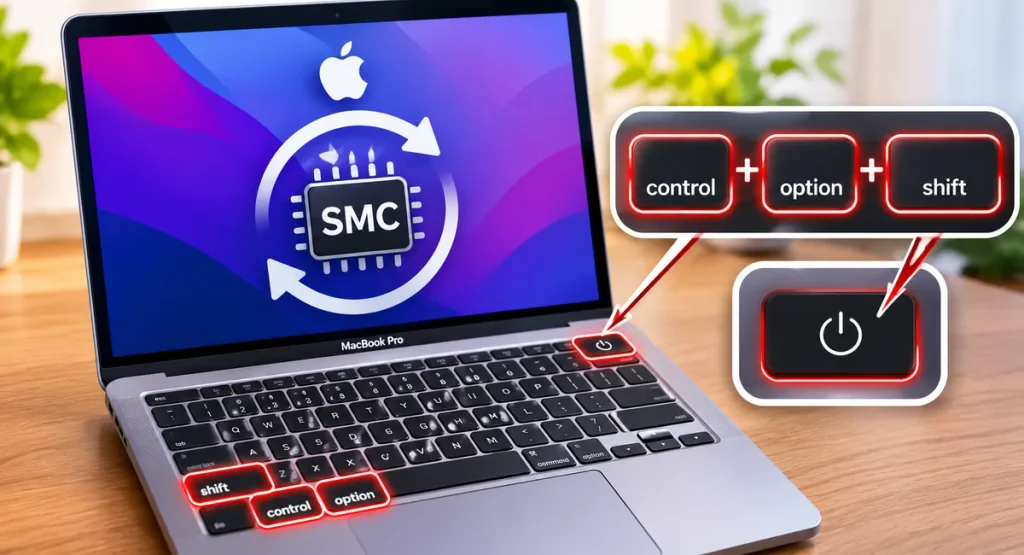
This one only applies to Intel-based MacBooks. The System Management Controller, or SMC, handles charging, fans, and power behavior. When it glitches, you can get a MacBook not charging even with a perfect charger.
If you have an Apple silicon Mac (M1, M2, M3, M4 or newer), skip ahead. There’s no separate SMC to reset.
Intel MacBooks with a T2 security chip (roughly 2018 to 2020):
- Shut down the Mac.
- Hold the right Shift, left Option, and left Control keys for seven seconds.
- Keep holding them and also hold the power button for another seven seconds.
- Release everything, wait a few seconds, then turn the Mac on.
Older Intel MacBooks with a non-removable battery and no T2 chip:
- Shut down and plug in the charger.
- Press Shift, Control, and Option on the left side, plus the power button, all at once.
- Release everything together, then power on.
Apple updates these steps now and then, so double-check Apple’s support page for your model. If your MacBook not charging issue began after a sleep problem or weird fan behavior, this fix is especially worth a shot.
Fix 5 – Restart Apple Silicon Macs the Right Way
Got an M-series MacBook? Good news and bad news. There’s no SMC reset, but a proper restart does a lot of the same work, since Apple silicon handles those functions internally.
- Shut the Mac down completely.
- Wait about 30 seconds.
- Unplug the charger from both the Mac and the wall.
- Plug it back into a known-good outlet and connect it to the Mac.
- Power the Mac on.
Also try a different USB-C port. A single port can fail while the others work fine. If one charges and the other doesn’t, you’ve narrowed your MacBook not charging problem to that specific port, and you can keep using the working one.
Fix 6 – Check Battery Health and Battery Condition in Settings
If your MacBook battery is not charging properly, or it charges but drains fast, see what the battery itself is saying. macOS tells you more than most people realize.
- Open System Settings.
- Click Battery in the sidebar.
- Click the info button next to Battery Health.
You’ll see a condition status, usually Normal or Service Recommended, plus the Maximum Capacity percentage. That number is basically your MacBook battery health in one figure. A new battery sits near 100 percent. Below about 80 percent, you’ll notice shorter runtime and sometimes odd charging behavior.
How to read it when your MacBook is not charging:
- Above 80 percent and Normal: the battery is probably fine, so look at the charger, port, or software.
- Below 80 percent: the battery is aging, and a replacement may be coming.
- Service Recommended: the battery is worn enough that Apple suggests replacing it.
Real talk: a tired battery can look like a MacBook not charging even when the hardware is fine, and a MacBook battery not charging past a certain point is a classic aging sign. It might stall at 60 percent, or jump around in a way that feels glitchy.
Fix 7 – Update macOS
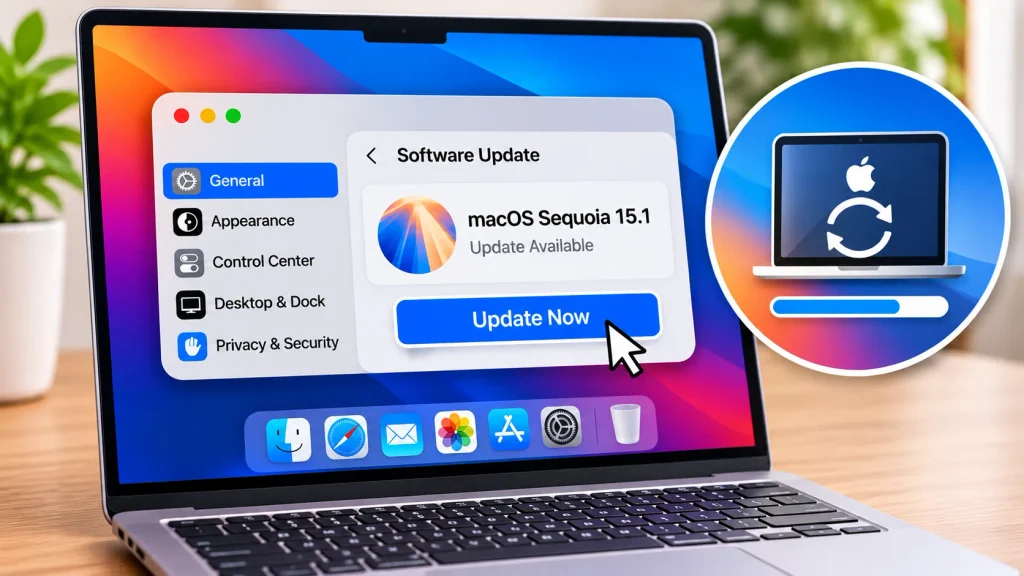
This one’s underrated. Software bugs can interfere with how your Mac reads and manages the battery, and Apple has patched charging issues in updates before. If your MacBook not charging problem started after a big update or beta, a newer patch might be the answer.
- Open System Settings.
- Go to General, then Software Update.
- Install anything waiting.
Make sure the Mac has enough power to finish the update. After it’s done, restart and see if the MacBook is not charging anymore. It’s not guaranteed, but when the cause is a software bug, this is the cure.
Fix 8 – Turn Off Optimized Battery Charging
Remember how I said a MacBook plugged in but not charging is sometimes intentional? This is the big one.
Optimized Battery Charging learns your routine and holds the charge around 80 percent until shortly before you usually unplug. It’s designed to slow battery aging. But it can look exactly like a MacBook not charging, especially when you suddenly need 100 percent.
To check or change it:
- Open System Settings, then Battery.
- Click the info button next to Battery Health.
- Toggle Optimized Battery Charging off, or leave it on and use Charge to Full Now from the menu bar battery icon.
Newer macOS versions also offer a charge limit on some models, which caps the maximum charge on purpose. If your Mac stops at 80 or 90 percent and everything else seems fine, check these settings before assuming it’s broken.
For most people, leaving Optimized Battery Charging on is a smart move. I’ve lost count of how many “stuck at 80” posts about a MacBook not charging turned out to be this exact feature working as designed.
Fix 9 – Check for Overheating and Heavy Apps
Heat is a battery’s worst enemy. If your Mac gets too hot, it slows or pauses charging to protect the battery, and people assume their MacBook is not charging when it’s really just cooling off.
Common heat triggers:
- Video editing, gaming, or dozens of browser tabs while plugged in
- Charging on a bed, couch, or pillow that blocks the vents
- A thick case that traps heat
Close demanding apps, move the Mac to a hard flat surface, and give it 10 or 15 minutes. Then check whether the MacBook is still not charging.
You can also open Activity Monitor, click the Energy tab, and look for apps eating huge amounts of power. A rogue process can drain the battery as fast as the charger fills it, so it looks like your MacBook not charging when it technically is. Quit the offender and the percentage should start climbing.
If the Mac runs hot even when idle, or the fans scream with nothing heavy open, something deeper may be wrong and it’s worth a visit to a pro.
MacBook Plugged In but Not Charging – What the Battery Icon Means
Let’s decode what your menu bar is telling you when your MacBook is not charging.
- Lightning bolt inside the battery: charging normally.
- Plug icon: connected to power but not actively charging, often because it’s full or Optimized Battery Charging is holding it back.
- Battery with a line or an X: the Mac can’t read the battery, which points to a hardware or sensor issue.
- “Not Charging” in the dropdown: the Mac sees power but isn’t sending it to the battery. Could be the charger, a temperature limit, or battery condition.
- “Service Recommended”: battery health has dropped, and Apple suggests getting it checked.
If you see “Not Charging” with a clearly connected adapter, run back through the earlier fixes: different charger, clean port, restart. If it keeps happening, the cause is probably hardware.
Also, give it ten to fifteen seconds after plugging in before deciding the MacBook is not charging. macOS sometimes takes a moment to recognize a new power source, especially after waking from sleep.
Battery Service Warning – What It Really Means
That “Service Recommended” message makes people freak out. Let’s calm it down, because a battery service warning is related to a MacBook not charging problem but isn’t the same thing.
A MacBook battery service warning doesn’t mean your Mac is about to die. It means the battery’s capacity has dropped enough that Apple recommends replacing it. You can usually keep using the Mac meanwhile, with shorter battery life and maybe some odd charging behavior.
Why does it happen?
- Normal aging: after many charge cycles, the chemistry wears down.
- Heat exposure: years in warm environments speed up wear.
- Deep discharges: hitting zero again and again isn’t great.
- A faulty battery: rarely, a defect causes early failure.
If your Mac is under warranty or covered by AppleCare+, a service warning with capacity below 80 percent is typically covered at no cost. Pretty sweet deal, so check your coverage first.
Out of warranty? Apple and authorized shops offer battery replacements for a flat fee, usually far cheaper than a new laptop. For a lot of people, a fresh battery makes an old MacBook feel brand new.
MacBook Not Charging? When to Visit Apple or an Authorized Repair Shop

You’ve cleaned the port, swapped the charger, restarted, and reset what you could, and your MacBook still won’t charge. Time to stop troubleshooting. A stubborn MacBook not charging issue that survives all nine fixes is usually hardware.
Head to Apple or an authorized provider if:
- Your MacBook not charging problem continues with multiple known-good chargers and cables.
- The port is visibly damaged, loose, or burned.
- The battery icon shows an X or says the battery can’t be read.
- The Mac shuts off the moment you unplug it.
- You notice a swollen battery, a lifting trackpad, or a bulging case.
A swollen battery is a safety issue. If the case is warping or the trackpad is pushing up, stop using the Mac, don’t charge it, and get it looked at right away.
Real talk: skip the shady repair kiosks if you can. Cheap non-genuine batteries and chargers can cause new problems. An authorized shop will run proper diagnostics and tell you whether it’s the battery, port, or logic board before you spend money.
How to Keep Your MacBook Battery Healthy Long Term
Once you’ve solved the MacBook not charging headache, you’ll want to avoid a repeat. A few habits make a real difference.
Don’t live at 0 or 100 percent. Lithium-ion batteries are happiest between about 20 and 80 percent. You don’t have to be strict, but avoiding constant extremes helps.
Keep it cool. Heat does more damage than almost anything else. Don’t leave the Mac in a hot car, and give it airflow when it’s working hard.
Use quality chargers. Stick with Apple’s charger or a certified alternative with the right wattage. Cheap knockoffs are a false economy.
Keep Optimized Battery Charging on. It cuts time spent at full charge, which slows aging and helps prevent a MacBook not charging scare.
Clean your ports occasionally. A quick look every few months prevents lint buildup.
None of this has to be perfect. Even two or three of these habits will stretch your battery’s life and lower the odds of another MacBook not charging scare.
Final Thoughts on a MacBook Not Charging
A MacBook not charging feels like a crisis, but nine times out of ten you can fix it yourself in a few minutes. Start simple: check the outlet, cable, and adapter, clean the port, try a different charger, and restart. On an Intel model, reset the SMC too.
If that doesn’t do it, look at the bigger picture: battery health, macOS updates, Optimized Battery Charging, and heat. And if you still see a service warning, or the Mac refuses to charge no matter what, get it checked by Apple or an authorized shop.
The main takeaway? Don’t assume the worst. Work through the list in order and you’ll almost always find the culprit. And if your MacBook not charging problem turns out weirder than anything here, drop the details in the comments and we’ll figure it out together.
FAQs
Why is my MacBook plugged in but not charging?
A MacBook plugged in but not charging usually comes down to a bad cable or adapter, a dirty port, or Optimized Battery Charging holding the charge back. Try a different charger, clean the port, and check your battery settings. If it still won’t charge, the battery or port may need service.
Can a MacBook not charging be caused by software?
Yes. Glitches in macOS power management can cause a MacBook not charging problem, and a restart or update often fixes it. On Intel Macs, an SMC reset can also help.
Can I use a phone charger on my MacBook?
It might connect, but most phone chargers don’t deliver enough power, so the Mac charges slowly or not at all under load. Match your MacBook’s wattage.
Is it safe to use my MacBook with a battery service warning?
Usually yes, for a while. The warning means capacity has dropped, not that the Mac is dangerous. But if the battery looks swollen or the case is bulging, stop using it and get it inspected right away.
How much does it cost to fix a MacBook battery that won’t charge?
It depends on your model and warranty. With AppleCare+ and capacity below 80 percent, a replacement can be free. Out of warranty, expect a flat service fee, still usually cheaper than a new laptop.