Be honest: when was the last time you really thought about your web browser? For most people, it’s just a button on the Home Screen that you tap a hundred times a day. You search, you scroll, you buy something you didn’t need at 1 a.m., and you close it without a second thought.
That’s kind of the point of Safari. It’s built into every iPhone, iPad, and Mac, so it just works, and most folks never poke around in its settings. But here’s the thing. Apple has quietly packed Safari with tools that save time, protect your privacy, and make the web way less annoying. And with the iOS 27 and macOS 27 updates that landed in September 2026, Safari got a major refresh.
Not gonna lie, I used to treat it like a basic tool until I started digging in. Tab groups, profiles, page monitoring, and AI-sorted tabs completely changed how I browse. In this guide, I’ll walk you through what it is, what it can do, which devices run it, and how to set it up. Then we’ll get into tips, common problems, and how it stacks up against Chrome and friends. Grab your device and let’s get into it.
What Is Safari
Safari is Apple’s web browser. It comes pre-installed on iPhone, iPad, Mac, and Apple Vision Pro, and it’s the default way most Apple users get online. It first showed up on Macs in 2003, and it’s been getting better ever since.
Under the hood, the browser runs on Apple’s WebKit engine, which is the part that actually draws websites on your screen. Apple builds the engine, the browser, and the hardware, so everything is tuned to work together. That’s a big reason why pages feel smooth and why battery life holds up well on Apple devices.
Here’s what the browser is known for:
- Speed. Apple has kept making page loading and JavaScript faster, and the latest version is no exception.
- Privacy. It blocks cross-site trackers by default and has tools to hide your IP address from them.
- Sync. Your tabs, bookmarks, history, and passwords follow you across devices through iCloud.
- Integration. It works hand in hand with Passwords, Apple Pay, Siri, and the rest of the Apple ecosystem.
It’s also free. There’s nothing to download, nothing to subscribe to, and no ads baked into the browser itself.
If you’re wondering about version numbers, Apple now matches the number to the operating system year. Safari 27 shipped with iOS 27 and macOS 27, so it’s easy to know what you’re running. It also gets smaller point updates, like 27.1 and 27.2, that bring bug fixes and new web features.
Safari Key Features
Safari has a long list of features, but a handful stand out. Here are the ones I’d point at first.
Tab Groups. You can organize tabs into groups, like Work, Trip Planning, or Shopping, and switch between them with one tap. They sync across all your devices.
Profiles. Want to keep work browsing separate from personal stuff? Profiles give you separate history, cookies, extensions, and tab groups for each part of your life.
Intelligent Tracking Prevention. It blocks cross-site trackers, and the Privacy Report shows you who tried to follow you around the web.
Reader mode. One tap removes ads and clutter so you can read an article in a clean layout. You can adjust the font and background too.
Passwords and AutoFill. The browser fills in your logins, credit cards, and passkeys, and it warns you if one of your passwords has shown up in a data leak.
Private Browsing. Private tabs don’t save your history, and on newer versions they lock when you step away.
Translation. You can translate a whole webpage right in the browser.
Extensions. You can add content blockers, password managers, and tools from the App Store.
Then there’s what’s new in version 27, which came with iOS 27 and macOS 27:
- Notify Me. You can ask Safari to watch a page and alert you when it changes, like a price drop or a restock.
- Automatic tab organization. On devices with Apple Intelligence, it can sort your open tabs into topic groups for you.
- Create an Extension. On devices with Apple Intelligence, you can describe what you want in plain English, and Safari builds a custom extension.
- A new start page. Bookmarks, Reading List, and History now sit in tabs right at the top of the start page.
- Faster performance. Apple says it handles JavaScript faster, and fixed hundreds of bugs.
- Passwords auto-fix. Apple’s Passwords app can use the browser to update weak or compromised passwords for you.
- Ask to Browse. A new parental control that makes kids ask for approval before visiting a new website.
And more is coming. Apple’s 27.3 beta, expected to ship in December, adds vertical tabs, Adaptive Dark Mode that darkens websites that don’t have a dark theme, and more Siri AI support.
Privacy deserves a special mention. Safari doesn’t just block trackers, it also hides your IP address from known trackers and limits how much info sites can use to fingerprint your device. If you pay for iCloud+, Private Relay can go a step further and hide your browsing activity from network providers and websites.
Safari Supported Devices
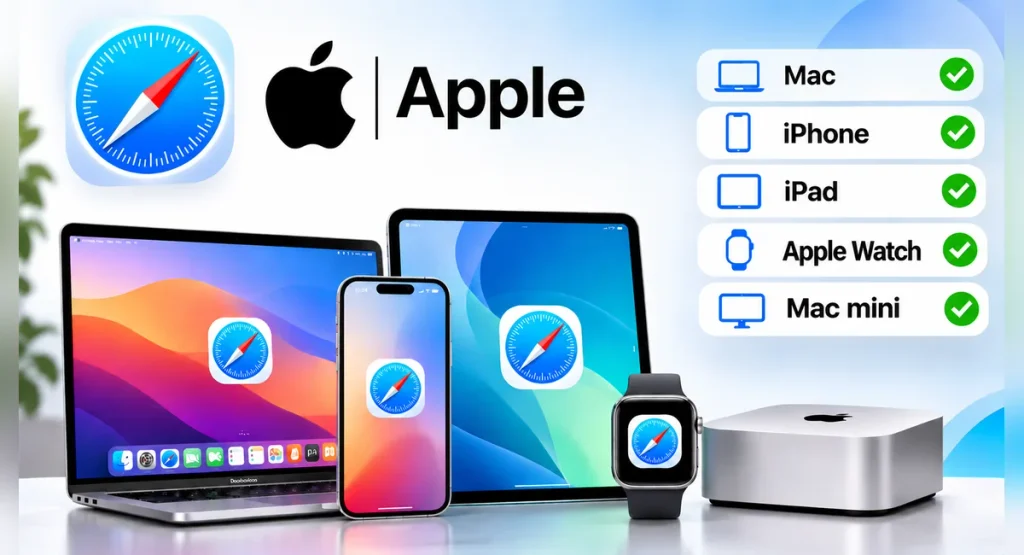
The browser is built into Apple’s devices, so there’s nothing to install on most of them. Here’s where you can use it:
- iPhone. It’s built into iOS. iOS 27 runs on iPhones going back to the iPhone 11.
- iPad. It’s built into iPadOS, with desktop-style tabs and a sidebar.
- Mac. It comes with macOS, and updates are also available for macOS Tahoe and macOS Sequoia.
- Apple Vision Pro. It’s built in, and version 27 adds support for immersive web environments.
There’s no version for Android, and Apple stopped making a Windows version years ago. So if you’re on a Windows PC, you’ll need Chrome, Edge, Firefox, or another browser.
A couple of details matter here. New features often depend on your software version. For example, the automatic tab organization and some of the Siri AI features need a device that supports Apple Intelligence. Older iPhones can still run version 27, but they won’t get every AI feature.
Older Macs matter too. If your Mac can’t run macOS 27, you can often still get a newer version through updates for macOS Tahoe or macOS Sequoia, so your browser stays reasonably current even if your computer is a few years old. Just keep in mind that some Apple Intelligence features won’t come along for the ride.
To check your version on iPhone or iPad, go to Settings, then General, then About. On Mac, click the Apple menu and choose About This Mac. The browser itself updates with your operating system, and sometimes with separate updates on the Mac, so keep Software Update on.
How to Use Safari
Using Safari is simple, but there’s a lot more to it than most people realize. Here’s the quick tour.
Search or visit a site. Tap the address bar at the bottom (or top, depending on your layout) and type a website address or a search term. It’ll suggest results as you type.
Open and switch tabs. Tap the tabs button to see all your open pages. On iPhone, you can swipe left or right on the address bar to flip between tabs. On Mac, press Command and T for a new tab.
Save a bookmark or Reading List item. Tap the Share button, then choose Add Bookmark or Add to Reading List. The Reading List is great for articles you want to read later, even offline.
Use tab groups. Open the tabs view, tap the tab group button, and choose New Empty Tab Group. Name it and start adding tabs.
Use Reader mode. On supported pages, tap the page menu and choose Show Reader. It’s a lifesaver on cluttered sites.
Find something on a page. Tap Share, then Find on Page, and type what you’re looking for.
Switch to a desktop site. Sometimes mobile pages hide stuff. Open the page menu and choose Request Desktop Website.
Go private. Open the tabs view, tap the tab groups button, and pick Private. Anything you do there won’t be saved to your history.
On Mac, a few keyboard shortcuts make life easier: Command and L jumps to the address bar, Command and Shift and T reopens the last tab you closed, and Command and F searches the page. Not a bad way to look like a pro.
One more thing: Safari works across your devices. Start reading an article on your iPhone, then pick up the same page on your Mac with Handoff. Open a tab on one device and find it under iCloud Tabs on another. You can even say “Hey Siri, open Safari” if your hands are full.
How to Turn On Safari
Since Safari is built in, you don’t really turn it on like an app you downloaded. But there are a few things you might need to switch on or fix, so here are the common ones.
Make it your default browser. On iPhone, go to Settings, then Apps, then Default Apps, and choose Browser App. On Mac, open System Settings, go to Desktop and Dock, and pick it from Default web browser.
Turn on iCloud sync. Go to Settings, tap your name, tap iCloud, and make sure Safari is turned on. That keeps your tabs, bookmarks, and history synced between devices.
Turn on JavaScript. If a site isn’t working right, go to Settings, then Apps, then Safari, then Advanced, and make sure JavaScript is on.
Turn on extensions. On iPhone, go to Settings, then Apps, then Safari, then Extensions, and toggle on the ones you want. On Mac, open Safari, then Settings, then Extensions.
Turn on Private Browsing lock and tracking protection. In Safari’s settings, look at the Privacy section for options like Advanced Tracking and Fingerprinting Protection.
If the app is missing. If you can’t find the icon, search for it in the App Library or Spotlight. If it’s still gone, check Screen Time. Go to Settings, then Screen Time, then Content and Privacy Restrictions, then Allowed Apps, and make sure Safari is on.
Developer tools on Mac. Open Safari, go to Settings, then Advanced, and check Show features for web developers. That adds a Developer tab in Settings.
If you want to learn more about any of these, Apple’s Safari support hub has guides for every device.
Safari Tips and Hidden Features
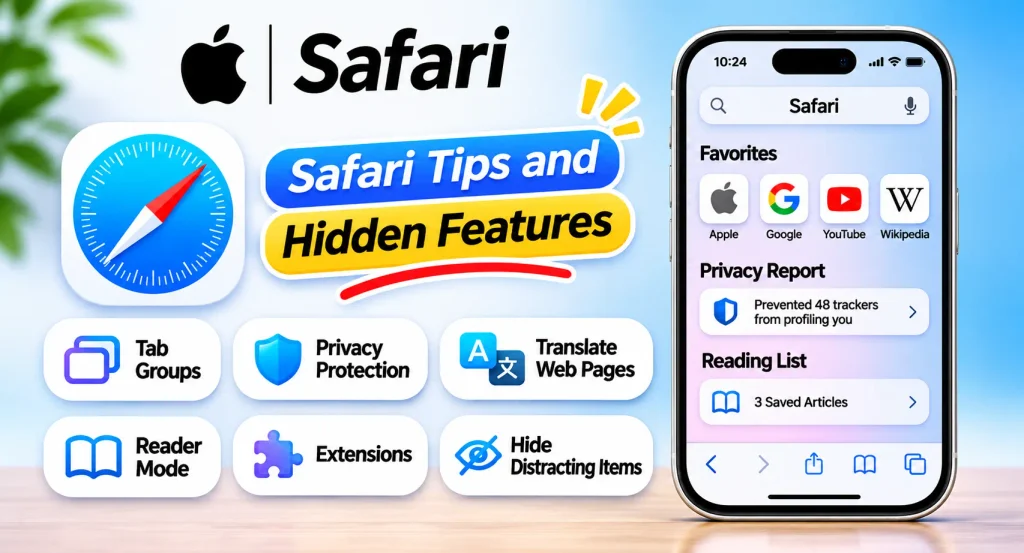
Okay, now for the good stuff. A few small tricks can make the browser way more useful.
Tap and hold the tabs button. On iPhone, a long press gives you shortcuts like Close All Tabs, so you don’t have to close pages one by one.
Use Notify Me. If you’re waiting on a sneaker restock or a flight price drop, let the browser watch the page for you. It’s pretty sweet.
Let it organize your tabs. If you’re a tab hoarder like me, the topic grouping on Apple Intelligence devices can clean up dozens of tabs in a snap.
Build your own extension. The new Create an Extension option lets you type what you want, like “hide the comments section on news sites,” and the browser makes it for you.
Use profiles. Keep your work logins, bookmarks, and tabs separate from personal browsing. It makes switching modes way easier.
Check the Privacy Report. Tap the page menu to see which trackers were blocked on a site. It’s eye-opening.
Use Hide My Email. If you have iCloud+, you can create a throwaway email address when signing up for sites you don’t trust.
Swipe down to refresh on Mac. Since macOS 27, you can swipe down at the top of a page to reload it, just like on iPhone.
Drag links and tabs. On iPad and Mac, you can drag a link into another app, or drag a tab into a new window, with no fuss.
Ask Siri about the page. On iPhone, you can invoke Siri while you browse and ask it to explain what’s on the screen.
Add a site to your Home Screen. Tap Share, then Add to Home Screen, and a site you use a lot opens like an app.
Pin your favorite tabs on Mac. Right-click a tab and choose Pin Tab, and it stays put at the left of the tab bar, ready whenever you need it.
Search your tabs. If you have too many open, use the tab search to find the one you need in seconds, which beats scrolling through a wall of thumbnails.
Set up Ask to Browse for kids. If you’re a parent, the new Screen Time option lets you approve new websites before your child can visit them.
Common Safari Problems and Fixes
Even a polished browser has bad days. Here are the issues I see most often and how I’d fix them.
Pages won’t load. First, check your internet. Try loading another site, or switch between Wi-Fi and cellular. If only one site fails, the problem may be the site itself.
It’s slow or freezing. Close extra tabs, restart the browser, and restart your device. Too many open tabs can use up memory fast.
It keeps crashing or reloading pages. Update your iPhone, iPad, or Mac, since bugs get fixed in updates. If it happens on one site, try turning off extensions one at a time.
A website looks broken. Some content blockers or extensions can break pages. Turn them off for that site, or request the desktop version.
You see “Cannot Connect” or “Server Stopped Responding”. Try turning off any VPN, then try again. If you use iCloud Private Relay, toggle it off in Settings to test.
It won’t save passwords or AutoFill won’t work. Check Settings, then Passwords, then Password Options, and make sure AutoFill is on. Also check that your iCloud Keychain is enabled.
Tabs aren’t syncing. Make sure you’re signed in with the same Apple Account on each device, and that Safari is turned on under iCloud.
You want to clear the clutter. Go to Settings, then Apps, then Safari, then Clear History and Website Data. It logs you out of most sites, so have your passwords ready.
Pop-ups or redirects keep appearing. Check Settings for Block Pop-ups and Fraudulent Website Warning, and remove any extensions you don’t recognize.
It feels slow right after an update. After a big update, your device can spend a while indexing in the background. Leave it plugged in on Wi-Fi for a bit, and give Safari time to settle before you blame the browser.
If none of these work, update your device, restart it, and if the problem sticks around, contact Apple Support.
Safari vs Alternatives
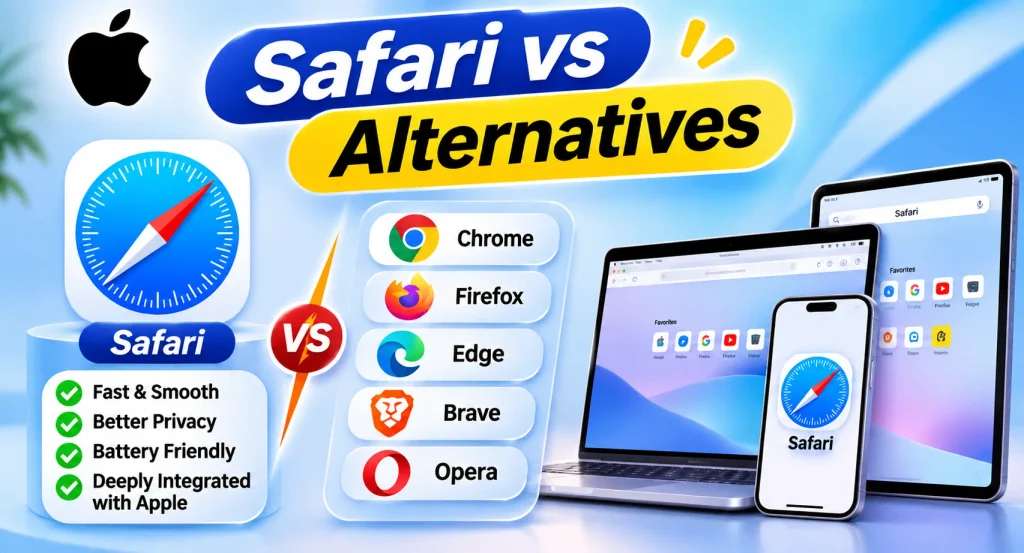
So how does the browser compare to Chrome, Firefox, Edge, and the others? Honestly, it depends on how you use the web.
Chrome. It works on almost every device and has the biggest extension library. It’s tightly tied to Google accounts, which is great if you live in Gmail and Google Docs. The tradeoff is more data collection and a bigger appetite for battery.
Firefox. It’s the independent pick, with a strong privacy reputation and a lot of customization. It works on Mac, Windows, Android, and iPhone.
Edge. It’s built on Chromium, so it works with Chrome extensions, and it’s a solid choice if you use Windows or Microsoft services.
Brave. It blocks ads and trackers by default, and it’s popular with privacy-minded folks.
Here’s the big picture. Safari is built into your device, tends to be easy on battery, and has strong privacy tools. It also syncs smoothly with Passwords, iCloud, and Apple Pay. The downsides? It only runs on Apple devices, and its extension library is smaller than Chrome’s. That’s the real tradeoff with Safari, and for many people it’s worth it.
One fun fact: on iPhone, other browsers have historically had to run on Apple’s WebKit engine under the hood, so the experience on iOS can feel similar across apps. Rules are different in the European Union, where Apple has opened things up a bit.
My take? If you’re all-in on Apple, stick with it as your main browser. If you work across Windows, Android, and Mac, or you rely on a specific Chrome extension, running both is totally fine.
Safari FAQs
Question – Is Safari free?
Answer – Yes. The browser is free and comes built into iPhone, iPad, Mac, and Apple Vision Pro. There’s nothing to pay for or subscribe to.
Question – Is Safari available for Windows or Android?
Answer – No. Apple stopped making a Windows version years ago, and there has never been an official Android version. You’ll need another browser on those platforms.
Question – How do I update Safari?
Answer – It updates with your operating system. On iPhone or iPad, go to Settings, then General, then Software Update. On Mac, open System Settings, go to General, then Software Update.
Question – Is Safari safe and private?
Answer – It has strong built-in protections, like tracking prevention, fraudulent website warnings, and Private Browsing. No browser is perfect, so keep your device updated and use strong, unique passwords.
Question – How do I clear history and cookies?
Answer – On iPhone, go to Settings, then Apps, then Safari, and tap Clear History and Website Data. On Mac, open Safari, click History, and choose Clear History.
Question – Can I use Safari extensions?
Answer – Yes. You can add extensions from the App Store, and the new Create an Extension option lets you build your own by describing what you want.
Question – What’s new in Safari 27?
Answer – Features like Notify Me, automatic tab organization, Create an Extension, a new start page, faster performance, and Ask to Browse for parents. Check MacRumors’ guide to the new Safari features for the full list.
The browser might feel boring, but it’s one of the most capable tools on your device. Spend ten minutes exploring the settings, and I’d bet you’ll find something that makes your day a little easier.