
You’re standing at the gate, boarding pass in one hand, and you reach for your iPad to pull up the movie you downloaded for the flight. You press the top button. Nothing. You press it again, a little harder, like that’s going to help. Still a black screen. Welcome to the world of iPad not turning on.
If you’ve been there, you know that tiny jolt of panic. iPad not turning on feels like a disaster, but most of the time it’s something you can fix on your couch with zero tools and zero cash. So if you’re reading this with a dead tablet in your lap, take a breath.
I’ve lined up the eight fixes that work when you have an iPad not turning on, in the order you should try them. Some are boring (yes, we’re going to talk about charging cables). A couple carry real risk to your data, and I’ll flag those clearly. Let’s get your iPad back.
Why Is My iPad Not Turning On? (Quick Reality Check)
Here’s the thing. When you run into iPad not turning on, it’s almost always one of four culprits: the battery is totally drained, the charging setup is the problem, the software froze up, or something physical is broken. That’s pretty much the whole list.
The first three are common and very fixable. Batteries hit zero more often than you’d think, especially on an iPad that’s been sitting in a drawer. Charging problems usually come down to a worn-out cable, a weak adapter, or a port packed with lint. Software freezes lead to iPad not turning on all the time, and a simple force restart clears most of them. Honestly, iPad not turning on is a charging or software issue far more often than it’s a truly dead iPad.
The fourth one, hardware damage, is the one nobody wants. A dropped iPad, a splash of water, or an old swollen battery can all cause iPad not turning on in ways no button mashing will fix. We’ll cover how to spot that too.
Real talk: don’t jump straight to iPad recovery mode or a DFU restore. Those can wipe your data, and you probably don’t need them. Work through the fixes for iPad not turning on in order and stop the moment your iPad wakes up.
Before You Panic – 3 Quick Things to Check
Spend two minutes on these first. They sound too simple, but they’ve saved plenty of people with an iPad not turning on from a trip to the store.
- Make sure the screen is really dead, not just dark. Dim the lights and hold a flashlight at an angle to the glass. If you can faintly see your lock screen or icons, the iPad is running and the backlight is the problem, which points toward hardware (Fix 8).
- Press the top button the right way. Hold it for a solid three to five seconds instead of tapping it. Take the case off in case it’s blocking the button.
- Plug it in and just watch. Stare at the screen for a few minutes. A charging icon is a good sign. Total silence doesn’t confirm iPad not turning on yet, because a drained iPad can take a while to wake up.
If you got even a flicker of life, keep going from there. If not, Fix 1 is where a lot of people solve iPad not turning on for good.
Fix 1 – Charge It Longer Than You Think (At Least 30-60 Minutes)
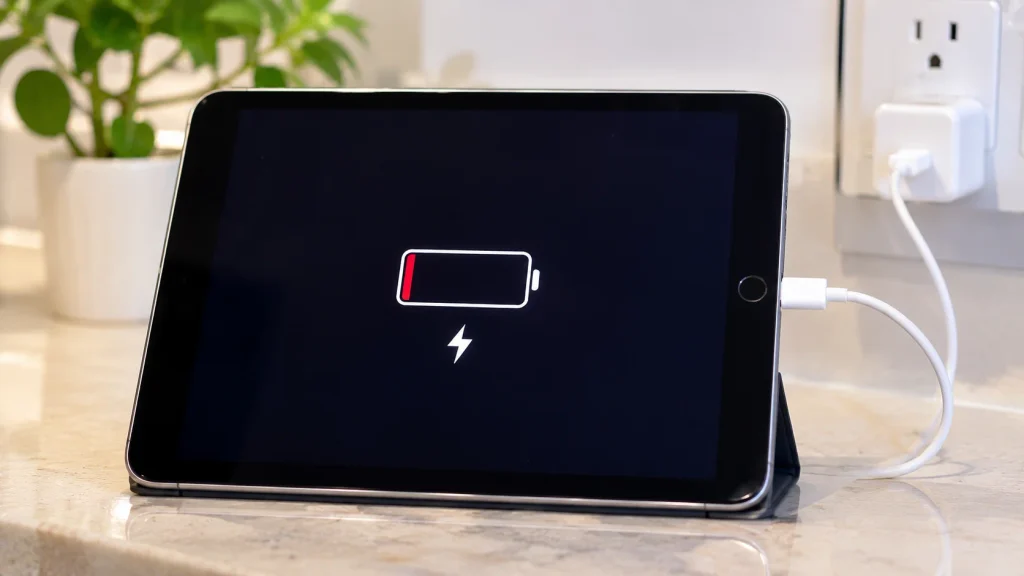
This is the one people skip because it feels too obvious. But when an iPad battery hits true zero, it won’t light up the second you plug it in. It can look dead for several minutes while it collects enough power to show a charging icon. Plenty of people give up after two minutes and assume it’s a permanent iPad not turning on situation. It usually isn’t.
Step by step
- Plug the iPad into a wall adapter using the cable that came with it. Skip the computer USB port for now, since it often supplies too little power.
- Leave it alone for at least 30 minutes. Give it a full hour if it was completely drained or has been sitting unused for months.
- Resist the urge to keep pressing buttons while iPad not turning on feels hopeless. Just let it charge.
- After 30 to 60 minutes, press and hold the top button for a few seconds.
If you see the Apple logo or a charging screen, you’re back in business. If the screen stays black after a full hour, battery level probably isn’t the reason for your iPad not turning on, so let’s look at the charging gear itself.
Fix 2 – Try a Different Cable, Adapter, and Wall Outlet
If you’re dealing with iPad not turning on and your iPad won’t charge, there’s a decent chance the iPad isn’t even to blame. Cables are the most abused accessory we own.
Honestly, a bad cable is one of the most common reasons for an iPad not turning on, and it’s the cheapest to fix. Test each piece of the charging chain separately so you know which one is the culprit.
Test it one piece at a time
- Swap the cable. Use a different Lightning or USB-C cable, ideally one you know works with another device. Look for fraying, bent pins, or burn marks.
- Swap the adapter. Tiny old phone chargers can be too weak for an iPad. A 20-watt USB-C adapter is a solid pick for most modern models.
- Try another outlet. I know, it sounds silly. But outlets, power strips, and surge protectors do die. Plug straight into a wall socket in a different room.
- Give each combo time. Wait 15 to 30 minutes with each setup before you decide iPad not turning on is still happening.
Stick with Apple or MFi-certified accessories when you can. Ultra-cheap gas station cables are hit or miss. If a new cable fixes your iPad not turning on problem, toss the bad one and move on.
Fix 3 – Clean the Charging Port (Lint Is a Sneaky Culprit)
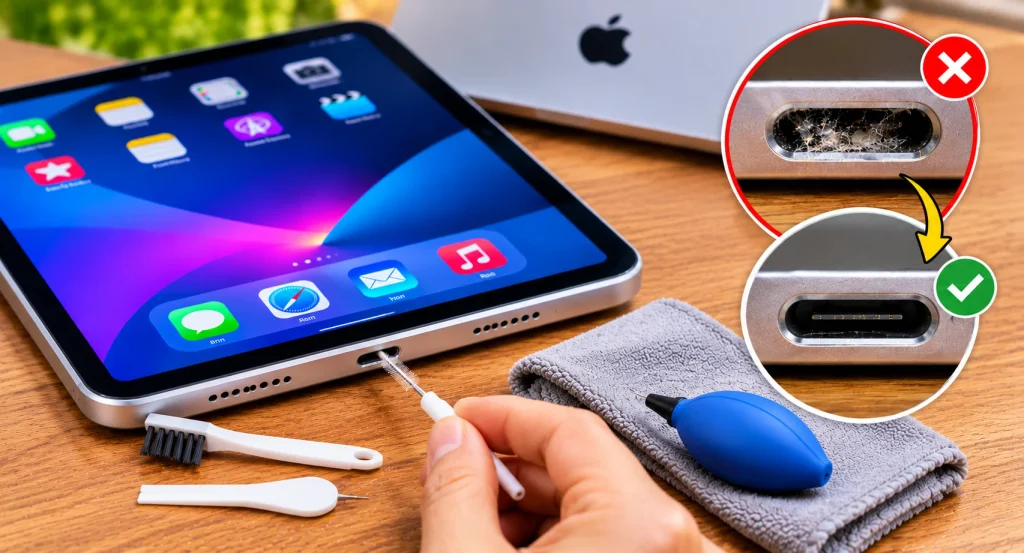
Not gonna lie, this one surprised me the first time I heard about it. Your iPad’s charging port lives in bags and pockets. Over time, lint gets packed in tight at the bottom, and the cable can’t seat all the way. It looks plugged in, but the connection isn’t there. Your iPad won’t charge, and you assume the battery is shot. A lot of people with an iPad not turning on are really just dealing with a dirty port.
How to clean it safely
- Grab a flashlight and look straight into the port. Gray fuzz or debris at the bottom is your answer.
- Pick up a wooden or plastic toothpick. Skip metal, like a paperclip or pin, because it can scratch or short the contacts.
- Gently scrape along the walls of the port and scoop the lint out. If you have a USB-C iPad, be extra careful with the thin tongue in the middle.
- Skip liquids. A short puff of compressed air from a distance is okay, but don’t blast it up close.
- Plug the cable back in. It should fit snugly. Then charge for 30 minutes and see if iPad not turning on is history.
A thirty-second cleaning has brought plenty of iPad not turning on cases back to life.
Fix 4 – Force Restart Your iPad (Home Button and Face ID Models)
Okay, now we’re getting to the fix that solves more black-screen mysteries than almost anything else. An iPad force restart is basically a hard reboot. It doesn’t erase anything, so your photos, notes, and files are safe. When you’re stuck with an iPad not turning on, this is the first software fix to try.
Sometimes iPad not turning on is really a freeze, with a dark screen while the system is technically stuck. A force restart kicks it out.
iPad with a Home button
- Press and hold the Home button and the top button at the same time.
- Keep holding, even when the screen stays black. It can take ten seconds or more.
- Let go when the Apple logo appears.
iPad without a Home button (Face ID models)
- Press and quickly release the volume up button.
- Press and quickly release the volume down button.
- Press and hold the top button until the Apple logo shows up, which can take ten seconds or longer.
The sequence matters. Quick tap up, quick tap down, then hold the top button. If your timing is off, nothing happens, so try it two or three times. Once the Apple logo appears, your iPad not turning on problem may already be solved.
Fix 5 – Check for Software Glitches or a Frozen Screen
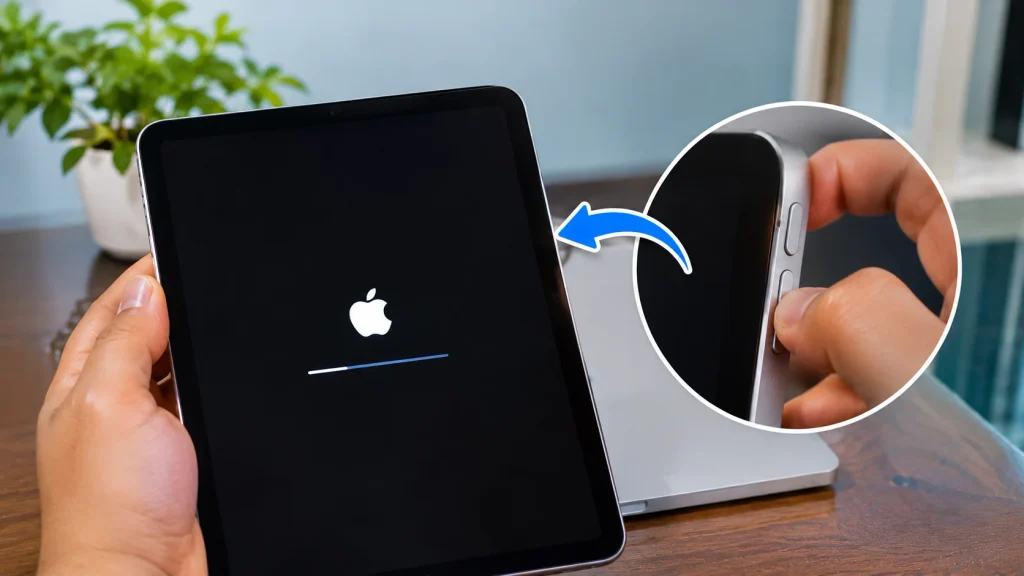
Maybe the force restart got your iPad to show the Apple logo, but it never reaches the lock screen. Or it turns on for a few seconds and dies again. That usually means a software hiccup, which is a very common cause of iPad not turning on after a failed update, a buggy app, or full storage.
What to try
- Be patient with updates. After an update, an iPad can sit on the logo for a surprisingly long time. Give it 20 to 30 minutes while plugged in before you decide it’s stuck.
- Force restart again. Use the steps from Fix 4 once the iPad has had a decent charge.
- If it boots, fix the cause. Go to Settings, then General, then Software Update, and install any pending update. Delete the last app you installed, and free up space under General, then iPad Storage.
- Back up right away. As soon as the iPad works, back it up to iCloud or a computer so iPad not turning on can’t cost you data.
If your iPad keeps getting stuck on the logo or looping, it’s time to bring in a computer. Next up: iPad recovery mode.
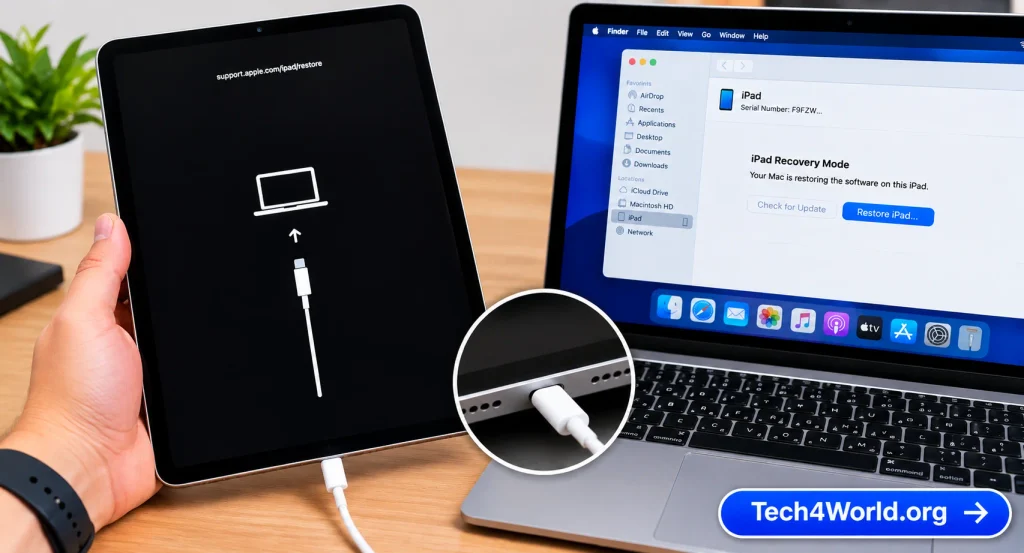
Fix 6 – Use Recovery Mode with a Computer
First, a quick data warning for anyone with an iPad not turning on. Recovery mode gives you two choices on your computer: Update or Restore. Update tries to reinstall iPadOS without touching your data. Restore wipes the iPad completely. Always pick Update first. That’s your best shot at keeping everything.
You’ll need a Mac with Finder (macOS Catalina or later) or a Windows PC with the Apple Devices app, or iTunes on older setups. Use a cable you trust. If your computer doesn’t recognize the iPad at all, try a different cable and a different USB port.
Step by step
- Connect your iPad to the computer. On a Mac, open Finder. On Windows, open the Apple Devices app or iTunes.
- Face ID models: quickly press and release volume up, then volume down, then press and hold the top button. Keep holding even after the Apple logo appears, until you see the recovery mode screen with a computer or cable icon.
- Home button models: press and hold the Home button and the top button together. Keep holding through the Apple logo until the recovery screen appears.
- On your computer, a message should pop up offering Update or Restore.
- Click Update. The computer will download the software and try to reinstall it without erasing your data.
- Wait it out. If the download takes more than about 15 minutes, the iPad exits recovery mode. Just repeat the steps and try again.
If Update fails, the next option is Restore, but it erases everything. With an iCloud or computer backup, you can bring your stuff back afterward. Without one, this is the moment we all learn to make backups. Not fun, but true. For stubborn cases of iPad not turning on, recovery mode fixes a lot of them.
Fix 7 – DFU Restore as a Last Software Resort
DFU stands for Device Firmware Update. Think of it as the deepest reset your iPad has. It goes below recovery mode and reloads everything from scratch. It’s pretty sweet when nothing else fixes iPad not turning on, but a DFU restore erases the iPad completely, so only try it after Fixes 1 through 6 have failed.
Real talk: DFU is fiddly. The timing has to be right, and plenty of people need a few attempts. If you’re still stuck with an iPad not turning on, it’s worth the effort.
Face ID iPads
- Connect the iPad to your computer and open Finder, the Apple Devices app, or iTunes.
- Quickly press and release volume up, then volume down.
- Press and hold the top button until the screen goes black, about ten seconds.
- Keep holding the top button and also press and hold volume down for five seconds.
- Release the top button, but keep holding volume down for about ten more seconds.
- The screen should stay completely black, and your computer should say it detected an iPad in recovery mode.
Home button iPads
- Connect the iPad to your computer.
- Press and hold the Home button and the top button together for about eight seconds.
- Release the top button, but keep holding the Home button for about five more seconds.
- The screen should stay black, and your computer should detect the iPad.
If you see the Apple logo or the recovery screen, you held a button too long. Let go, restart, and try again. Once your computer detects the iPad, click Restore iPad and let it finish without unplugging anything. If DFU fails over and over, hardware is the likely cause of your iPad not turning on.
Fix 8 – Check for Hardware Damage (Battery, Water, Drops)
If you’ve run through the software fixes and you still have an iPad black screen, the problem may not be software at all. Hardware damage is a common cause of iPad not turning on, especially if something happened right before it died.
What to look for
- Drops: dents on the corners, cracked glass, or a bent frame. Internal connectors can come loose even when the damage looks minor.
- Water: check the charging port and speaker grilles for white or green corrosion. If the iPad got wet, don’t charge it. Power it off and get it checked.
- A swollen battery: if the screen is lifting off the frame or the back is bulging, stop right there. A swollen lithium battery is a safety hazard. Don’t charge it, don’t press on it, and take it to a professional.
- Heat: if the iPad is very hot while “dead,” unplug it and let it cool in open air.
- Old age: a worn-out battery is common on older iPads, and the sign is working only while plugged in.
Hardware-related iPad not turning on isn’t DIY territory for most of us. Opening an iPad means strong adhesive, fragile cables, and a battery you really don’t want to puncture.
When to Stop DIY and Go to Apple or a Repair Shop
Knowing when to quit is part of fixing things. Get help for iPad not turning on if any of these sound familiar:
- Your iPad not turning on problem survives every fix here, including recovery mode
- You see a swollen battery, liquid damage, or physical damage
- Your computer can’t detect the iPad, even with different cables and ports
- The iPad gets very hot or smells burnt
- It’s still covered by warranty or AppleCare+
Your options are an Apple Store appointment, an Apple Authorized Service Provider, or a mail-in repair through Apple Support. Check your coverage on Apple’s website with your serial number. Third-party shops can be cheaper and faster, but ask about part quality and warranty.
Always get a quote first. For a newer iPad, a battery replacement can be a solid deal compared to buying new. For a really old model, upgrading might make more sense. Either way, a pro can usually diagnose iPad not turning on in one short visit.
How to Keep This From Happening Again
Once you’ve got your iPad back, a few small habits keep iPad not turning on from happening twice.
- Back up on a schedule. Turn on iCloud Backup in Settings, or plug into a computer now and then. It’s the best protection if you ever face iPad not turning on again.
- Don’t let it sit at zero. Try to keep the battery between roughly 20 and 80 percent. If you’re storing an iPad for months, charge it to about 50 percent first.
- Use decent accessories. Stick with Apple or MFi-certified cables and adapters, and replace any frayed cable, since bad cables cause a lot of iPad not turning on cases.
- Keep the port clean. Check it every few months if your iPad travels in a bag.
FAQs
Why is my iPad stuck on a black screen but still warm?
Warm usually means some power is flowing, so the iPad may be on but frozen, or its display just isn’t lighting up. Plug it in for 30 minutes, then try a force restart. If the screen stays black but your computer detects the iPad, the display or backlight may have failed, and that’s a repair job. Either way, it’s a classic iPad not turning on situation.
Can a dead battery brick an iPad?
A drained battery on its own won’t brick your iPad. It’s just empty. That said, a battery left at zero for a long time can take ages to accept a charge, and a very old battery can fail for good. If you still have an iPad not turning on after an hour on a known-good charger, you may need a battery replacement.
Will recovery mode erase my data?
Not if you choose Update, even for iPad not turning on cases. Update reinstalls iPadOS and keeps your data. Restore erases everything, and so does a DFU restore. If Update fails and you’re forced to Restore, a backup is the only thing that gets your stuff back.
My iPad only turns on when it’s plugged in. What’s going on?
That’s usually a worn-out battery, a common cause of iPad not turning on when unplugged. The iPad can run on wall power but can’t hold a charge on its own. Get the battery checked, and keep a backup handy.
Final Thoughts
iPad not turning on is stressful, especially when it happens at the worst possible moment. But most of the time the fix is simpler than you’d expect. Start with patience and a good charger, clean the port, try a force restart, and save recovery mode and DFU for when you truly need them, with your backups in mind.
And if your iPad not turning on turns out to be hardware, no shame in that. That’s exactly what repair pros are for. Once your iPad is back, take five minutes to turn on iCloud Backup. Future you will be grateful.
Hope your iPad is already awake and running. If this guide helped, send it to a friend dealing with an iPad not turning on of their own. They’ll thank you.