You sit down on the couch, grab the remote, and press the button like you’ve done a thousand times. The TV shows a black screen, or worse, a little message saying there’s no signal. You press again. Nothing. Your whole movie night plan is suddenly staring back at you.
Real talk, Apple TV not turning on is one of those problems that feels way bigger than it really is. A streaming box is supposed to be the easy part of your living room setup, so when it goes dark, it’s tempting to assume it’s dead and start shopping for a replacement.
Hold off on that for a second. In most cases, Apple TV not turning on comes down to a loose cable, a stuck power state, a TV set to the wrong input, or a remote that lost its pairing. Every one of those is something you can fix yourself in a few minutes without spending a dime.
In this guide, I’ll walk you through every fix I’d try, in an order that actually makes sense, from the dumb-simple stuff to the heavier resets. If Apple TV not turning on is ruining your night right now, grab a snack and follow along. Everything here works for Apple TV 4K and Apple TV HD. If it is a different Apple device giving you trouble, the fixes for iPad not turning on follow a very similar order.
Why Is Your Apple TV Not Turning On?
Before we start unplugging things, it helps to know what’s going on. When you’re stuck with Apple TV not turning on, one piece in the chain is failing: the power, the HDMI link, the TV, or the remote. Here are the usual suspects:
- A power problem. A loose cord, a dead outlet, or a cranky power strip.
- HDMI trouble. A damaged or loose cable, or a flaky port on your TV.
- The wrong TV input. Your TV is simply showing a different source.
- A remote issue. A dead battery or a lost pairing makes the box look unresponsive.
- A video format mismatch. The Apple TV is sending a picture your TV can’t display, which happens a lot after moving the box to a new TV.
- A receiver or HDMI switch. These can confuse the connection between your Apple TV and your screen.
- A software glitch. Sometimes an update goes sideways.
- A hardware failure. Rare, but a dead power supply does happen.
The cool part is that the first six are all things you can handle at home. So if your Apple TV not turning on matches one of those, stay calm.
First, Figure Out What “Not Turning On” Really Means
Apple TV not turning on can mean a few different things, and each one points to a different fix. Take ten seconds to figure out which situation you’re in:
- Nothing at all. No light, no picture, no response. That usually points to power.
- The light is on, but there’s no picture. That usually points to HDMI, the TV input, or the video format.
- It gets stuck on the Apple logo. That’s more of a software issue.
- The picture works, but the remote does nothing. That’s a remote problem, not a box problem.
Not gonna lie, most people skip this step and start trying random things. A quick diagnosis saves a ton of time. If your model has a status light on the front, check it. A light that’s on tells you the box has power, which narrows Apple TV not turning on down to the screen side, probably between the Apple TV and your TV.
Fix 1 – Check the TV Input and Power Source
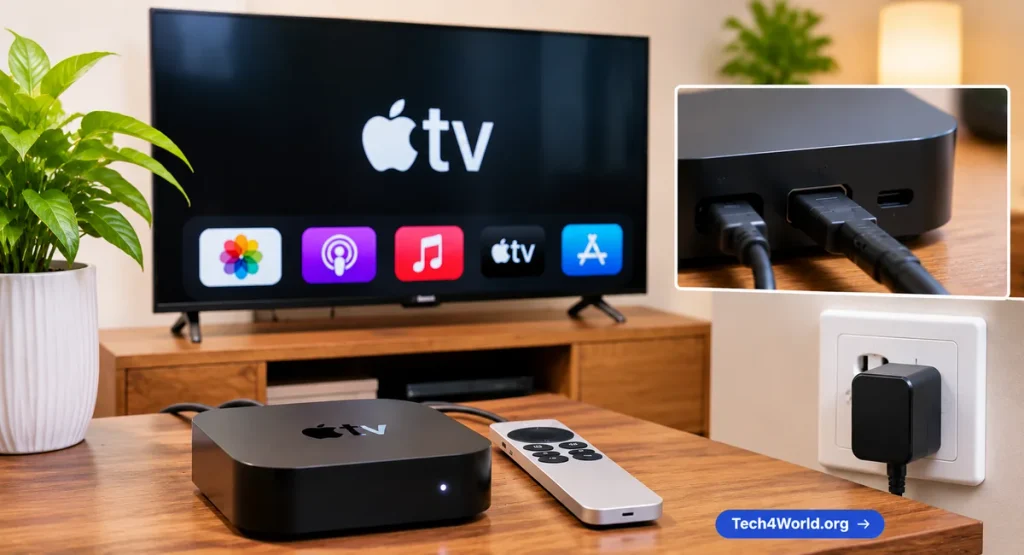
This one’s a little embarrassing, but it’s the number one cause of Apple TV not turning on. Plenty of times the Apple TV is perfectly fine and the TV is just sitting on the wrong input.
Grab your TV remote, press the Input or Source button, and cycle through HDMI 1, HDMI 2, HDMI 3, and so on until you see the Apple TV screen. Some TVs switch inputs on their own, but that feature can reset after a power outage.
Then check the power side. Is the cord pushed in all the way at both ends? Is the outlet actually live? Plug a lamp into it to find out. If your Apple TV is on a power strip, try plugging it straight into the wall.
Honestly, you’d be shocked how many Apple TV not turning on cases end right here.
Fix 2 – Power Cycle Your Apple TV
Your Apple TV doesn’t have a power button, so you can’t just hold something down to shut it off. The reliable way to restart it is to cut the power. A power cycle clears out the temporary glitches that cause Apple TV not turning on in the first place.
Here’s how to do it:
- Turn off your TV.
- Unplug the Apple TV power cord from the wall or from the back of the box.
- Wait at least 30 seconds. If it’s being stubborn, leave it unplugged for a few minutes.
- Plug it back in, turn your TV on, and pick the right input.
- Give the box a full minute to boot.
Some people wait 15 minutes on a really stubborn box, and it can’t hurt. If your Apple TV not turning on was caused by a stuck power state, this is usually the fix.
Fix 3 – Check the HDMI Cable and Port
If the Apple TV has power but you don’t see a picture, HDMI is your next suspect when you’re facing Apple TV not turning on. A loose or damaged HDMI cable is a classic reason for Apple TV not turning on, or at least looking like it. Apple’s own guide for an Apple TV that won’t turn on or shows a black screen starts with the same thing, so you’re in good company.
Here’s what to do:
- Unplug both ends of the HDMI cable, then plug them back in firmly.
- Try a different HDMI port on your TV and switch to that input.
- Try a different HDMI cable, ideally a certified high speed cable that can handle 4K.
- Look over the cable and the ports for bent pins or frayed ends.
Cheap or old cables can cause black screens, especially with 4K and HDR content. If you’ve been using the same cable for years, a new one is a solid deal and costs very little.
Fix 4 – Check Your Remote
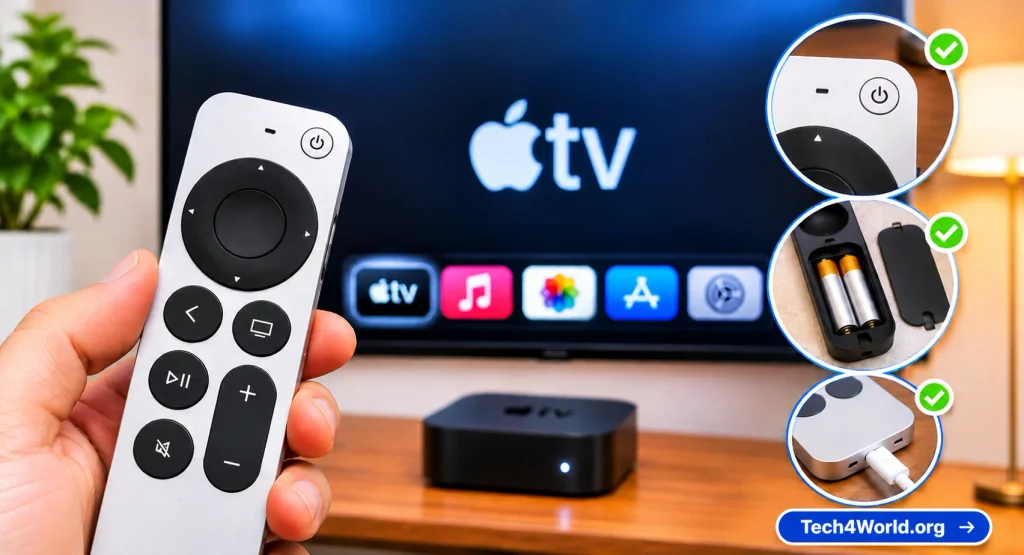
Sometimes the box is fine and the remote is the problem. A dead battery or a lost pairing feels exactly like Apple TV not turning on, because nothing happens when you press a button.
Here’s what to try:
- Charge the remote. Plug your Siri Remote into a charging cable for at least 30 minutes.
- Re-pair it. Point the remote at the Apple TV, then hold Back (or Menu on older remotes) and Volume Up for about five seconds.
- Move closer. Make sure nothing is blocking the box, like a cabinet door or a soundbar.
- Use your iPhone as a backup. Open Control Center and tap the Apple TV Remote. This only works if the Apple TV is already on and sharing the same Wi-Fi.
Rule out the remote before you assume Apple TV not turning on is a box problem. If your TV remote used to turn your Apple TV on, that happens through HDMI-CEC, a setting that can turn itself off. Once you can see the Apple TV menus, go to Settings, then Remotes and Devices, and make sure Control TVs and Receivers is on.
Fix 5 – Connect Straight to the TV
If you run your Apple TV through a receiver, a soundbar, or an HDMI switch, that gear can mess up the connection. It’s a common cause of Apple TV not turning on, or at least of a black screen. Apple recommends skipping the extra equipment as a test.
Plug the Apple TV’s HDMI cable straight into your TV. If the picture shows up, you’ve found the culprit. That test settles most receiver-related cases of Apple TV not turning on. Add your receiver or switch back one at a time, and try a different HDMI port on it. If the problem returns, check for a firmware update on that device or ask its manufacturer for help.
Fix 6 – Reset the Video Resolution
Here’s a good one. If the light is on, the remote works, and the screen stays black, your Apple TV might be sending a video format your TV can’t handle. This happens a lot after moving the box to a new TV, and it makes Apple TV not turning on look way scarier than it is.
Apple built a little trick for this. Hold Back (or Menu) and Volume Down on your remote for about five seconds, then let go. Your Apple TV will start cycling through video resolutions, switching about every 20 seconds. When you see a picture, select OK to keep it. If you don’t pick anything, it goes back to the old setting. That one trick fixes a surprising number of Apple TV not turning on complaints.
Once you have a picture, go to Settings, then Video and Audio, and look at the Format section. If you’re still having trouble, try turning off Match Dynamic Range and Match Frame Rate. That way, you’re not forcing your TV to handle something it can’t.
Fix 7 – Try a Different Outlet and Power Cord
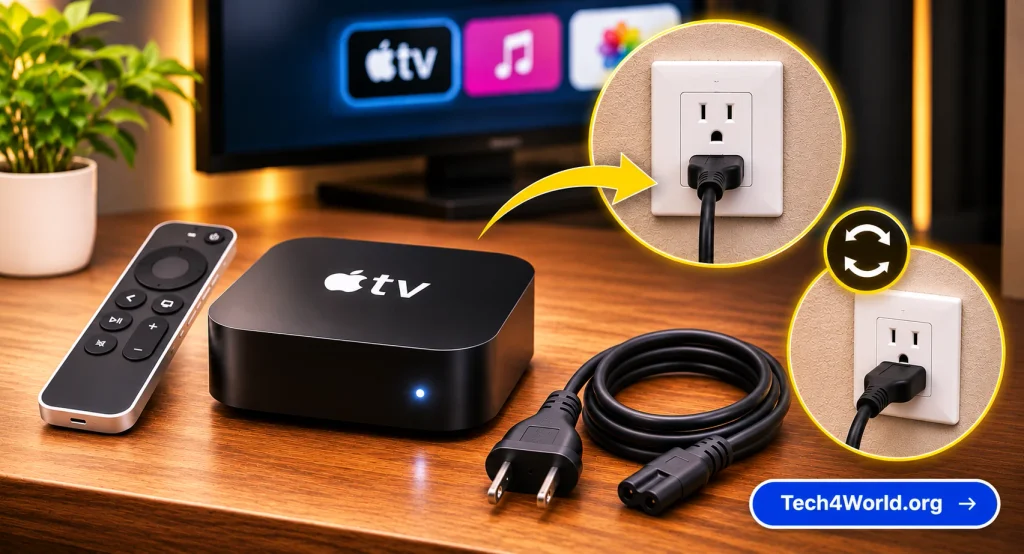
If your Apple TV has no light at all, power is the problem. This is the most common reason for Apple TV not turning on with a totally dead box.
Try a different wall outlet, and skip the surge protector or power strip for now, since those can fail quietly. If you have a spare cord with the same connector, swap it in. Cords wear out, especially if they get bent behind a TV stand.
Heat is a sneaky cause of Apple TV not turning on, so give your Apple TV some breathing room. If it’s squeezed into a closed cabinet, heat can cause odd behavior. Pull it out into open air, let it cool for 30 minutes, and try again.
Fix 8 – Test Your Apple TV on Another TV
This test tells you whether to blame the box or your TV when Apple TV not turning on has you stumped. Take your Apple TV to a different TV, with a different HDMI cable if you can, and see what happens.
If it works fine there, the original TV or its HDMI port is the problem. Try unplugging that TV for a full minute, updating its software, or switching to another HDMI port. If your Apple TV not turning on happens on every TV you try, the box itself is the issue, and you can skip the guessing.
Fix 9 – Reset or Restore Your Apple TV
If you can get to the menus after a bout of Apple TV not turning on, but the box is still acting strange, a reset can clear out deeper software trouble. Go to Settings, then System, then Reset. You’ll usually see two choices: Reset, which puts everything back to default settings, and Reset and Update, which also installs the latest software over Wi-Fi or Ethernet.
Heads-up: a reset erases your settings, so you’ll have to sign in again and re-download your apps. It’s a bit of a pain, but it’s a solid fix for a box that boots oddly or freezes.
If you have an Apple TV HD, there’s a USB-C port on the back that Apple uses for restoring the box with a Mac. The Apple TV 4K models don’t have that port. And if you can’t get a picture at all, you can’t reach Settings, so this fix isn’t an option until one of the earlier steps gets you a picture back.
Apple TV Not Turning On After an Update
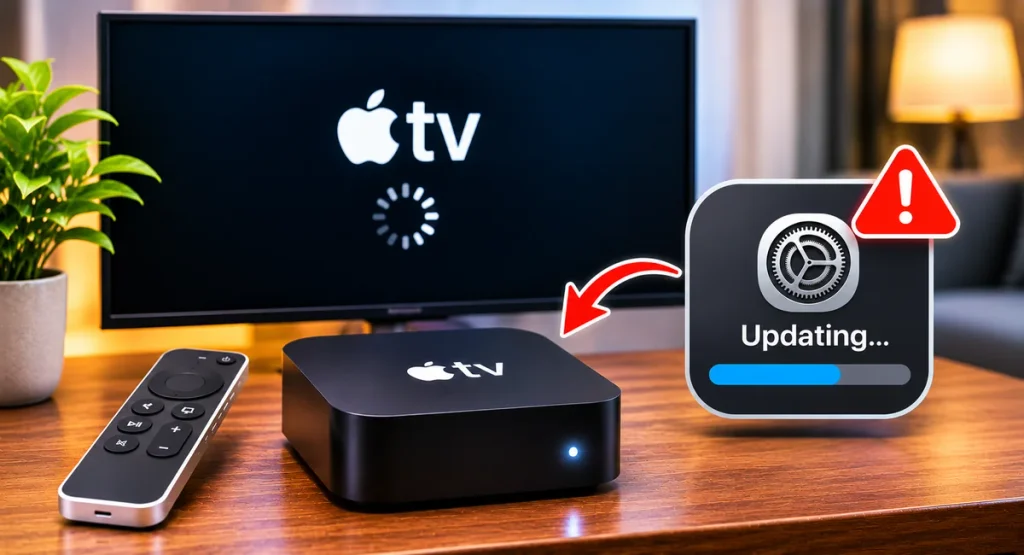
This one deserves its own section, because it happens more than people expect. You update tvOS, walk away, and come back to a box that won’t start or shows a warning symbol.
First, don’t panic and don’t unplug it mid-update. Software updates can take a long time, and after an update, Apple TV not turning on is often just a slow install, so give it at least 30 minutes. If the Apple logo is frozen well past that, do the power cycle from Fix 2. When Apple TV not turning on shows a warning symbol, check Apple’s support page for that symbol, and if nothing works, contact Apple Support.
To avoid this later, turn on automatic updates so tvOS installs overnight when you’re not watching.
Common Mistakes People Make
I’ve watched people turn a ten-second fix into a two-hour headache. Here are the mistakes worth avoiding:
Unplugging during an update. If the Apple TV is installing software, cutting the power can make Apple TV not turning on a lot worse.
Not waiting long enough. A quick unplug and replug isn’t a real power cycle. Give it at least 30 seconds. It is the same shortcut that stalls an iPhone not turning on fix, people let go a few seconds too early.
Blaming the box first. The TV input, the remote, and the HDMI cable are all cheaper and easier to check than the Apple TV itself.
Using a worn-out cable. A tired HDMI cable can cause Apple TV not turning on symptoms that look exactly like hardware failure.
Trying everything at once. Change one thing at a time, or you’ll never know what fixed Apple TV not turning on.
Jumping to a reset. A reset erases your settings, so save it for after the simple stuff.
Is It a Hardware Problem?
If you’ve gone through everything and you still have Apple TV not turning on, hardware may be the issue. Here are the signs:
- There’s no light, even on a different outlet with a different cord.
- The box feels extremely hot, or you smell something burning.
- It was hit by a power surge, a storm, or a spill.
- It fails on every TV and every cable you’ve tried.
A power supply inside the box can fail after years of use, and that’s the one version of Apple TV not turning on you can’t fix at home. The same kind of wear shows up in other Apple gear too, a MacBook not charging after a few years often traces back to the same internal power failure.
When to Contact Apple Support
You’ve checked the input, power cycled, swapped cables, tested another TV, and fixed the remote. If Apple TV not turning on is still happening, it’s time to call in the experts.
You can reach Apple through Apple Support, where you can chat, call, or book a service appointment. Before you go, check your warranty status with Apple’s coverage checker, because coverage could make a repair cheap or free. If your Apple TV is out of warranty, ask for a price quote and compare it to a new box. For an older model, replacing it can be the smarter move.
Bring a short list of what you’ve already tried, so you don’t pay for tests you’ve done yourself.
How to Keep It From Happening Again
A few small habits go a long way. Keep your HDMI cable snug and your power cord out of high-traffic spots. Don’t bury the box in a sealed cabinet. Plug it into a decent surge protector. Charge your remote every few weeks, and turn on automatic updates so Apple TV not turning on never sneaks up on you after a big software change.
Quick Troubleshooting Checklist
Want a fast recap? Here’s the order I’d follow for Apple TV not turning on:
- Check the TV input and make sure the power cord is snug.
- Power cycle: unplug for at least 30 seconds, then plug back in.
- Check the HDMI cable and try a different port.
- Charge and re-pair your remote.
- Connect straight to the TV, skipping any receiver or switch.
- Reset the video resolution with Back and Volume Down.
- Try a different outlet and power cord.
- Test the Apple TV on another TV.
- Reset the Apple TV from Settings if you can reach the menus.
- Contact Apple Support if nothing works.
Save this list somewhere handy. If Apple TV not turning on ever happens again, you’ll know exactly where to start.
Frequently Asked Questions About Apple TV Not Turning On
Question – Why is my Apple TV not turning on but the light is on?
Answer – When Apple TV not turning on comes with a light, the box has power, so the issue is usually the HDMI cable, the TV input, or the video format. Check the input, reseat the HDMI cable, and try the resolution reset in Fix 6.
Question – Does the Apple TV have a power button?
Answer – No. It wakes up when you press a button on the remote, and the way to restart it by force is to unplug the power cord for at least 30 seconds.
Question – Can I fix Apple TV not turning on without the remote?
Answer – Sometimes. If the box is on, your iPhone can act as a remote through Control Center. If the box won’t respond at all, you’ll need to deal with the power and HDMI fixes first.
Question – Is my Apple TV dead if there’s no light at all?
Answer – Not necessarily. Try another outlet and a different power cord first. If there’s still no light after that, the power supply is probably dead, which is the most serious cause of Apple TV not turning on, and it needs service.
Question – Will a reset delete my apps?
Answer – A reset is the fix for software-related Apple TV not turning on, and it erases your settings and apps, so you’ll sign in and download them again. Your purchases stay tied to your Apple Account.
Final Thoughts
Dealing with Apple TV not turning on is annoying, no doubt about it. But in most cases, the fix is simpler than you’d expect. Start with the basics: check the input, power cycle the box, and make sure your cables are snug. If that doesn’t work, check the remote, bypass your receiver, and try the resolution reset.
And if nothing helps, don’t beat yourself up. Some problems really are hardware, and that’s where Apple Support earns its keep. If Apple TV not turning on sticks around after every step in this guide, a technician can usually figure it out fast.
The big takeaway is to stay calm and work through the steps in order. Don’t rush, don’t skip the power cycle, and don’t be afraid to test the box on another TV. Follow this guide, and there’s a very good chance you’ll be back on the couch with your show playing in no time.