You grab your AirPods, pop them in your ears, and wait for that familiar little chime. Nothing happens. No pop-up on your screen, no sound, just silence. Or even worse, your podcast starts blasting out of the iPhone speaker in the middle of a quiet coffee shop.
Real talk, AirPods not connecting to iPhone is one of the most annoying tech problems you can run into. These things are supposed to be the “it just works” earbuds, so when they stop working, it feels personal. I’ve been there, and I know that panicky moment where you wonder if you just wasted a couple hundred bucks.
Here’s the good news. In the vast majority of cases, AirPods not connecting to iPhone is a small software or setup glitch, not a dead pair of earbuds. A weak battery, a confused Bluetooth connection, or a pairing record that went sideways can all cause it, and every one of those is fixable at home in a few minutes.
In this guide, I’m walking you through nine fixes in the order I’d actually try them, starting with the quick stuff and finishing with the full reset. If you’re dealing with AirPods not connecting to iPhone right now, grab your phone and follow along. Don’t skip ahead too fast, because the simple fixes work more often than you’d think. This guide covers standard AirPods, AirPods Pro, and AirPods Max, so whatever pair you own, you’re covered.
Why Are Your AirPods Not Connecting to iPhone?
Before we start tapping buttons, it helps to know what’s usually going on. When you run into AirPods not connecting to iPhone, one of the two devices is failing to finish the Bluetooth handshake.
Here are the most common culprits:
- Low or dead battery. Your iPhone can’t connect to earbuds that don’t have the power to answer back.
- A Bluetooth glitch. Bluetooth gets confused sometimes, especially after your phone has been running for weeks without a restart.
- A stale pairing record. The saved connection between your AirPods and iPhone can get corrupted.
- Outdated software. An old version of iOS, or a buggy new one, can break the connection.
- Dirty charging contacts. Lint and gunk can stop the AirPods from charging properly in the case.
- Another device grabbing the connection. Your AirPods may be connected to your iPad or Mac instead.
- Hardware damage. Less common, but water damage and worn batteries do happen.
The cool part is that most of these are things you can fix yourself. So if your situation matches any of the first seven, don’t panic yet.
Quick Checks Before You Fix AirPods Not Connecting to iPhone
Not gonna lie, a lot of people skip this part with AirPods not connecting to iPhone and then waste twenty minutes on complicated fixes. Take about a minute and run through this short list:
- Put both AirPods back in the case and close the lid.
- Hold the case close to your iPhone and open the lid. See if the setup animation shows up.
- Look at the status light on the case. Green means charged, amber means it isn’t fully charged, and flashing white means it’s ready to pair.
- Make sure your iPhone isn’t in Airplane mode and the AirPods are within a few feet of it.
Sometimes AirPods not connecting to iPhone turns out to be as simple as one earbud sitting crooked in the case. If the quick checks don’t solve it, move on to the real fixes below.
Fix 1 – Charge Your AirPods and the Case
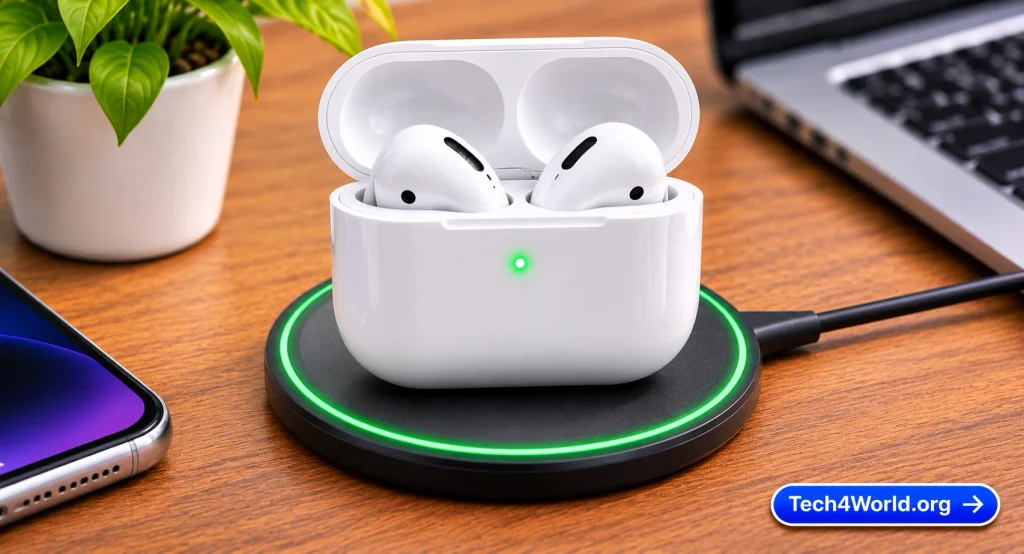
Let’s start with the easiest fix for AirPods not connecting to iPhone. A dead or very low battery is the number one cause, and it’s the one people forget about most.
Put both AirPods in the case, close the lid, and plug the case in with a decent cable and a solid wall adapter. Give it at least 15 to 30 minutes. Then open the lid and check the light. If it’s green, you’re good. If it’s amber, give it more time. If there’s no light at all, the case itself is drained and needs a longer charge.
Honestly, a surprising number of AirPods not connecting to iPhone problems end right here with nothing more than a proper charge.
Fix 2 – Turn Bluetooth Off and On
Bluetooth is the thing that actually links your AirPods and your phone, so when it hiccups, you get AirPods not connecting to iPhone. The old “turn it off and on again” trick refreshes the connection, and it takes ten seconds.
Here’s how to do it the right way:
- Open Settings on your iPhone.
- Tap Bluetooth.
- Switch the toggle off, wait about 10 seconds, then switch it back on.
Quick heads-up: in newer versions of iOS, the Bluetooth button in Control Center only disconnects your accessories for a bit instead of fully turning Bluetooth off. So use the Settings app for a real off and on.
Fix 3 – Restart Your iPhone
It sounds basic, but a restart fixes a lot of AirPods not connecting to iPhone cases by clearing out temporary glitches that build up over days of uptime, and plenty of Bluetooth problems live in that pile.
To restart, hold the side button and either volume button until the power slider shows up, drag it, and wait about 30 seconds. Then hold the side button again until you see the Apple logo. Once your phone is back, open the AirPods case near it and see if the AirPods connect.
This is a super cheap fix for AirPods not connecting to iPhone, especially if the problem showed up out of nowhere. If a plain restart doesn’t help, don’t worry, we’ve got six more fixes to go.
Fix 4 – Check That Your AirPods Are Selected as the Audio Output
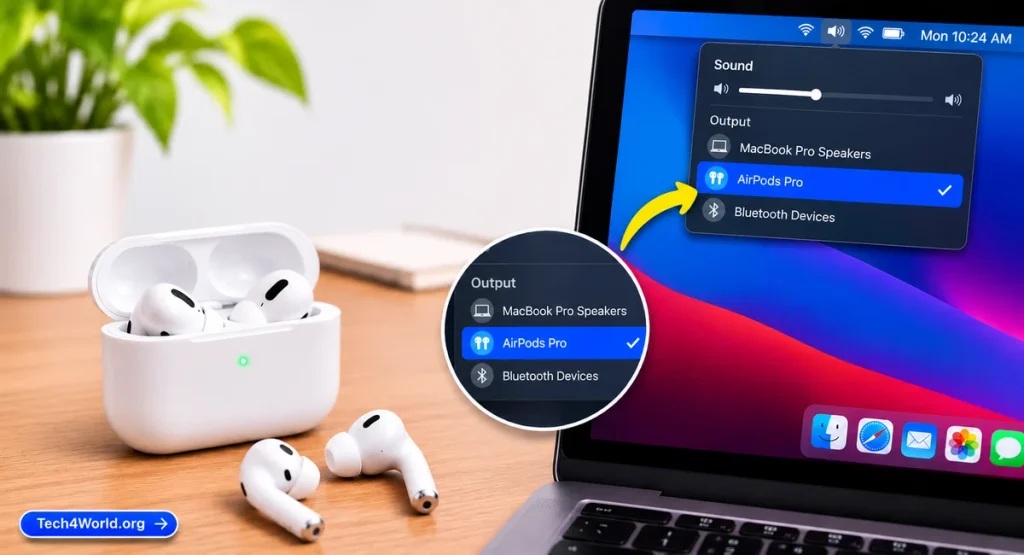
Here’s a sneaky one. Sometimes your AirPods are technically connected, but your iPhone is sending sound somewhere else, like the speaker or a car stereo. It looks like AirPods not connecting to iPhone, but it’s really just a routing problem.
Start playing a song or video, then open Control Center. Tap the AirPlay icon in the audio card, which looks like a little triangle with rings, and pick your AirPods from the list. Also double check your volume.
Fix 5 – Forget Your AirPods and Pair Them Again
This is the big one for AirPods not connecting to iPhone. Over time, the saved pairing between your AirPods and your iPhone can get corrupted, and that’s a classic cause. Deleting the old connection and starting fresh clears it out. It’s also the step Apple’s own support team points people to, and you can read their official guide for AirPods that won’t connect if you want to double check any of this.
Here’s how to do it:
- Open Settings and tap Bluetooth.
- Find your AirPods in the list and tap the info button (the little “i”) next to them.
- Tap Forget This Device and confirm.
- Put both AirPods in the case, close the lid, and wait 15 seconds.
- Open the lid while holding the case next to your iPhone.
- Follow the steps on your screen and tap Connect.
If you don’t see the setup animation, press and hold the setup button on the back of the case until the light flashes white, then try again. Once they’re paired again, AirPods not connecting to iPhone should be history.
Fix 6 – Update Your iPhone and AirPods Firmware
Software bugs are real, and they can absolutely cause AirPods not connecting to iPhone. Apple fixes Bluetooth issues all the time in small updates, so staying current is a solid deal.
Go to Settings, tap General, then Software Update, and install anything that’s waiting.
Your AirPods have their own firmware too. It updates automatically in the background, and you can’t force it. It usually happens when your AirPods are in the case, charging, and sitting near an iPhone that’s connected to Wi-Fi. To see which version you have, go to Settings, tap Bluetooth, and hit the info button next to your AirPods. So if AirPods not connecting to iPhone started after a recent update, leave your AirPods charging next to your phone for a while and give them a chance to catch up.
AirPods Not Connecting to iPhone After an iOS Update
This deserves its own section, because it’s super common. You update your iPhone, everything seems fine, and then your AirPods refuse to connect. Honestly, it’s frustrating, but it’s rarely permanent.
When a big update lands, the old pairing data sometimes doesn’t carry over cleanly. That’s why AirPods not connecting to iPhone shows up so often right after an update. The fix is usually the same: forget the AirPods and pair them again (Fix 5), then reset the AirPods if that doesn’t work (Fix 9). If a new update has bugs, Apple often sends out a smaller patch within a few weeks, so keep checking for updates.
Fix 7 – Clean Your AirPods and Charging Case
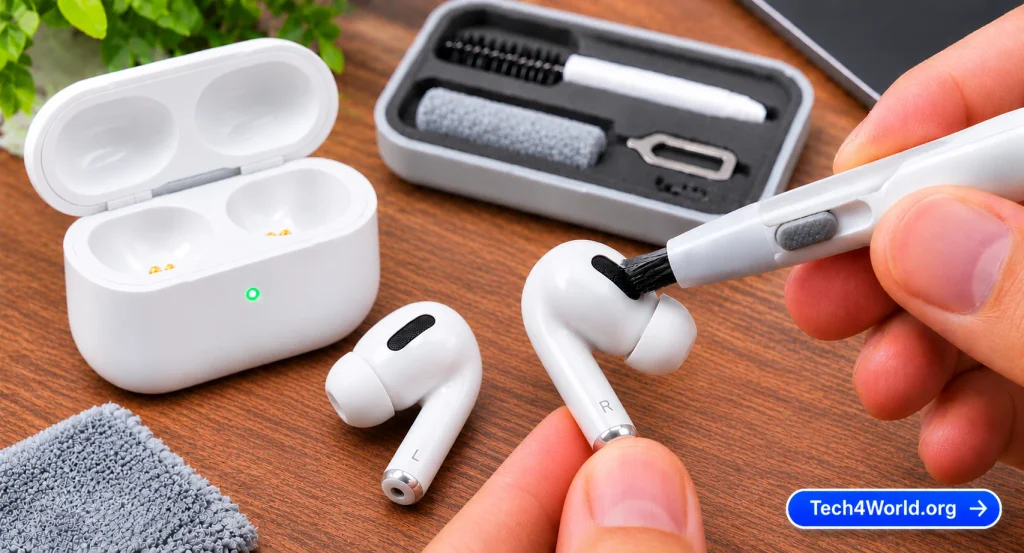
Dirt is a sneaky reason for AirPods not connecting to iPhone, and it’s easy to miss. Lint from your pockets, earwax, and general gunk can build up on the charging contacts, and then your AirPods look like they’re sitting in the case but aren’t charging at all. A dead earbud means AirPods not connecting to iPhone, plain and simple.
Here’s a safe way to clean them:
- Use a soft, dry, lint-free cloth to wipe the outside of the AirPods and the case.
- Use a dry cotton swab or a soft brush to gently clean the charging contacts and the speaker mesh.
- Skip liquids, and never poke around with sharp objects, because you can easily damage the mesh.
After cleaning, charge them again and test the connection. A lot of people are shocked how well this fixes AirPods not connecting to iPhone.
Fix 8 – Reset Network Settings on Your iPhone
Now we’re getting into the heavier fixes. If AirPods not connecting to iPhone keeps happening after the earlier steps, the issue might be buried in your phone’s network and Bluetooth settings. Resetting them clears out the junk.
Here’s how:
- Open Settings and tap General.
- Tap Transfer or Reset iPhone.
- Tap Reset, then tap Reset Network Settings.
- Enter your passcode and confirm.
Heads-up before you try this fix for AirPods not connecting to iPhone: it wipes your saved Wi-Fi passwords, VPN settings, and your saved Bluetooth connections, so you’ll have to re-pair your AirPods and any other Bluetooth gear. Make sure you know your Wi-Fi password first. It’s a bit of a hassle, but it fixes stubborn cases of AirPods not connecting to iPhone.
Fix 9 – Reset Your AirPods Completely
This is the last resort for AirPods not connecting to iPhone, and honestly, it’s the one that solves most stubborn cases. A full reset fixes AirPods not connecting to iPhone by wiping the internal settings so they act like brand new.
Here’s how to reset standard AirPods and AirPods Pro:
- Put both AirPods in the case and close the lid. Wait about 30 seconds.
- Open the lid, then go to Settings, tap Bluetooth, and forget your AirPods if they’re still listed.
- With the lid open, press and hold the setup button on the back of the case for about 15 seconds.
- Watch the status light. It should flash amber, then white.
- Hold the case close to your iPhone and follow the prompts to pair again.
If you have AirPods Max, the reset is a little different. Press and hold the noise control button and the Digital Crown together for about 15 seconds, until the light flashes amber and then white.
After the reset, you’ll set your AirPods up as new, so any custom settings will be gone. That’s a small price to pay to finally fix AirPods not connecting to iPhone.
What If Only One AirPod Is Connecting?
Sometimes the problem is half and half. One AirPod works fine, and the other one is dead silent. That’s a close cousin of AirPods not connecting to iPhone, and the fixes are almost the same.
Put both AirPods in the case and charge them. Clean the charging contacts, because one dirty contact can leave one earbud uncharged. Then do the full reset in Fix 9. If one AirPod is still not connecting to iPhone after all that, its battery or hardware might be failing, and that’s a job for Apple Support.
Why Do My AirPods Keep Connecting to Another Device?
Another reason people think they have AirPods not connecting to iPhone is that the AirPods are actually connected to something else, like an iPad or a Mac that’s nearby and signed in to the same Apple Account. Apple’s automatic switching is pretty sweet when it works, and super annoying when it doesn’t.
To control it, go to Settings, tap Bluetooth, hit the info button next to your AirPods, and tap Connect to This iPhone. You can choose Automatically or When Last Connected to This iPhone. Setting it to the second option stops your AirPods from jumping around on their own. You can also just turn off Bluetooth on the other device while you test.
Could Your AirPods Be Fake?
Real talk, this happens more than you’d think. If you bought your AirPods from a random seller, a marketplace, or a deal that looked too good to be true, they might be counterfeit. Fake AirPods are a classic reason for AirPods not connecting to iPhone, because they can’t always do the proper pairing handshake.
You can check the serial number in your Bluetooth settings or on the case, then type it into Apple’s coverage checker. If Apple doesn’t recognize it, or it shows up as a different product, that’s a red flag.
Is It a Hardware Problem?
If you’ve gone through all nine fixes and you still have AirPods not connecting to iPhone, hardware might be the issue. Here are the signs of a bigger problem:
- One or both AirPods never light up or charge, even after cleaning.
- The case won’t charge at all, or it gets hot.
- The AirPods were dropped, soaked, or went through the wash.
- The status light keeps flashing amber no matter what you do.
AirPods batteries are tiny, and after a couple of years of daily use, they lose a lot of capacity. If your pair is old and the battery is toast, that could be the whole story.
When to Contact Apple Support
You’ve charged, restarted, re-paired, updated, cleaned, reset your network settings, and reset your AirPods. If AirPods not connecting to iPhone is still happening, it’s time to call in the experts.
You can reach Apple through Apple Support, where you can chat, call, or book a Genius Bar appointment. Before you go, check your warranty or AppleCare+ status, because coverage might make a repair or replacement cheap. Don’t assume AirPods not connecting to iPhone means buying a new pair. If your AirPods are out of warranty, ask for a price quote and compare it to the cost of a new pair. For older AirPods with a worn-out battery, replacing them can be the smarter move.
Bring your iPhone, your AirPods, the case, and a short list of what you’ve already tried.
How to Stop It From Happening Again
A few small habits go a long way. Install iOS updates, charge your case every few days, wipe the contacts every couple of weeks, and keep the lid shut. Restarting your iPhone once a week also clears little glitches before they turn into AirPods not connecting to iPhone moments.
Quick Troubleshooting Checklist
Want a fast recap? Here’s the order I’d follow for AirPods not connecting to iPhone:
- Run the quick checks: lid, light, and distance.
- Charge your AirPods and the case for at least 30 minutes.
- Turn Bluetooth off and on in Settings.
- Restart your iPhone.
- Make sure your AirPods are selected as the audio output.
- Forget your AirPods and pair them again.
- Update your iPhone and let your AirPods update.
- Clean the AirPods and the charging case.
- Reset network settings, then reset your AirPods.
- Contact Apple Support if nothing works.
Save this list somewhere handy. If this ever happens again, you’ll know exactly what to do.
Frequently Asked Questions About AirPods Not Connecting to iPhone
Why are my AirPods not connecting to my iPhone all of a sudden?
The cause is usually a low battery, a Bluetooth glitch, or a pairing record that got corrupted, often right after an update. Charge your AirPods, restart your iPhone, and then forget and re-pair them.
Why do my AirPods say connected but there’s no sound?
That’s usually an audio routing issue, not AirPods not connecting to iPhone. Open Control Center, tap the AirPlay icon in the audio card, and pick your AirPods. Also check the volume and make sure nothing else is playing audio.
Can I fix AirPods not connecting to iPhone without a charging case?
Not easily. The case is how the AirPods charge and enter pairing mode, so without it, most of the fixes won’t work. You’d need a replacement case from Apple.
Is AirPods not connecting to iPhone a sign that my AirPods are dying?
Not always. Most cases of AirPods not connecting to iPhone are a software or setup issue. But if the problem keeps coming back, or the battery drains fast, the AirPods may be wearing out.
Final Thoughts
Dealing with AirPods not connecting to iPhone is annoying, no doubt about it. But in most cases, the fix is simpler than you’d expect. Start with the basics: charge them, toggle Bluetooth, restart your phone, and re-pair. If that doesn’t do it, update your software, clean the case, and move on to the resets.
And if nothing helps, don’t beat yourself up. Some problems really are hardware, and that’s where Apple Support earns its keep. If AirPods not connecting to iPhone sticks around after every step in this guide, a technician can usually figure it out fast.
The big takeaway for AirPods not connecting to iPhone is to stay calm and work through the steps in order. Don’t rush, don’t skip the charge, and don’t be afraid of the reset. Follow this guide, and there’s a very good chance your AirPods will be back in your ears and your music will be playing in no time.