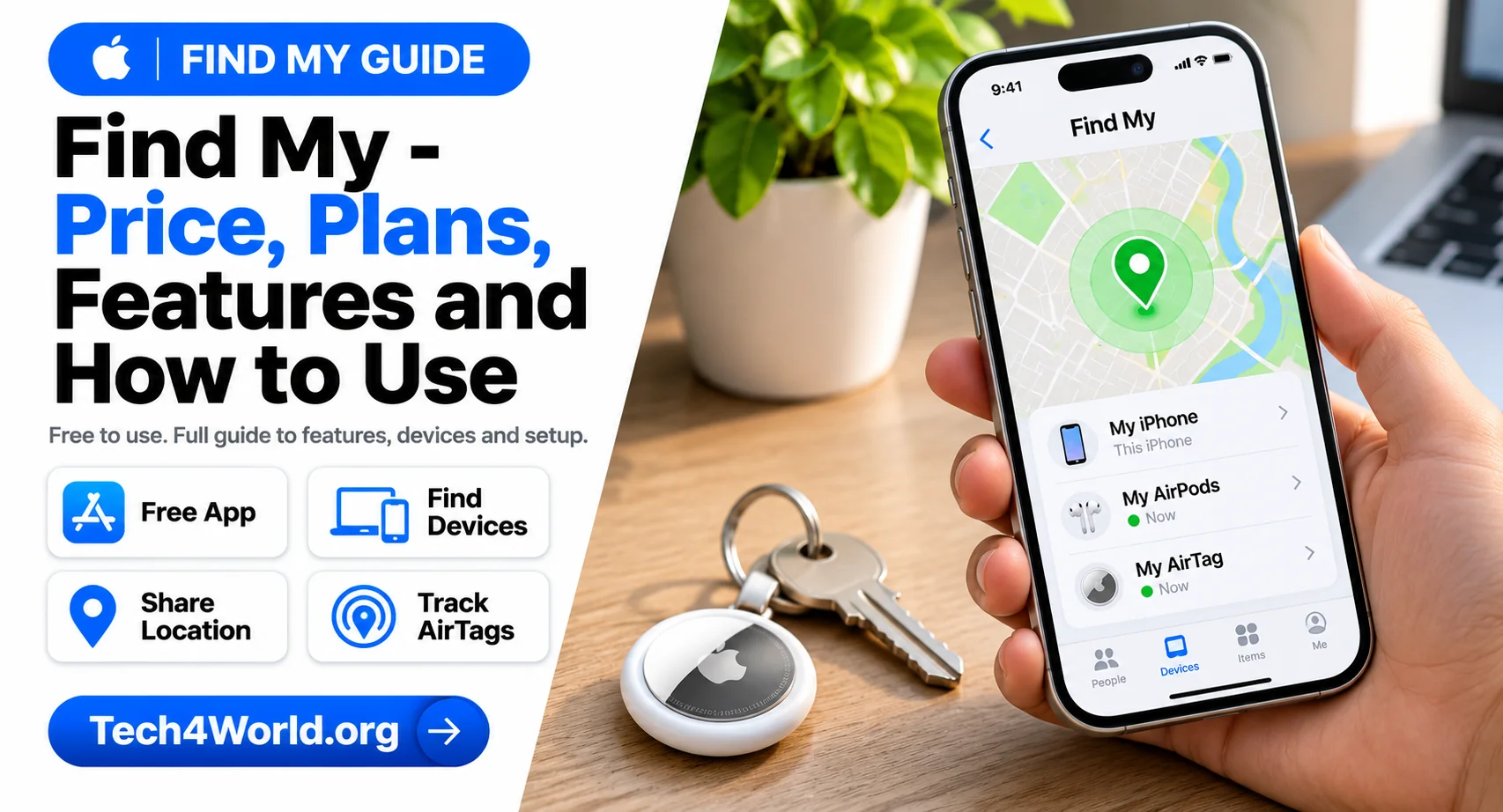
Real talk, almost everybody has had that heart-stopping moment where you pat your pockets and your phone just isn’t there. Mine happened at a coffee shop last month, and I was thirty seconds from full panic mode before I remembered I had Find My set up. Two taps later, my iPhone was pinging from under a jacket on the next table. Honestly, that one feature has saved me more headaches than half the apps I pay for.
So if you’re wondering about Find My price, plans, free trials, student discounts, and whether there’s a sneaky subscription hiding somewhere, this guide covers it. I’ll also walk you through how to use it, which devices work, how family sharing fits in, and what to do when things act up.
What Is Find My
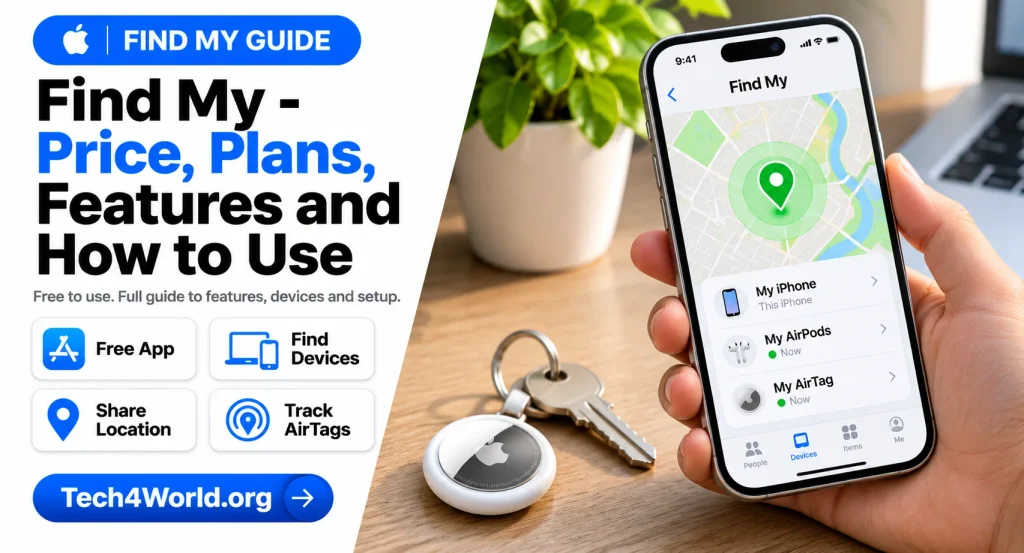
Find My is Apple’s built-in service for keeping track of your devices, your stuff, and the people you care about. It lives as an app on iPhone, iPad, and Mac, and you can also reach it through a browser at iCloud.com. Apple describes it as one app for locating your Apple devices, even offline, plus items tagged with an AirTag and friends who choose to share their location.
Years back, Apple ran two separate apps for this, Find My iPhone and Find My Friends. They got merged into one, and that’s what you have today. Pretty sweet upgrade, since you no longer bounce between two screens when you’re stressed.
Here’s what the app does:
- Shows your devices on a map, including iPhone, iPad, Apple Watch, Mac, and AirPods
- Plays a sound so you can hunt a device down when it’s nearby
- Lets you mark a device as lost, lock it, and show a message with your contact info
- Lets you remotely erase a device if it’s gone for good
- Tracks AirTags and other accessories attached to keys, bags, and bikes
- Lets friends and family share locations with each other
The offline magic comes from the Find My network. Apple says it’s made up of over a billion iPhone, iPad, and Mac devices worldwide. When your lost gadget can’t get online, nearby Apple devices pick up its Bluetooth signal and quietly relay its location to you. It’s anonymous and encrypted, so the strangers whose phones helped out never know, and Apple can’t see it either. Not gonna lie, that’s a clever setup.
One more thing: some devices, like iPhone, can still send their location for up to 24 hours after being turned off or running out of battery. That window can be the difference between recovering a phone and writing it off.
Find My Price and Plans
Let’s tackle the big question. A lot of people search for Find My price expecting a monthly fee. Here’s the honest answer: it’s free. No subscription, no premium tier, no paywall for the core features. If you own a supported Apple device and you’re signed in with your Apple Account, you already have it.
That’s a solid deal when you think about what’s included: device tracking, Lost Mode, remote erase, location sharing, and network support, all at zero cost with Find My. If a website tells you there’s a “Find My Pro” plan, be careful.
So where does the confusion come from?
iCloud+ is a separate thing. It’s Apple’s paid storage plan, with extras like more storage and privacy features. The app doesn’t require it, and it works fine on the free iCloud tier. People mix the two up because the settings live in the iCloud section of your account.
AirTags cost money, but the app doesn’t. If you want to track keys or a backpack, you’ll buy an AirTag or another compatible accessory once. There’s no monthly fee afterward. Check Apple’s site or a retailer for the current price.
Lookalike apps in the App Store. Some charge weekly fees for phone tracking. You don’t need them if you’re in the Apple ecosystem.
Apple One bundles. Handy if you want Apple Music and TV+ anyway, but it has nothing to do with unlocking tracking.
Quick summary:
| What | Cost |
|---|---|
| The app itself | Free |
| Device tracking and Lost Mode | Free |
| Location sharing | Free |
| AirTag or accessory | One-time purchase |
| iCloud+ | Optional, separate |
Find My Free Trial and Student Discount
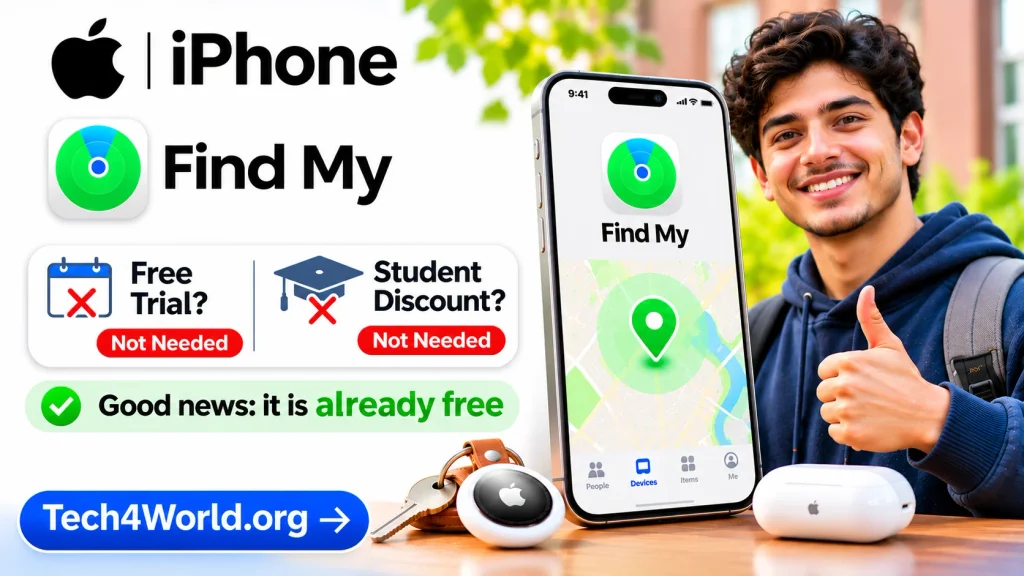
Since Find My is already free, there’s no trial to hunt for. Trials only make sense when something eventually costs money. You can use every feature today, tomorrow, and next year without a card on file.
Same logic for student discounts on Find My. You’ll see people searching for one, but there’s nothing to discount. A college student with a used iPhone gets the exact same experience as someone with the newest Pro model. Honestly, that’s one of the best parts.
If you’re a student and want to save money on related stuff, here’s where discounts actually exist:
- Apple Education pricing can lower the cost of a new Mac or iPad
- Student offers on Apple Music may be available in some regions
- Family Sharing lets up to six people share things like iCloud+ at no extra cost
If a site pushes a “limited time trial,” treat it as a red flag. That’s usually a scam or a lookalike trying to bill you.
How to Subscribe to Find My
There’s no subscription, so “subscribing” to Find My just means turning it on. It takes about a minute.
On iPhone or iPad:
- Open Settings and tap your name
- Tap Find My, then Find My iPhone (or iPad)
- Switch on Find My iPhone
- Turn on Find My network and Send Last Location
That last pair matters more than most people realize. The network toggle lets your device be located when offline, and Send Last Location pings Apple with your position right before the battery dies. Flip both on right now if you haven’t.
On Mac: open System Settings, click your name, then iCloud, and turn on Find My Mac. Make sure Location Services is enabled.
On Apple Watch: it turns on automatically when you enable it on the paired iPhone.
Location Services has to be on for any of this to work. If you disabled it under Privacy settings, the app can’t tell you much when something goes missing. Once enabled, your devices appear under the Devices tab, and any AirTags show up under Items.
How to Cancel Find My
Again, nothing to cancel in the billing sense. But there are times you’ll want to switch it off, and doing it right matters.
Selling or giving away a device. This is the big one. Before handing over a phone or Mac, turn the feature off and sign out of your Apple Account. That removes Activation Lock, which stops anyone else from using the device with your credentials. Skip it, and the new owner ends up with a locked brick.
To turn Find My off on iPhone: go to Settings, tap your name, tap Find My, tap Find My iPhone, switch it off, and enter your password.
Removing a device from your account. Tap the device under Devices and use the remove option once it’s offline, or do it from iCloud.com.
Stopping location sharing. Open the People tab, tap the person, and choose Stop Sharing My Location.
Removing an AirTag. Open Items, tap the AirTag, and choose Remove Item before giving it away.
Real talk, only turn things off with a reason. Leaving Find My on is the safer default, because it’s your best shot at recovering a device and protecting your data.
How to Use Find My
Now the fun part.
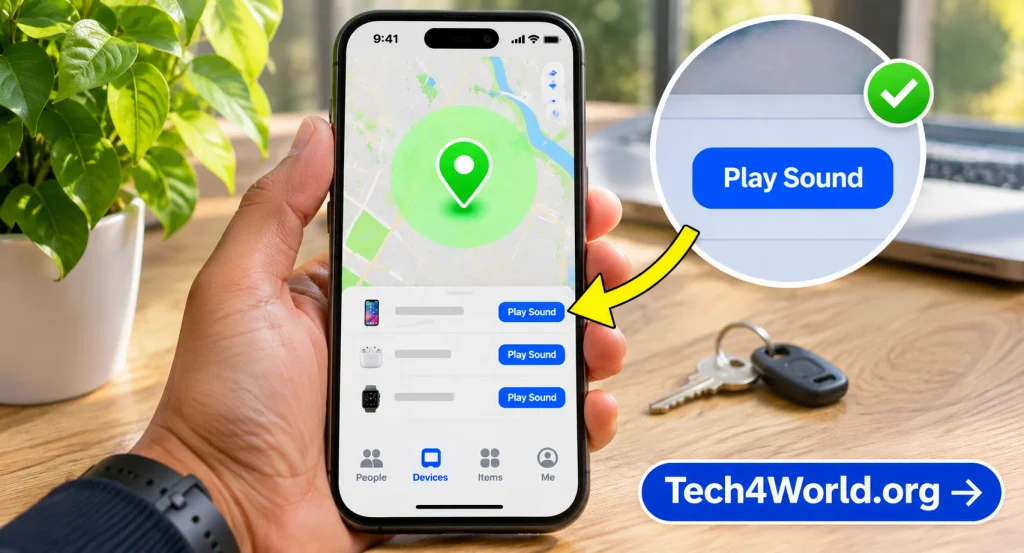
Locating a lost device. Open the app, tap Devices, and pick the one you’re missing. Tap Directions to open Apple Maps. When you’re close, tap Play Sound and listen.
Using Lost Mode. If you can’t recover it right away, turn on Mark As Lost. This locks the device, lets you show a phone number on the lock screen, and tracks its location. Apple notes it also protects your data with a passcode.
Erasing a device. If you’re convinced it’s stolen, you can erase it remotely. Fair warning, afterward you may not be able to locate it, so try Lost Mode first.
Tracking items with AirTag. Attach an AirTag to your keys, add it through the Items tab, and name it. If it’s nearby, Precision Finding shows distance and direction on newer iPhones, like a little game of hot and cold.
Sharing your location. Open People, tap the plus button, and invite someone. You can share for an hour, until the end of the day, or indefinitely.
Share Item Location. If an item is lost, you can temporarily share its location with someone else, including airlines. Apple says it stops when you’re reunited with the item or after seven days.
No Apple device handy? Go to iCloud.com/find on any browser, sign in, and locate your devices from there. It’s a lifesaver when your only phone is the thing that’s lost.
Find My Supported Devices
According to Apple’s own listings, Find My works with:
- iPhone
- iPad
- iPod touch
- Apple Watch
- Mac
- AirPods
- Apple Vision Pro
- AirTag
- Accessories from other brands built for the network
That last one is worth a closer look. Plenty of companies now build support into bike locks, luggage, and wallet trackers. They use the same network, so you track them in the same app with no extra subscription.
Some features depend on the model. Satellite location sharing needs a newer iPhone, and Apple’s pages mention iPhone 14 or later in some places and iPhone 15 or later in others, so check your country’s current requirements. Precision Finding needs the ultra wideband chip, which is why older iPhones can’t show the directional arrow.
Android and Windows users? It isn’t built as a native app for those platforms, but the iCloud.com website works from any computer’s browser. If you’re all Android, you’ll want Google’s tools instead, which I cover below. And update your devices when you can, since newer software unlocks newer features.
Find My Family Sharing
Family Sharing is where this goes from handy to genuinely useful. Apple says it lets up to six people share things like Apple Music, Apple TV+, and iCloud+ at no extra cost, and it plays nicely with location tools.
When you share your location with family members, your devices show up in their app under Devices. So if you can’t find your phone and your partner’s is nearby, you can use theirs to track yours down.
Here’s why that matters in real life:
- Parents and kids. You can see when your child gets to school or heads home. Just talk honestly with older kids about it, because nobody likes feeling secretly watched.
- Couples. Easy pickups and no more “where are you?” texts.
- Shared items. Apple says you can share an AirTag with up to five other people, and everyone can use Precision Finding when nearby. Great for the spare house key that always vanishes.
- Elderly relatives. Knowing a parent made it to the doctor can take a lot of worry off your plate.
To set it up, go to Settings, tap your name, tap Family Sharing, and invite people. Then open the People tab and start sharing. Everyone controls their own sharing, which is the right call for privacy.
Speaking of which, Apple states location data is encrypted and retained for only 24 hours, and on the network, everyone’s information stays private even from Apple. You can stop sharing any time.
Find My Tips and Hidden Features
Here’s the stuff most people miss.
Turn on Notify When Left Behind. Probably the best feature nobody enables. It warns you if you leave a device somewhere unfamiliar. Set home and work as trusted locations so you don’t get pinged constantly.
Add the widget. Long-press your home screen, add widgets, and drop in the Find My widget to track devices at a glance.
Use Live Locations. Share your position in real time for an hour, a day, or indefinitely, and see roughly which direction someone is traveling.
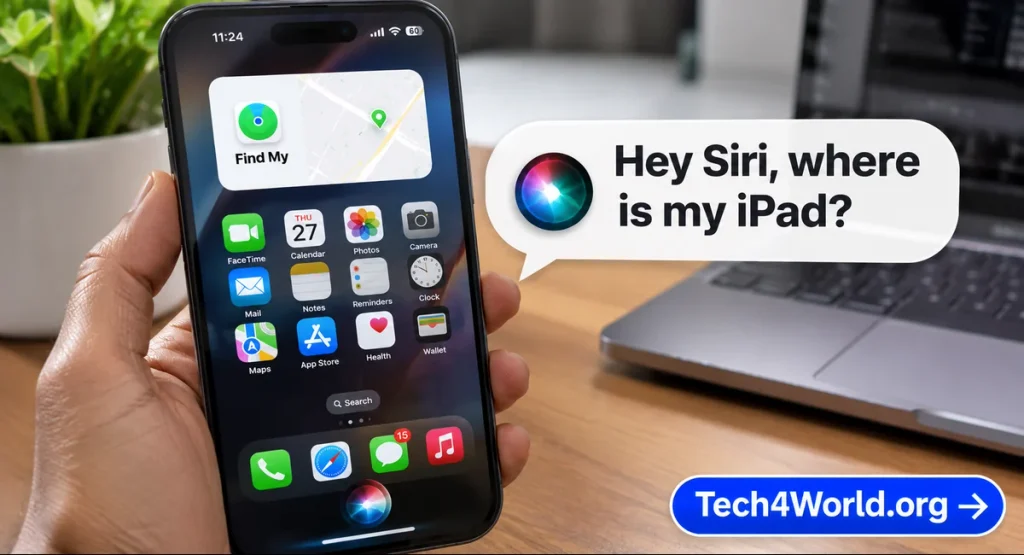
Ask Siri. Say “Hey Siri, where’s my iPad?” It’s faster than digging through menus.
Add contact info to AirTags. Anyone who taps a lost AirTag with a phone can see your details, so a kind stranger can actually return your keys.
Name devices clearly. If you have three iPads, “iPad” isn’t helpful. Try “Kitchen iPad.”
Use satellite sharing if you hike. On a compatible iPhone, you can send your location with no cell service. Set it up before the trip, not during.
Enable the network on every device. I said it earlier, but it bears repeating. Plenty of people skip it, then wonder why an offline device never shows up.
Common Find My Problems and Fixes
“Location Not Available.” Usually the device is offline, powered off, or the network toggle is off. Check the setting and try later.
Old location showing. The app shows the last known spot if it can’t reach the device. Wait a few minutes and refresh. AirTags rely on passing Apple devices, so quiet areas take longer.
Sharing isn’t working with a friend. Make sure both of you have Location Services on, are signed into iCloud, and have a decent connection. Check Settings, Privacy, Location Services.
Find My won’t turn on. Sign out of your Apple Account and back in, update your software, and confirm two-factor authentication is enabled.
Can’t remove a device. It generally needs to be offline, and Activation Lock must be cleared by the owner. If you bought a used device that’s still locked, ask the seller to remove it. Real talk, don’t buy a locked device from a stranger.
AirTag isn’t connecting. Replace the battery, keep it close to your iPhone, and re-add it with Bluetooth on.
Unknown AirTag alert. Take it seriously. Apple built these alerts to protect against unwanted tracking. Follow the steps on screen and contact local authorities if you feel unsafe.
If nothing works, Apple Support can help with account-specific issues, and a restart fixes more than anyone wants to admit.
Find My vs Alternatives
Is Apple’s tool the only game in town? Not even close, but it’s very good at its job.
Google Find Hub (formerly Find My Device). The Android equivalent, using a similar crowdsourced network. Free, and great if you’re in Google’s ecosystem, but it won’t track an iPhone.
Samsung SmartThings Find. Solid for Galaxy devices and SmartTag trackers.
Tile. Standalone Bluetooth trackers that work on both iPhone and Android. Basics are free, but some features may need a paid plan, and the network is smaller than Apple’s.
Life360. Popular for family location sharing, with extras like driving reports. Many of those sit behind paid tiers.
Google Maps location sharing. Free and cross-platform, but it doesn’t track lost devices or items.
If you live in Apple’s world, the built-in option is the obvious pick since it costs nothing and uses a huge network. If your household mixes platforms, you might use Find My for the Apple gear and something else for the rest. Nothing wrong with that.
Find My FAQs
Question – Is Find My really free?
Answer – Yes. The app and its core features cost nothing. You only pay for hardware like an AirTag or an optional iCloud+ plan.
Question – Do I need iCloud+?
Answer – No. The free iCloud tier works fine.
Question – Is there a Find My free trial or student discount?
Answer – No, because there’s no charge. Every feature is available once you sign in with your Apple Account.
Question – Can it track a device that’s turned off?
Answer – Often, yes. Some devices can still send their location for up to 24 hours after shutdown or low battery, and the network can help relay a signal too.
Question – Does it work without internet?
Answer – The missing device doesn’t need its own connection if the network is on, since other Apple devices can pass along its Bluetooth signal.
Question – Can someone see my location without me knowing?
Answer – No. You choose who to share with, and you can stop any time.
Question – Can I use Find My on Android?
Answer – There’s no native app, but you can sign in at iCloud.com/find from a browser.
Question – Can I track anyone I want?
Answer – Only people who agree to share with you. It’s built around consent.
Question – What happens if I erase my device?
Answer – It wipes the data, and you may not be able to locate it afterward. Try Lost Mode first.
Question – do I find my phone with only a laptop?
Answer – Visit iCloud.com/find, sign in, and pick your device.
Question – Does Find My drain my battery?
Answer – Not noticeably in normal use. Long real-time sharing can use a bit more, so adjust if needed.
Final Thoughts
Bottom line: Find My is free, built in, and more capable than most people give it credit for. No subscription to manage, no trial to cancel, no student discount to chase, because there’s nothing to pay for. You just flip a few switches before you need it.
Spend five minutes today. Turn on the network, enable Send Last Location, set up Notify When Left Behind, and invite family to share locations if everyone’s comfortable. Future you, standing in a parking lot at midnight, will be very thankful.
Got a story about Find My rescuing a lost phone or bag? Drop it in the comments.